Introduction
When a customer walks in and you need to check out their order, this is how you can do it.
Pick a Customer Before Making a Sale
Before making a sale and proceeding to checkout, you need to pick a customer.
You can either select an existing customer or create a new customer.
Option - Pick a Frame for Sale
By default, the "Frame" category is selected on the product selection screen. Change from the top bar.
Use the search bar to quickly locate a specific frame by entering the frame's name or code. Alternatively, browse through the frame listings by scrolling if you are unsure of the exact details.
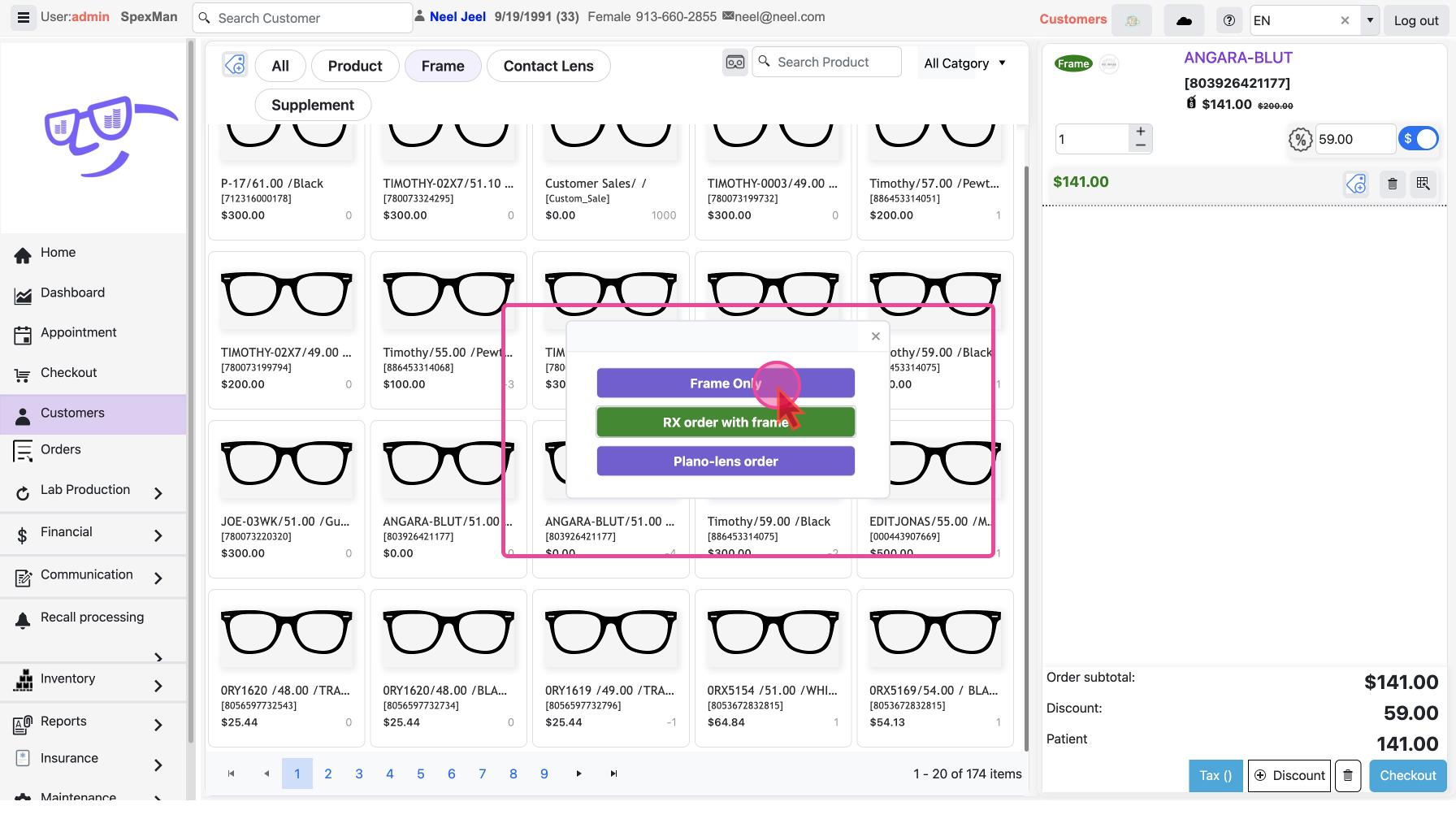
Once you find the desired frame, click on it to select it. This opens a pop-up with three options -
Frame Only and RX Order with frame.Frame Only:
This will add just the frame to the customer’s shopping cart. There are times when patient brings his own frame you can add also. Read
RX Order with frame:
If the customer is seeking prescription eyeglasses, the process then involves several steps from initial patient search to finalizing the order with custom options.
Option - Pick other items for Sale
You can also add items that are not Frames like
Products, Custom Sales, Contact Lens , Supplements and Patient Own Frame (POF) in the order.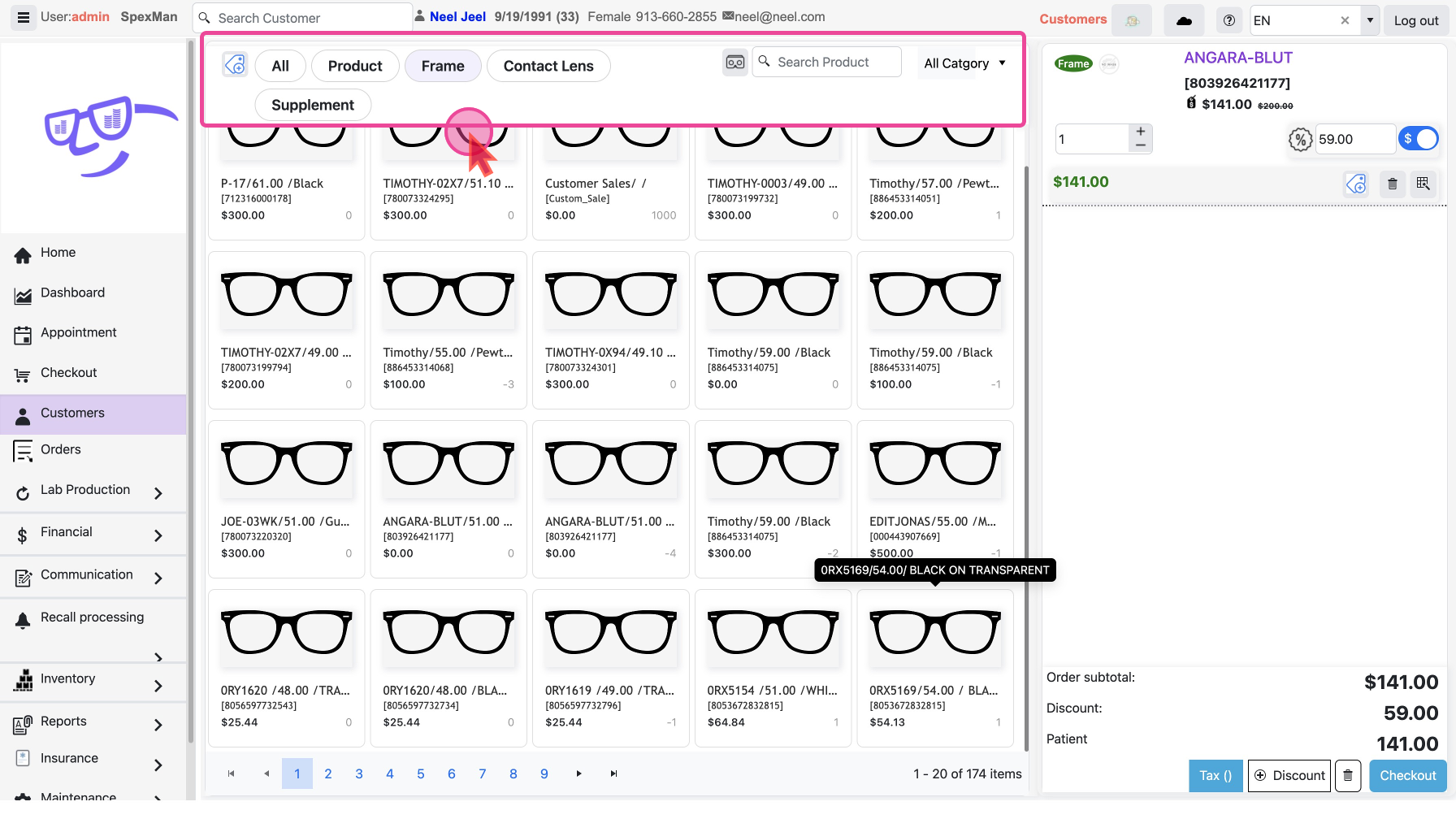
Add Products : Select
Products to see only products from inventory and click to add to the cart.
Add Supplements / Add-ons : Select Supplements to see only Add-ons from inventory and click to add to the cart.
Add a Custom Sale : You can add items that are not in inventory to your order.
Patient Own Frame (POF) : If patient brings their own Frame that can be added. Cart operations
All the items added will be visible on the right side with item totals and cart totals. You can continue to add more Items.
Now there are actions that you might have to take before doing the checkout like -
- Change Item Quantity & Prices: After the Items have been added you may want to change the number of units of an Item or do an ad hoc price adjustment.
- Delete Items: There are tines when you need to remove some items from the cart or may be remove all items
- Apply Discounts: You can apply discounts on your entire cart or individual items.
- Apply Taxes: You can set Taxes for the items in an order.
Checkout
Once all the items are added and all details are final, you can click the
Checkout button to create the order. The order can be created by taking full or partial payment, or without taking payment.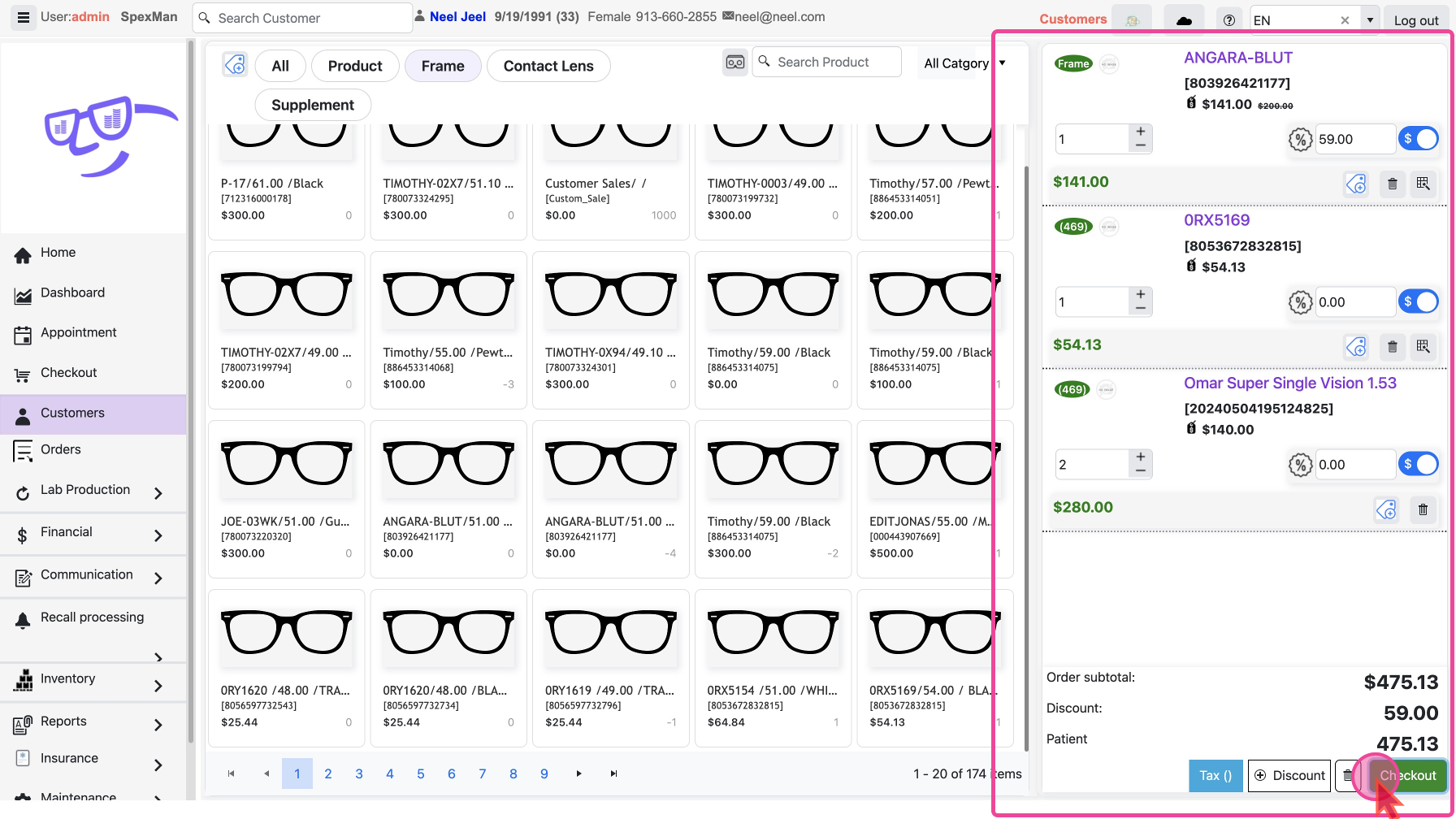
Learn more about checkout and payments:How to Process Orders Using patient’s own frame (POF)Sell Random Items that are not in InventoryCheckout with taking partial or full PaymentCheckout without taking Payment - Pay laterGive a quotation to the customerHow to handle Pending Orders / Abandoned Carts?
