Introduction
Learn how to go about applying discounts to invoices. This guide will walk you through the process of adding both item-specific and whole-invoice discounts.
Apply Item-Specific Discounts
Discount can be applied both in terms of percentage or an flat value.
Flat Rate Discount
- Locate the item on the invoice, and enter the discount amount directly next to the item's price. For example, to apply a $90 discount, type '90' in the discount field.
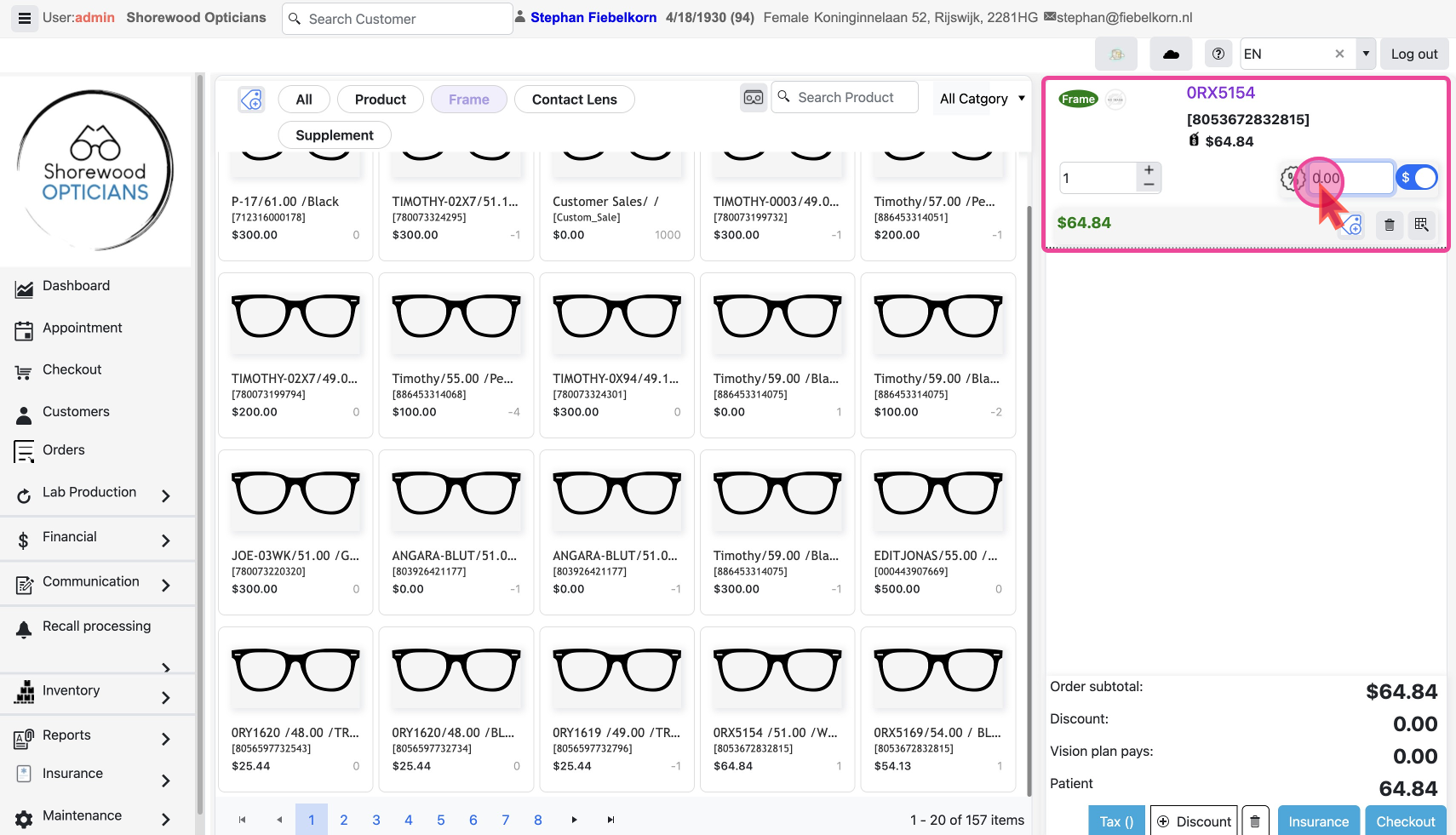
- Click away from the field to update the price automatically.
Percentage Discount
- To apply a percentage discount instead, first remove any dollar amount previously set.
- Switch the discount mode from a flat rate to a percentage by
toggling the switch.
- Enter the desired percentage, such as 50%,
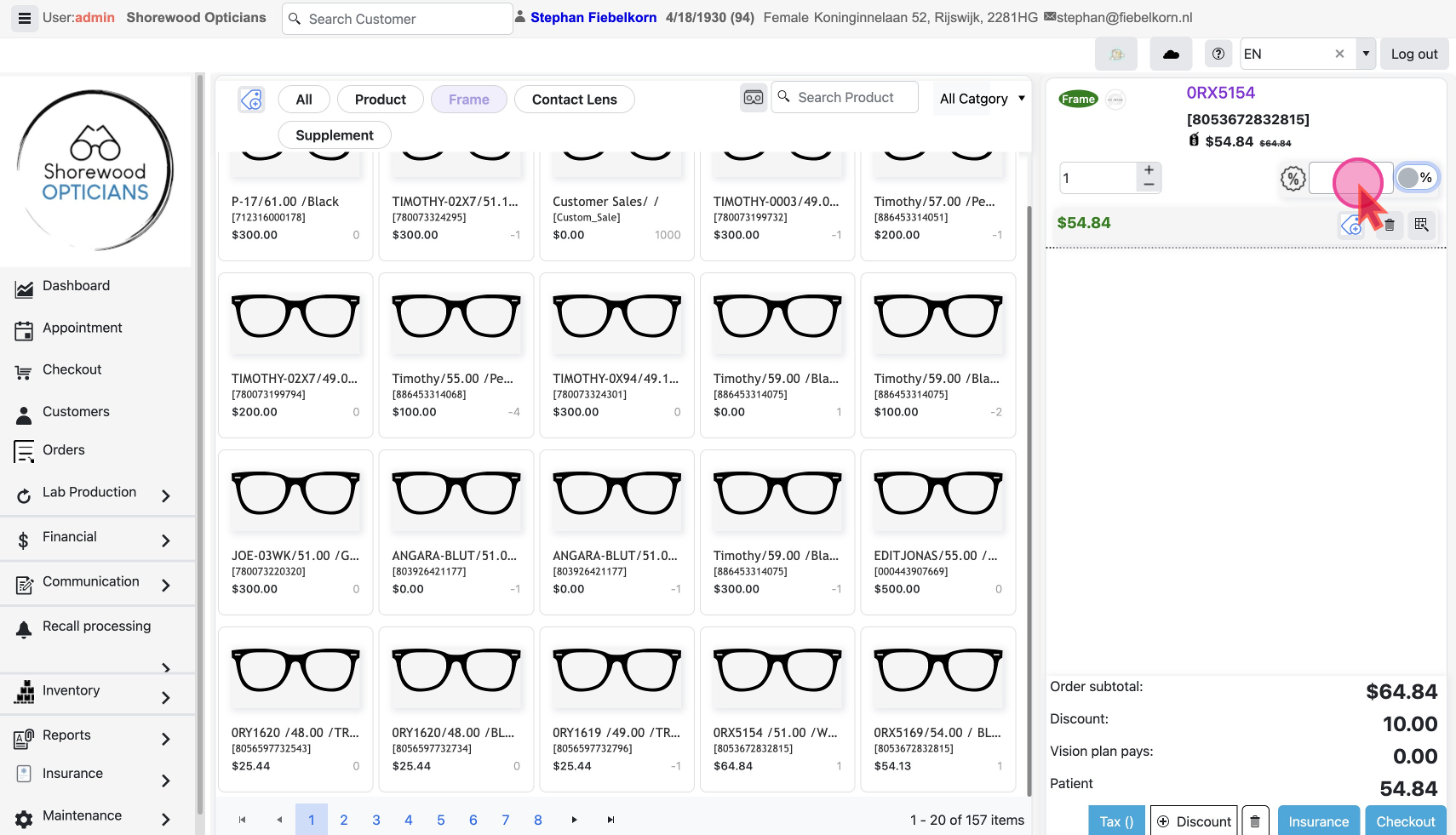
- and click away to see the price adjust accordingly.
Apply discount on Total amount in Cart / Invoice
Note: Applying this discount will remove existing discounts from individual line items. The total discount will be applied to every item.
Click on the
Discount Button on the bottom, this will open a pop-up with the form. 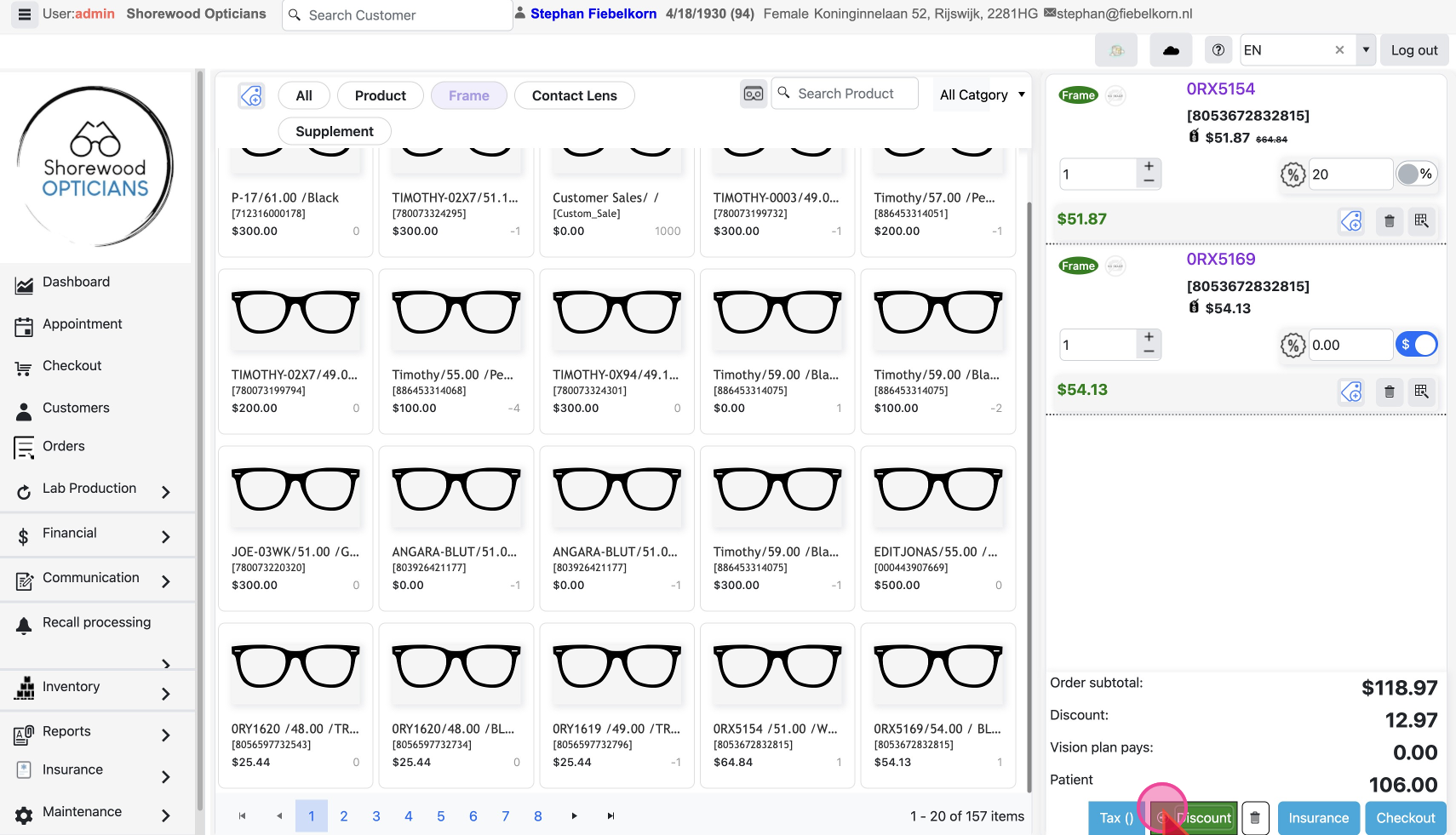
Use the same methods as the item-specific discounts -
- Select $ or % discount button
- Type in the discount value
- Give a reason for the record
- Click
Confirm
This time the discount will be applied to the entire cart.
