Introduction
Sometimes, after the cart has been filled and it’s time to ring up. But, the customer is undecided or unwilling to check out just then. This article explores the potential actions and next steps you can take for abandoned carts.
Accessing Pending Orders
To see all the abandoned transactions click on the
pending orders tab inside Maintenance in the left menu.Checkout Cart is auto-saved
Once you add items to the checkout cart, the transaction is always available in the
pending orders. All abandoned transactions are available there.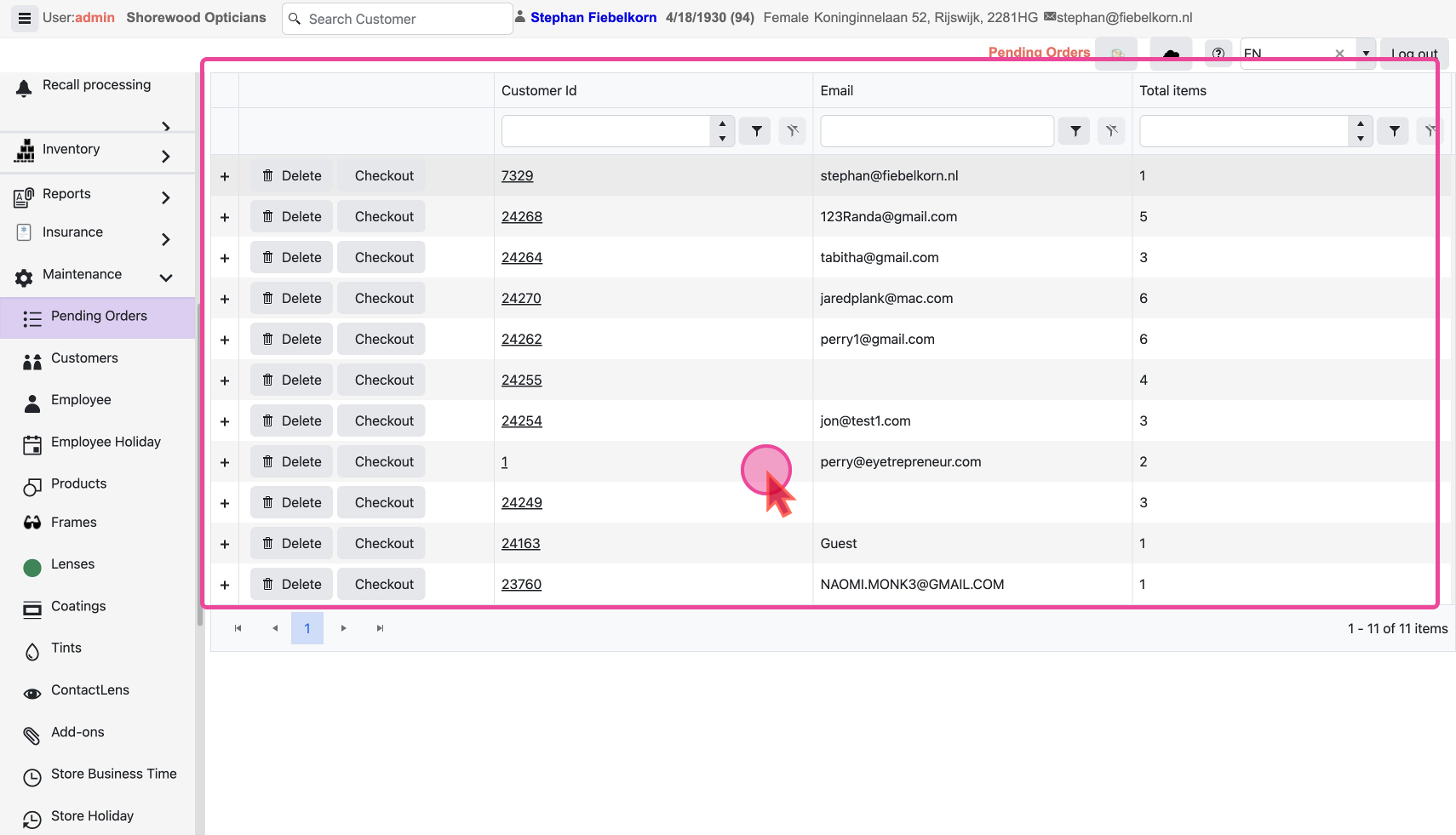
NOTE: At a time there is only ONE pending record for a customer.
So whenever the customer walks in again and you start checkout with his profile the pending order will automatically be loaded in the cart again.
Manage Pending Orders
Search: You can search by the
Customer ID or Customer Email to find the pending order for a customer.Review Order Details: You can see all the pending orders right here. To see the details click the
+ against the order.Delete Pending Order: Clean out old records by deleting them from time to time by clicking the
Delete button on the line.Note: If you delete all items from the Checkout Cart the pending record will get deleted automatically
Push to Checkout Cart
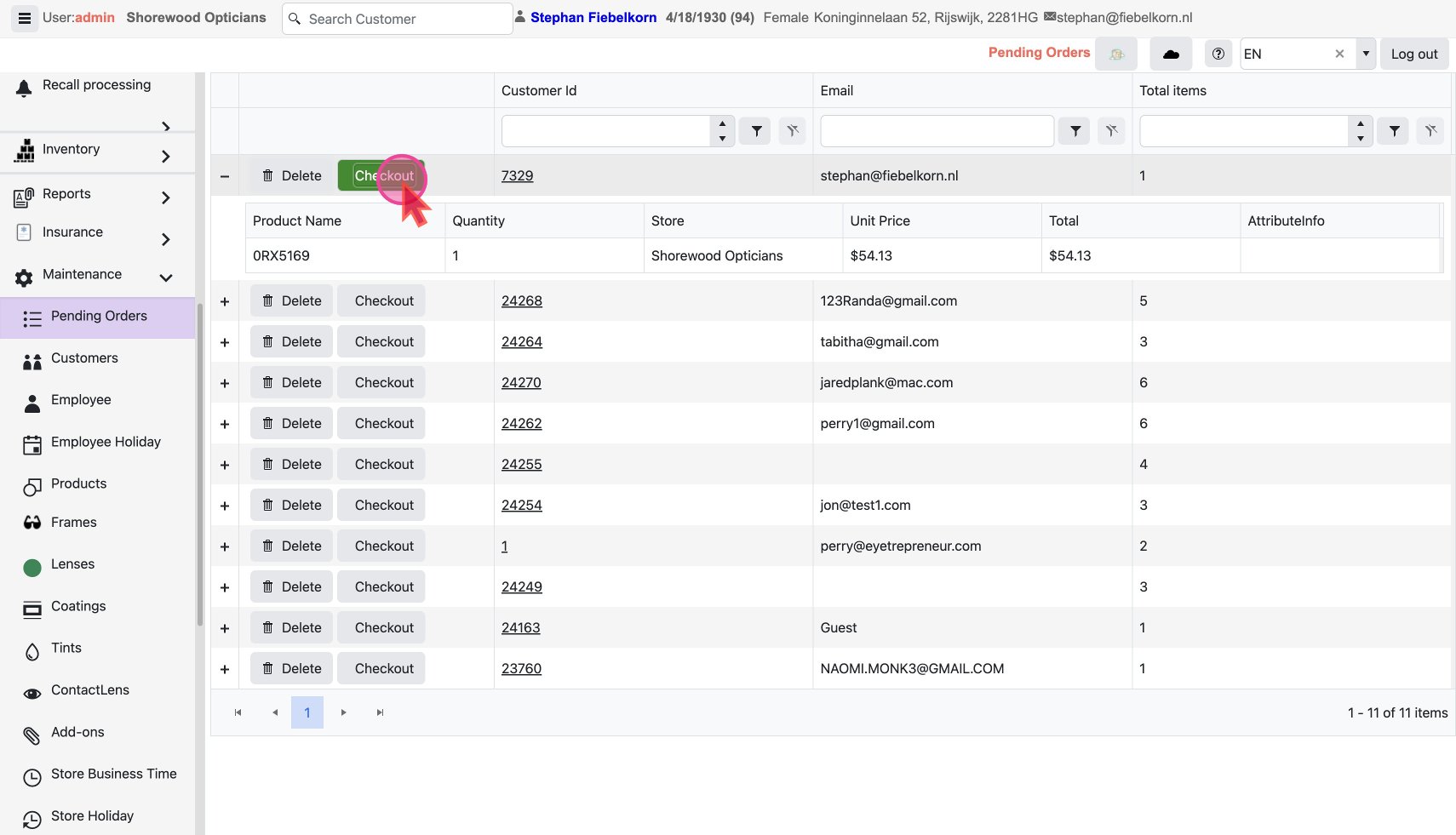
Start checkout from the order again by clicking the
Checkout button. This will take you to the Checkout Cart for the customer with the Items loaded in.This is a great way to capture the stalled sales, allowing retail associates to efficiently manage and recover incomplete checkouts.
