Introduction
If the customer is undecided or unwilling to check out when their cart is filled, you can give them a quotation - printed or via email.
Create a quotation
Locate and click the
Checkout button at the bottom right of the Checkout page to open a pop-up with the order details.
Instead of taking payment, click on the
Quote button to create a quotation. The quotation gets created with all the details of the items & pricing.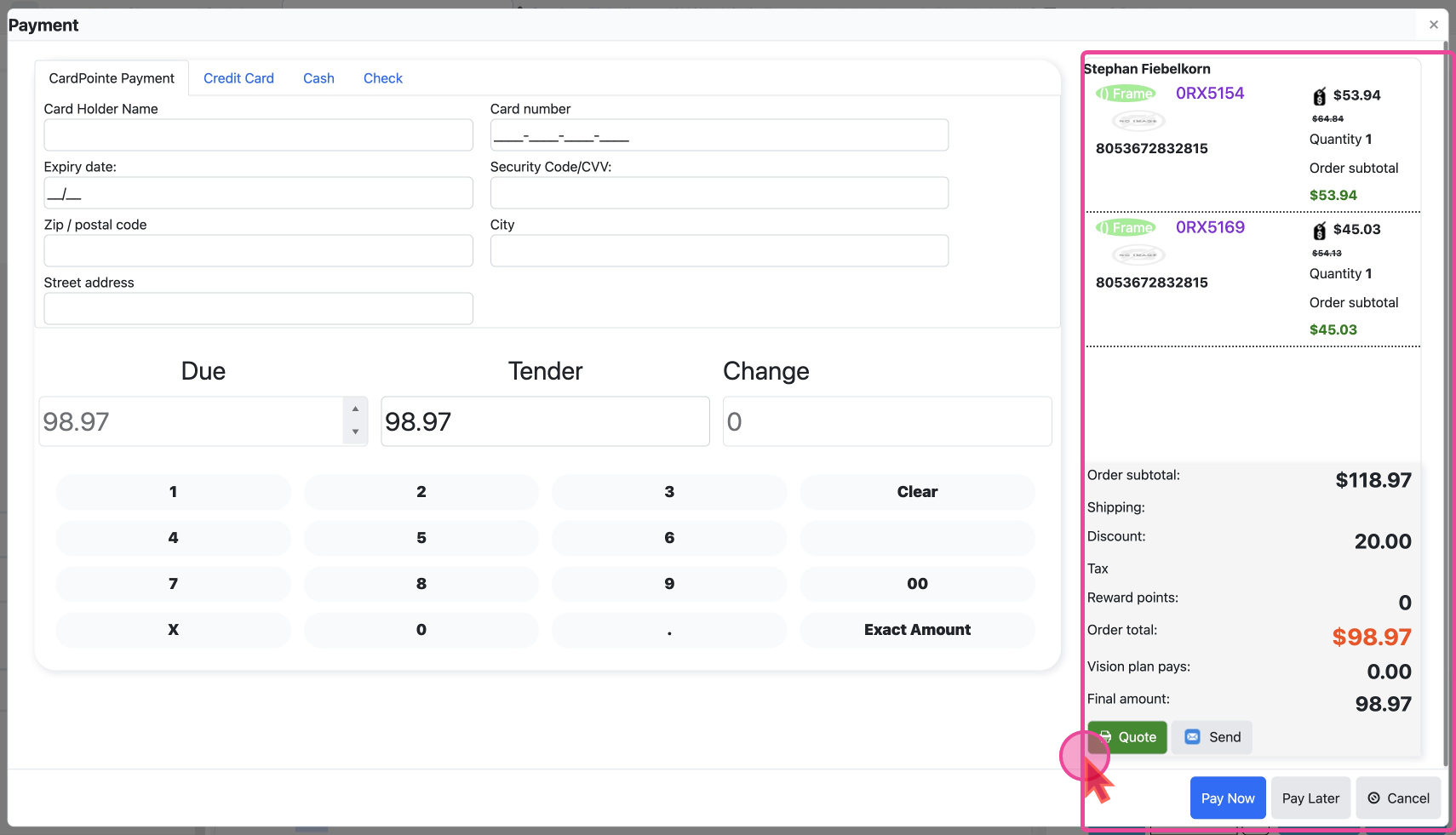
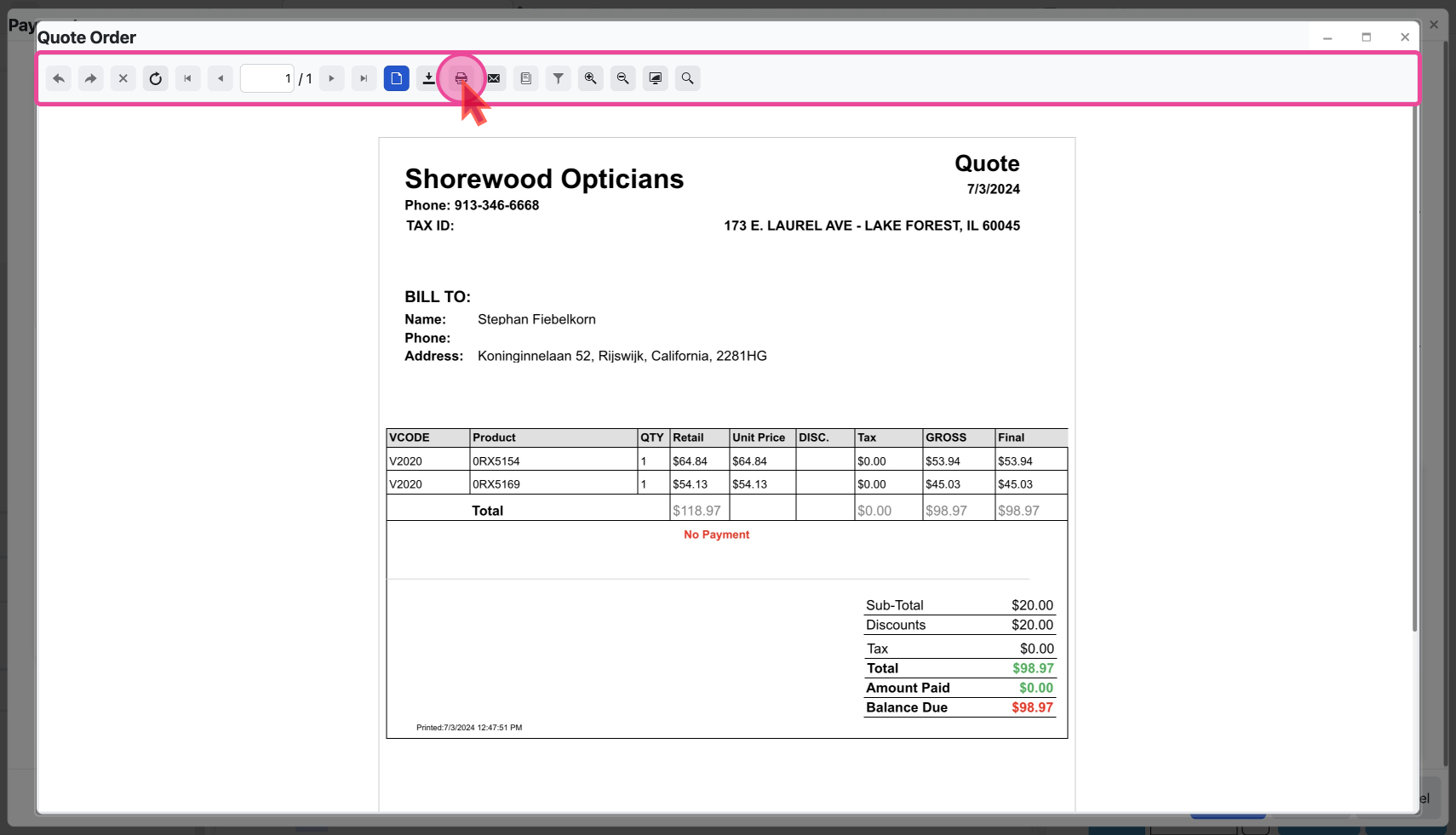
After creating the quotation, you can print or send it via email.
Print the quotation
You can print out the quotation to hand it over to the customer, or simply download it via the actions bar.
Share via email
Choose the
Email option from the actions bar if you want to send the quotation as an email.
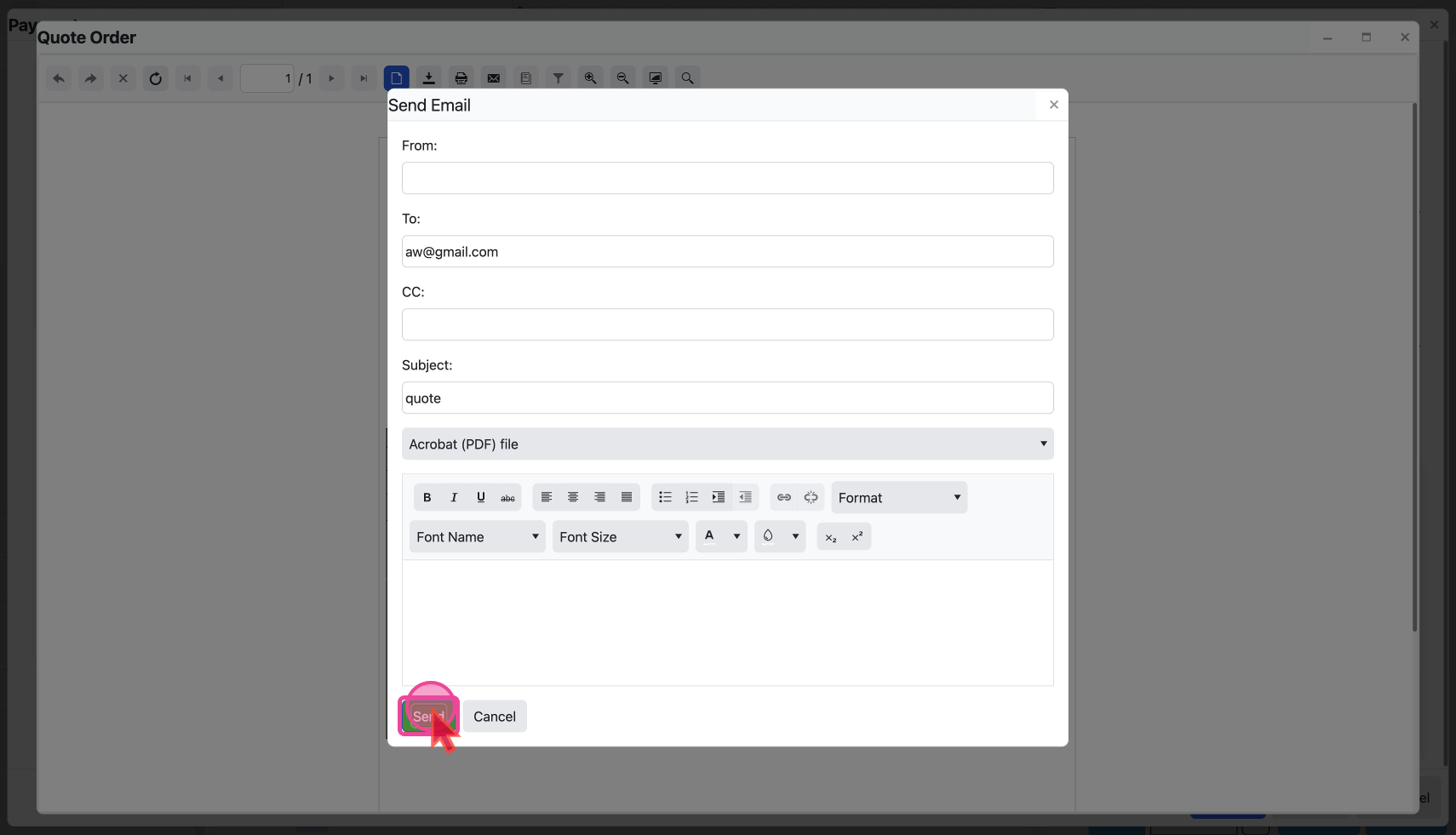
A pop-up will open where you can add the customer's email and all related information. You can add additional info to the email, while the quotation is automatically embedded.