Introduction
When a customer walks in and you want to check out their order, you’ll need to select a customer first to start the checkout process.
Select an existing Customer
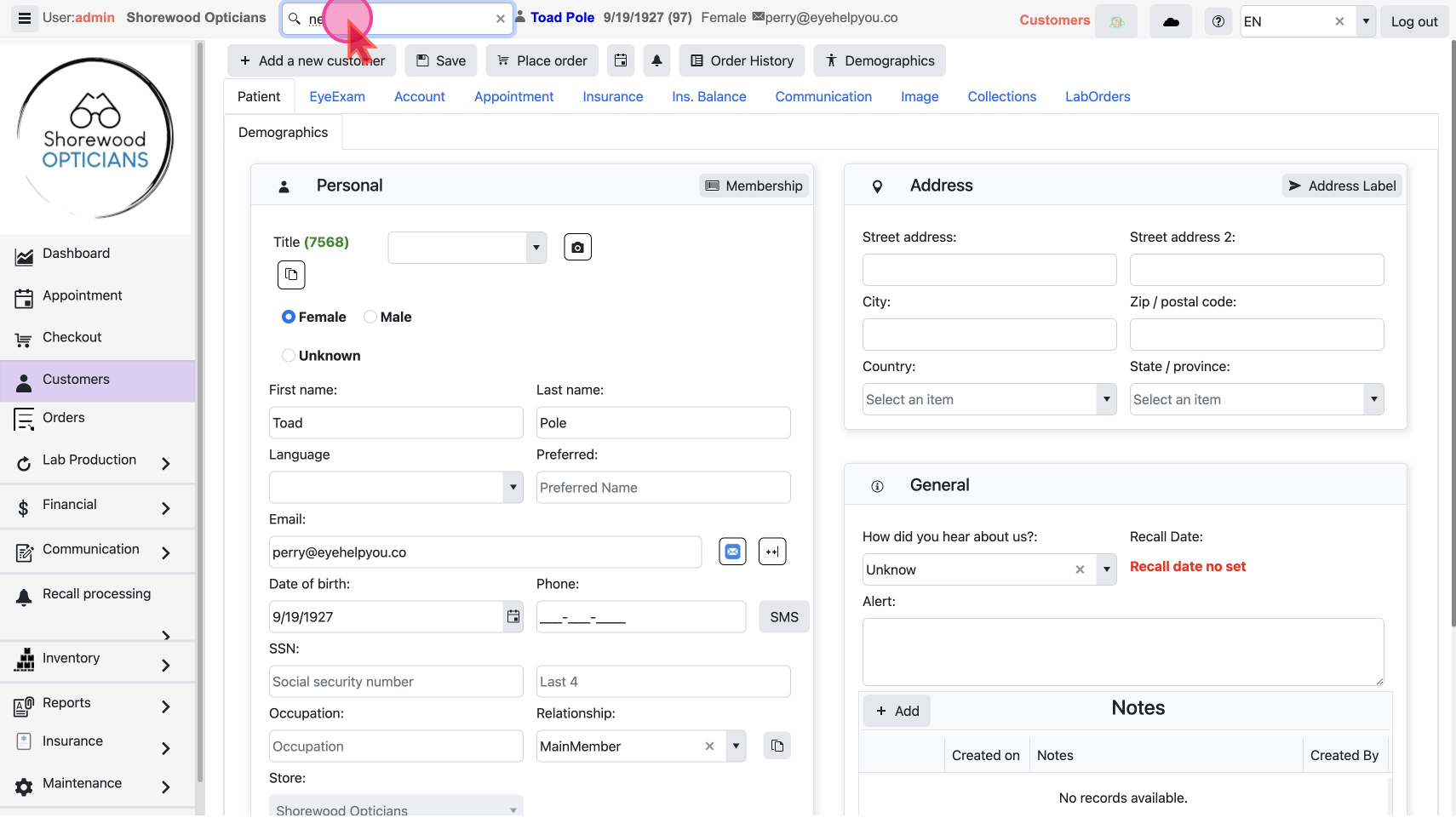
- Search: Use the search bar on top, type in the customer's ID, name, email, or phone number and press
ENTER.
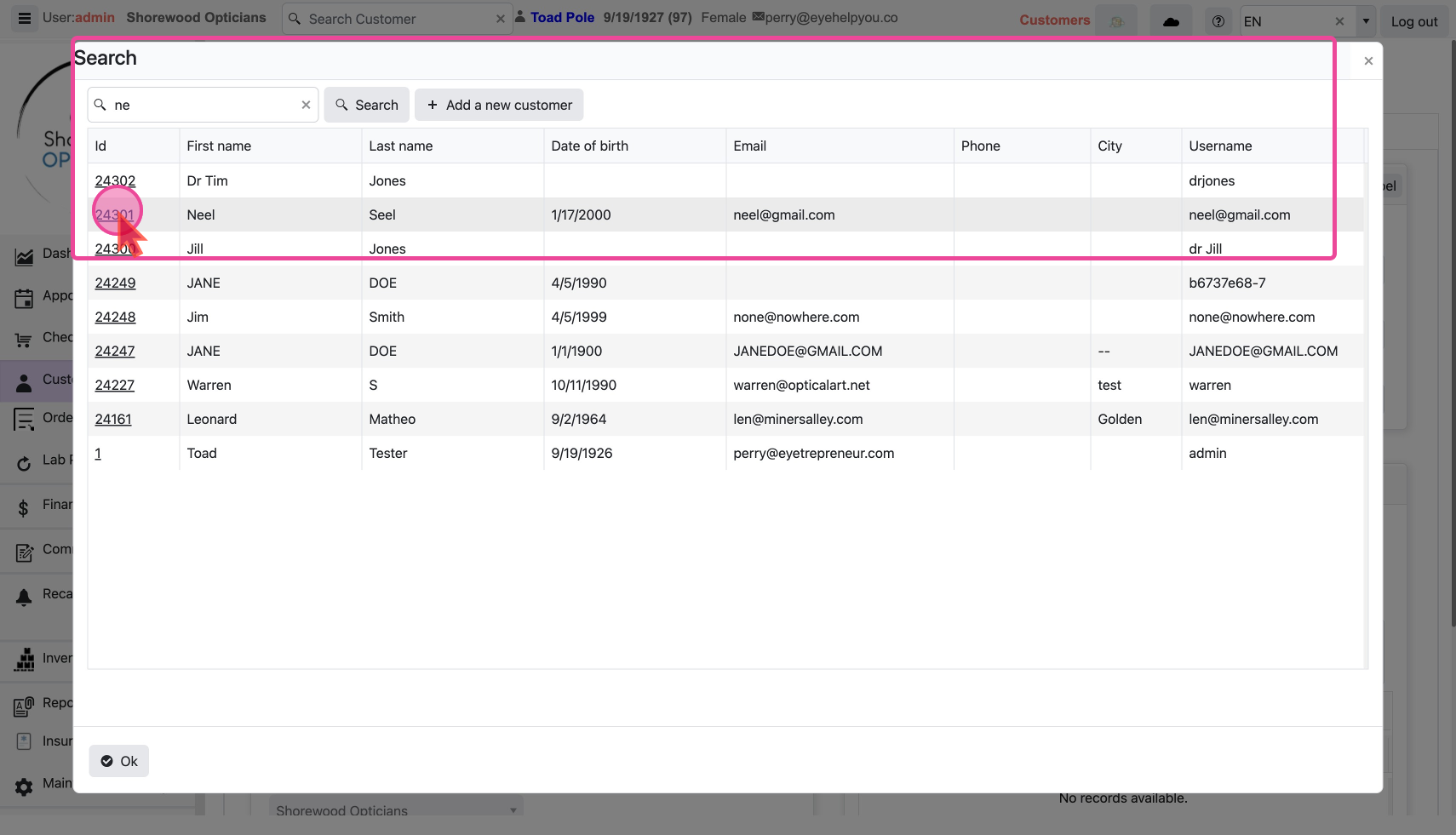
- Select Customer Record: From the search results, identify and click on the desired customer record to select it. The record will be highlighted to indicate selection.
Add a New Customer
If the customer is coming for the first time or you searched but couldn’t find them in system, it’s time to add them.
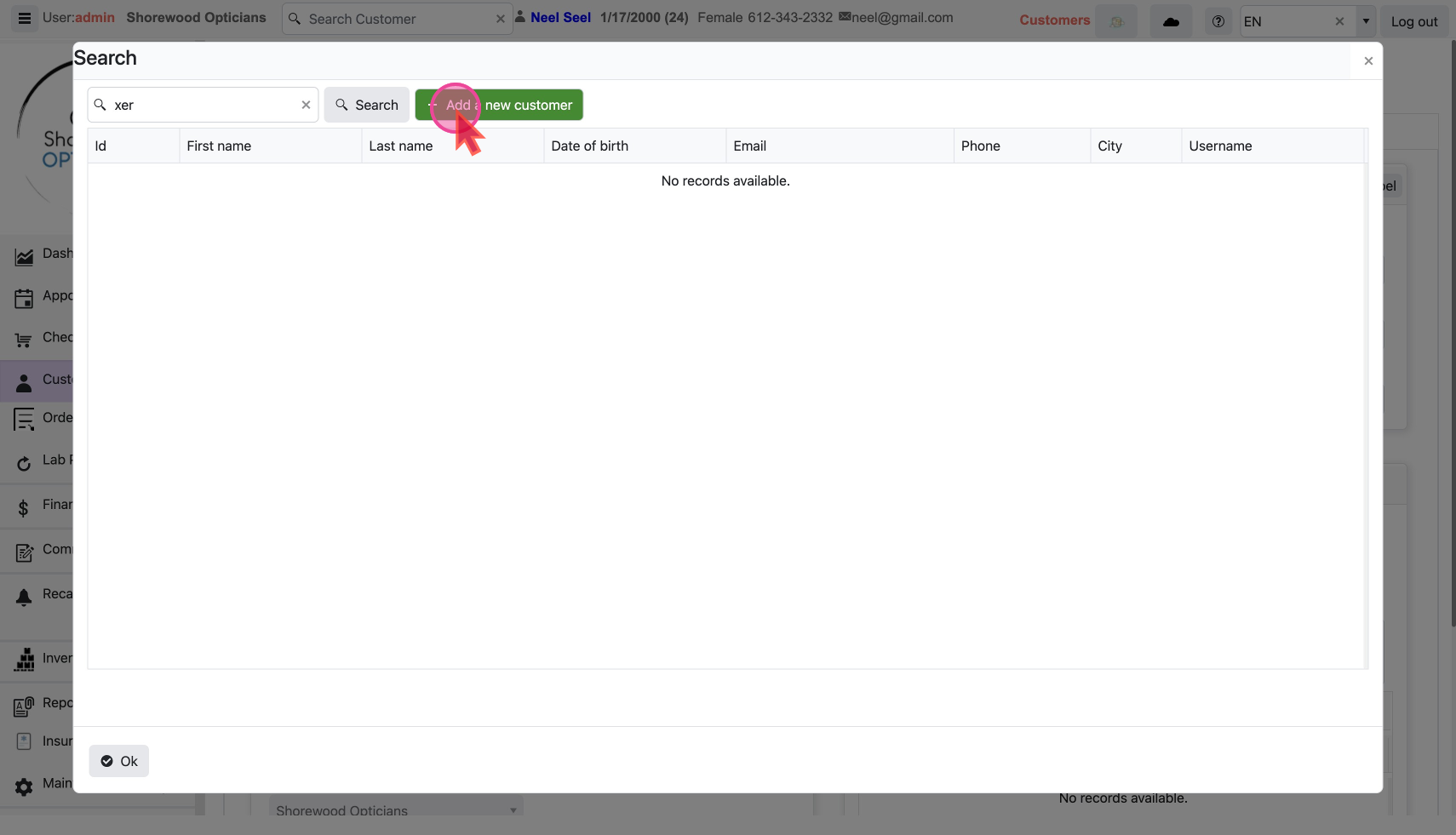
- From Search pup-up : There is a
Add New Customerbutton on the top. Click that to show a new form to add the customer’s details.
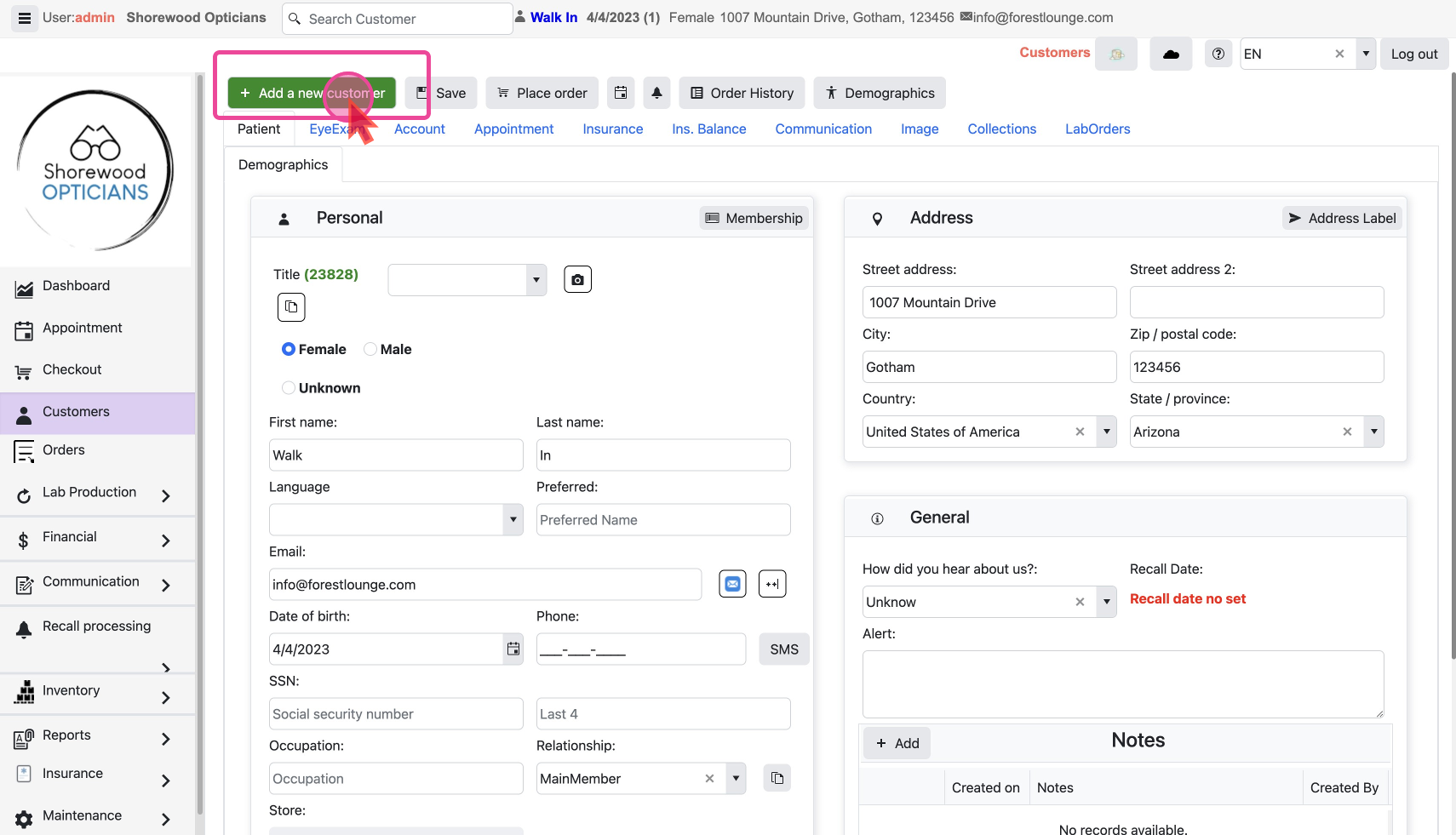
- Or Navigate to the
Customerssection : There is aAdd a new customerbutton on top. Click that to show a new form to add the customer’s details.
Fill in Customer Details
- Fill in the customer's personal information, such as their name, date of birth, and contact details.
- After entering all necessary information, click the
Savebutton to store the customer's details in the system.
Customer Selected
The Customer you picked or the new customer you added is now selected & available for transactions.
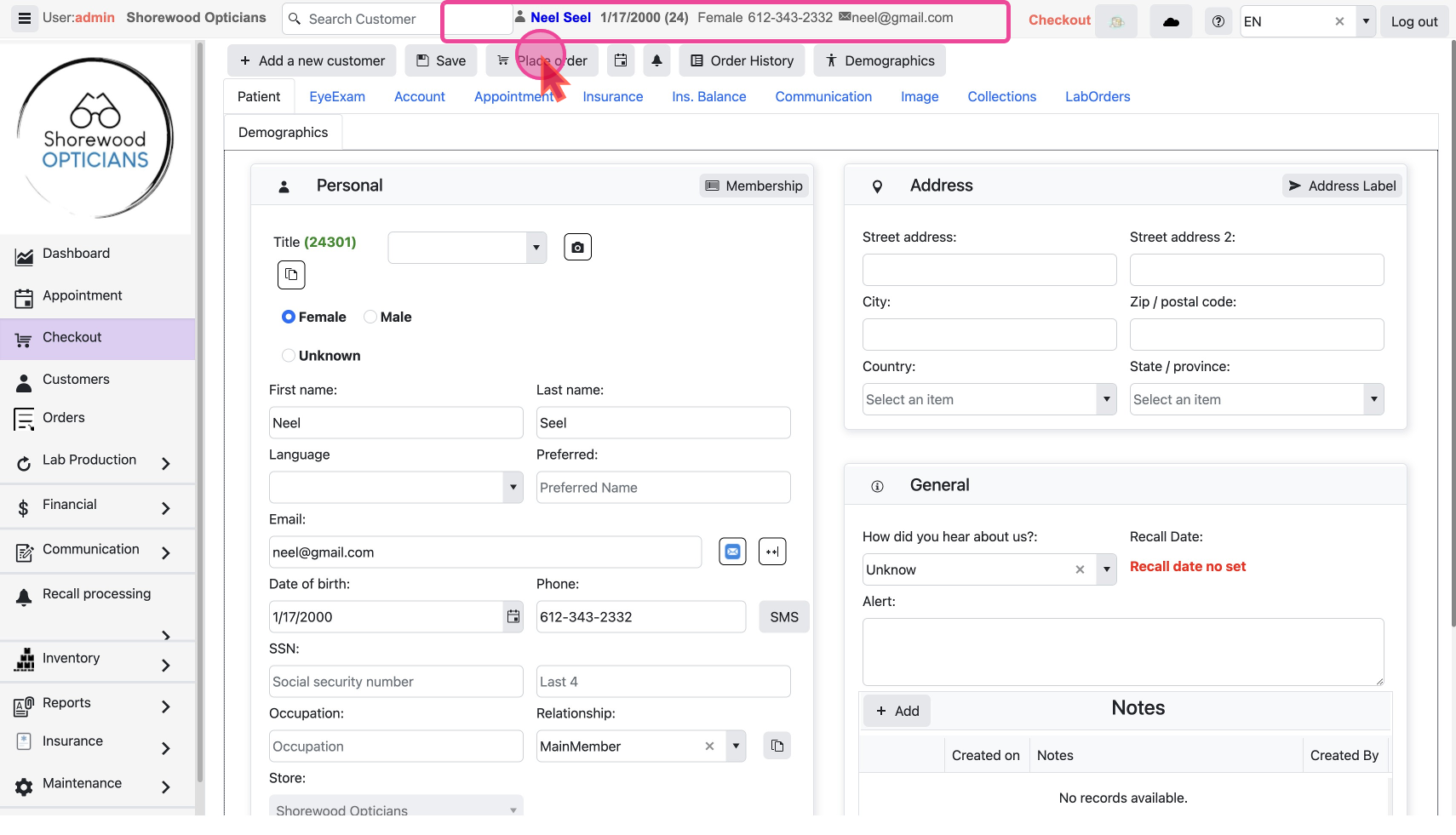
Note: Once a customer is selected they remain selected till you change the selection
When the next customer walks in repeat the same process
Learn in detail on How to add / edit Customer Profile
