How to Create an Order for Prescription Eyeglasses
How to Create an Order for Prescription Eyeglasses
Learn how to create an order for prescription glasses
Introduction
Creating an order for a customer seeking prescription eyeglasses involves several steps - from initial patient search to finalizing the order with custom options and potential discounts.
Select Customer
Search for an existing Customer OR Create a new customer profile.
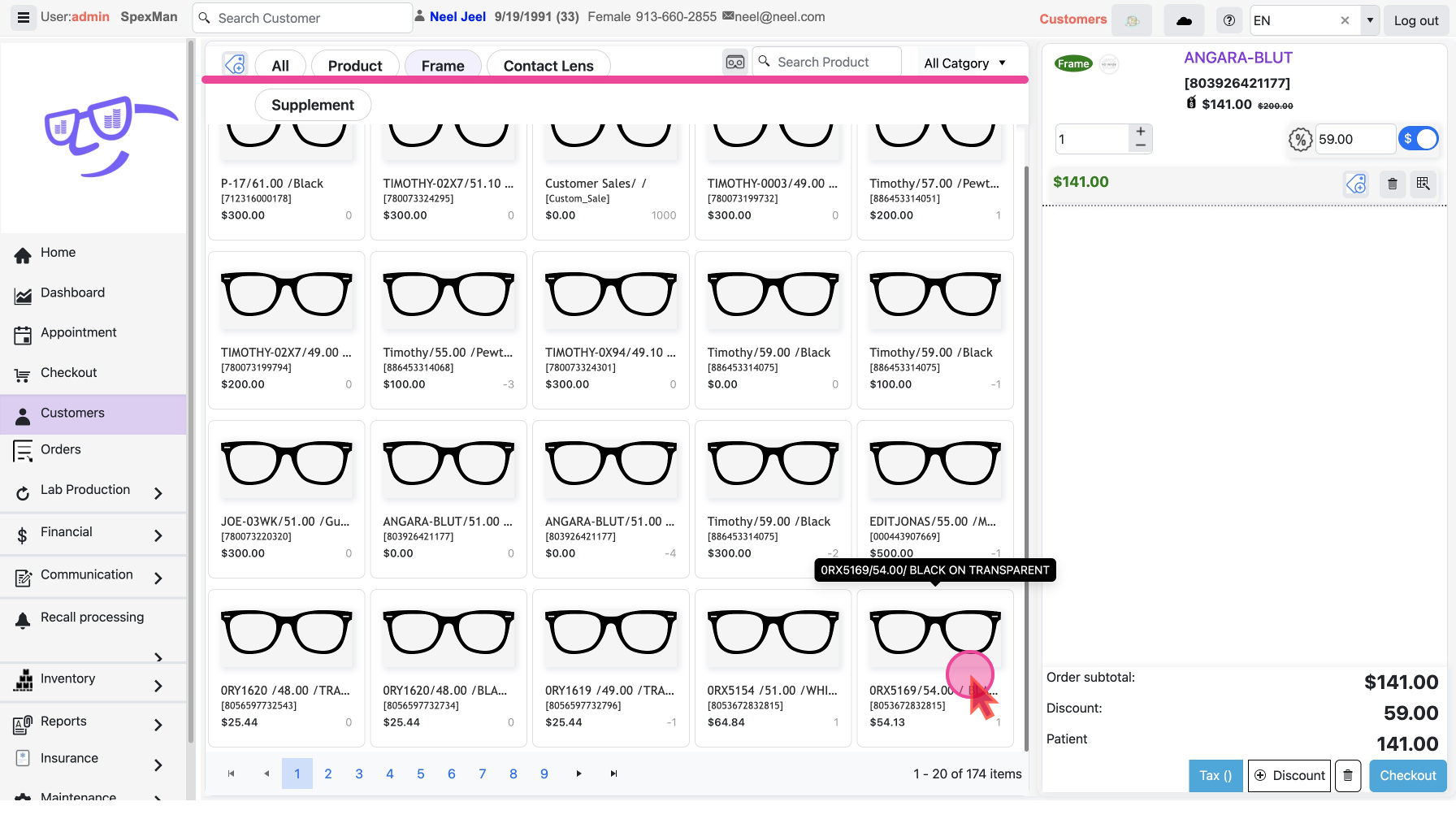
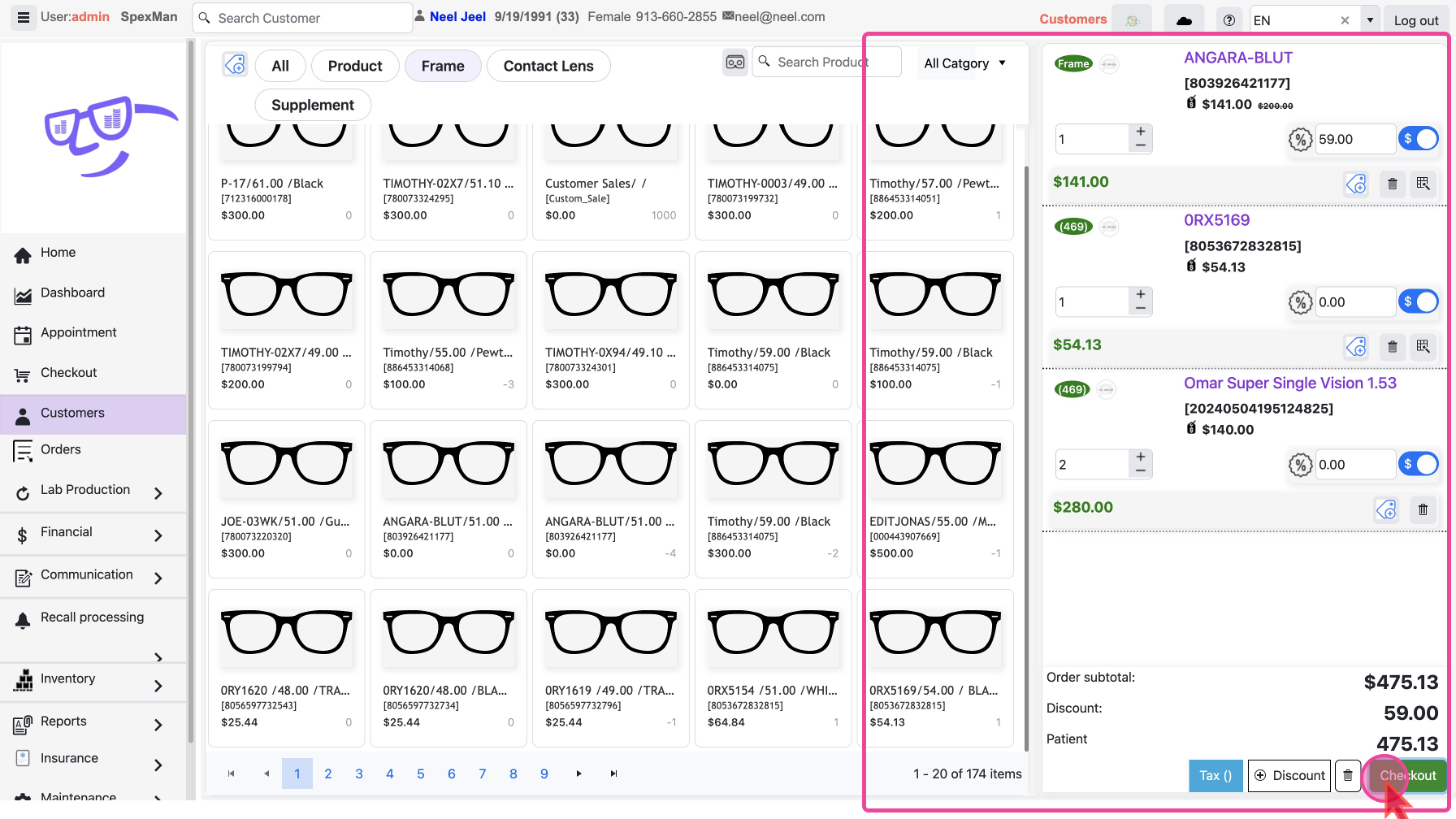
Use the search bar to quickly locate a specific frame by entering the frame's name or code. Alternatively, browse through the frame listings by scrolling if you are unsure of the exact details.
Once you find the desired frame, click on it to select it. Choose RX Order with frame from the pop-up that opens.
Prescription Order Wizard
Fill up all the data required for a prescription based order in 3 step process.
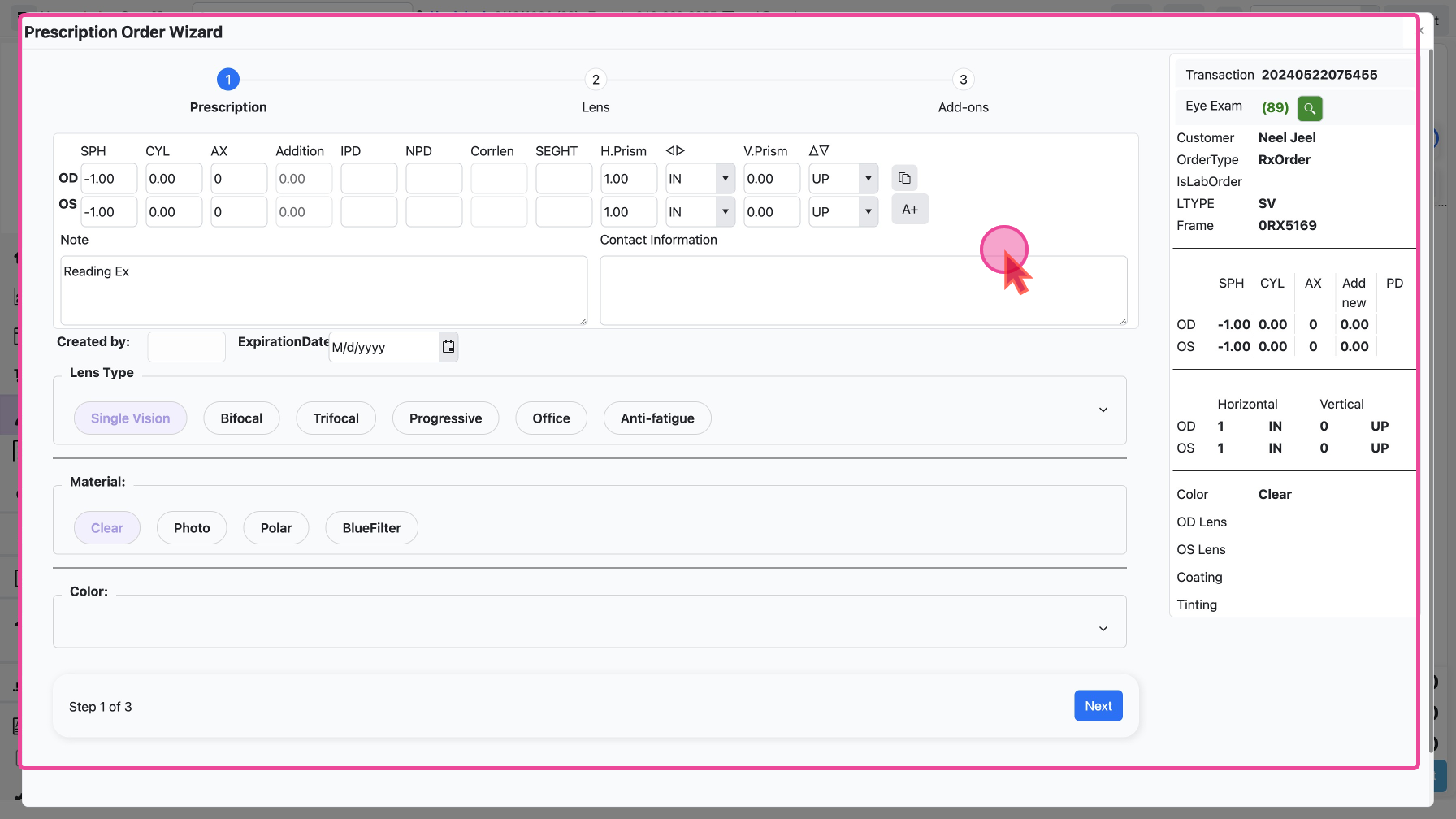
Step 1 - Prescription
Check for Existing Prescription : You can select an existing prescription record if the order is based on a previous prescription. Click the Icon which will pop up a list of existing records, select the desired prescription, and hit OK.
Input Prescription Details : Enter the necessary prescription details and save them to the patient's profile. You can Input the specific prescription details for each eye (OD - right eye, OS - left eye) including sphere (SPH), cylinder (CYL), axis (AX), and any additional information needed for the lenses.
Step 2 - Lens
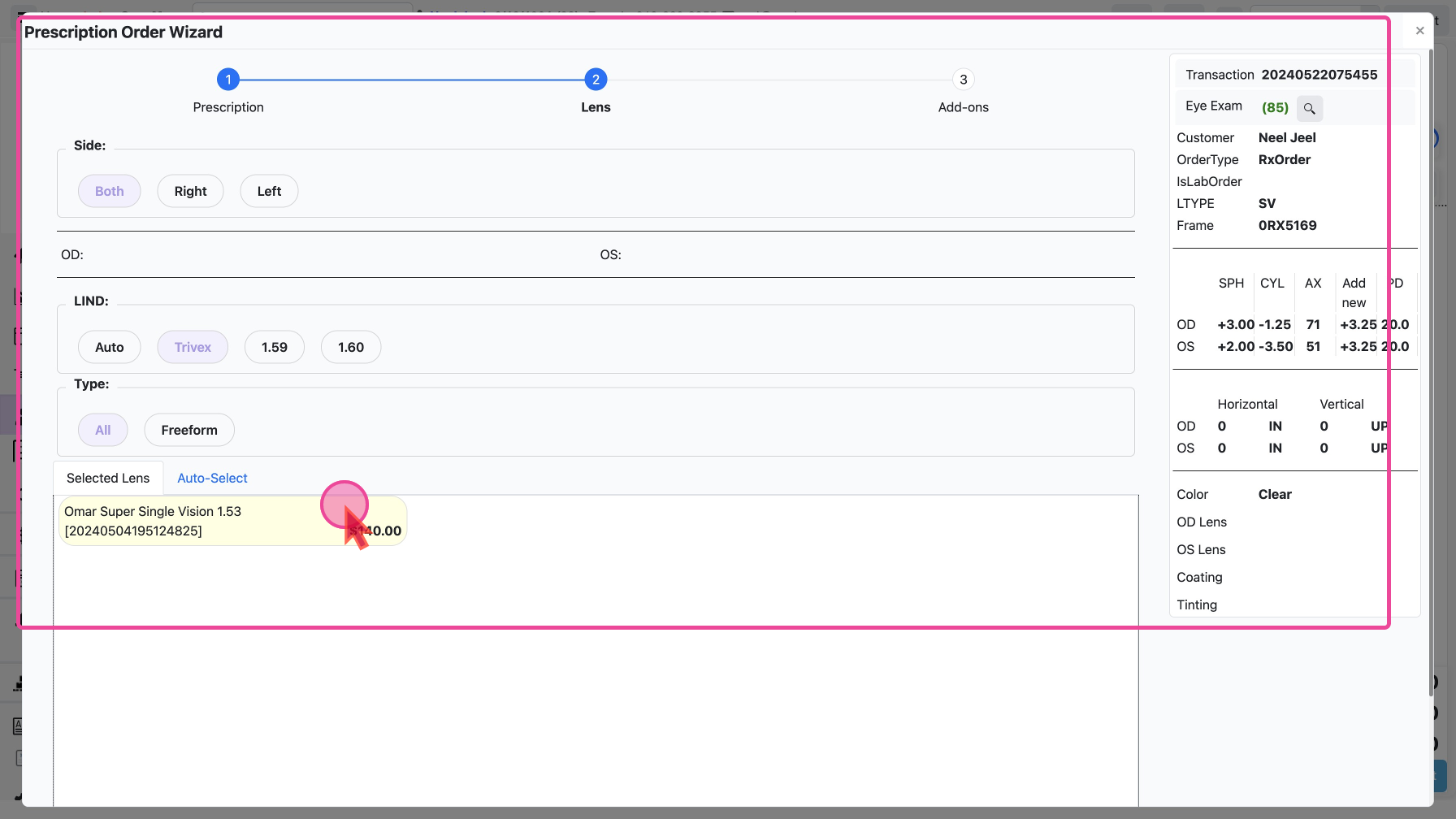
Select Lens Properties to see Lens available from Inventory that match the Rx
Pick Side: Select if both eyes or right or left
Pick LIND: Select a Lens refractive Index
Pick Lens Type: Pick a lens type
The Lenses that match the prescription will be shown in the Selected Lens section.
Step - 3 Add-ons
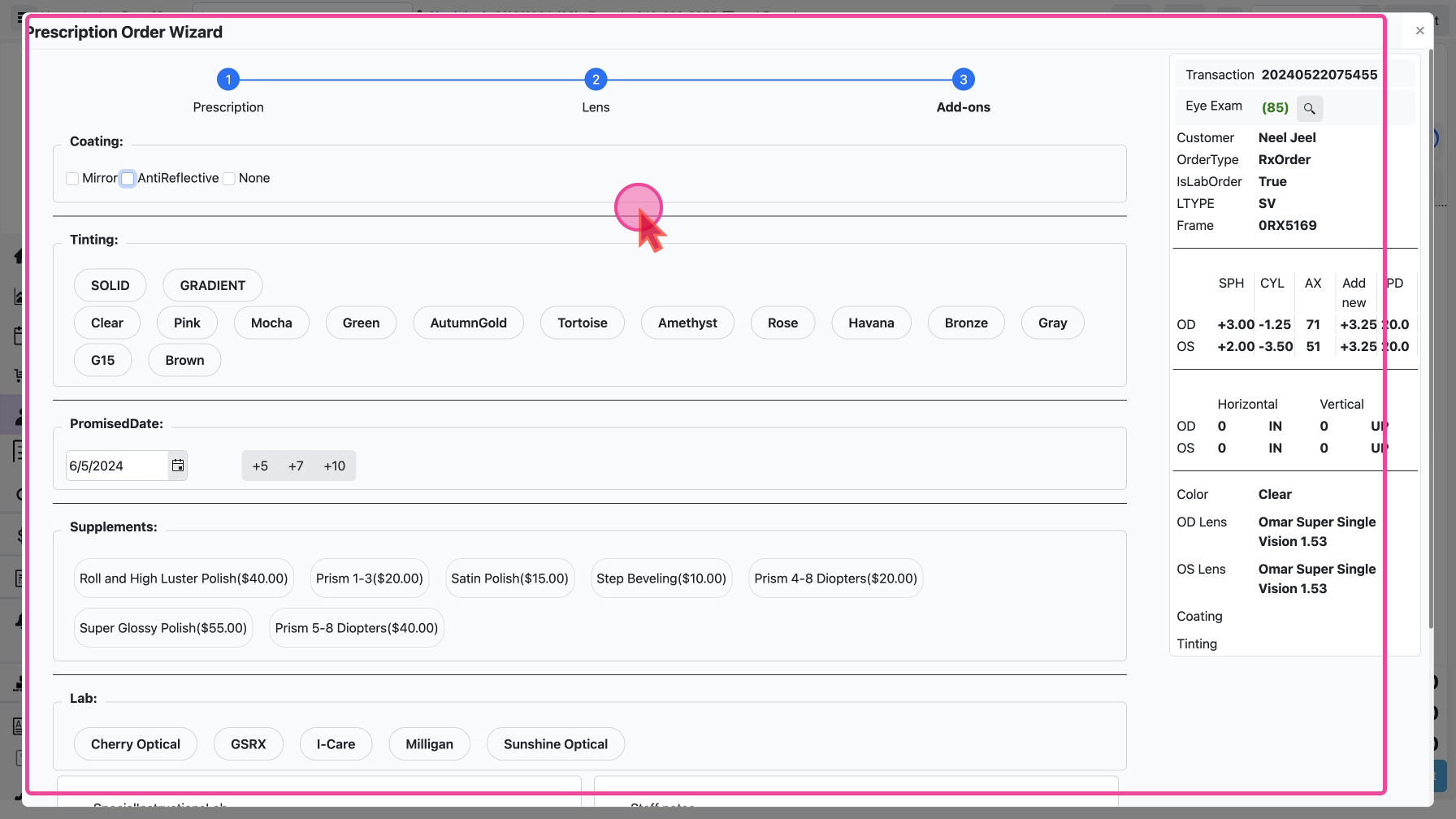
Customize the Order with add-on services and products
Add Lens customizations
Coatings: Select from anti-reflective coating or mirror polish.
Tinting: Select from tints available like Solid OR Gradient and then Pick a color
Set Delivery Date : Select the date by which this order should be delivered.
Pick a Lab : Pick a lab to send the order to along with special instructions and notes for staff.
Checkout and Payment
The frame with the prescription will now be added to the cart.
Apply discounts, and taxes as needed.
Checkout now or Prepare a Quote if the customer is not ready to buy just now.
Finally, checkout, either with collecting payment or without taking payment.