Introduction
When you are collecting the payment during the checkout process, learn how to take partial or full payment and give an invoice to customer.
Checkout your cart
Start the checkout process as usual. Locate and click the
Checkout button at the bottom right of the Checkout page.
Choose Payment Method
A payment form showing you the order details and different payment options will open in a pop-up.
The order details page offers several payment options to accommodate various customer preferences.
CardPointe Payment: For processing credit card payments through the CardPointe system. Add in required details like
Card Holder Name, Card Number, CVV, etc.Credit Card: To accept standard credit card payments. Add in credit card details to proceed.
Cash: For customers who prefer to pay with physical currency.
Check: To accept personal or business check payments. Record the
check number if this mode of payment is selected.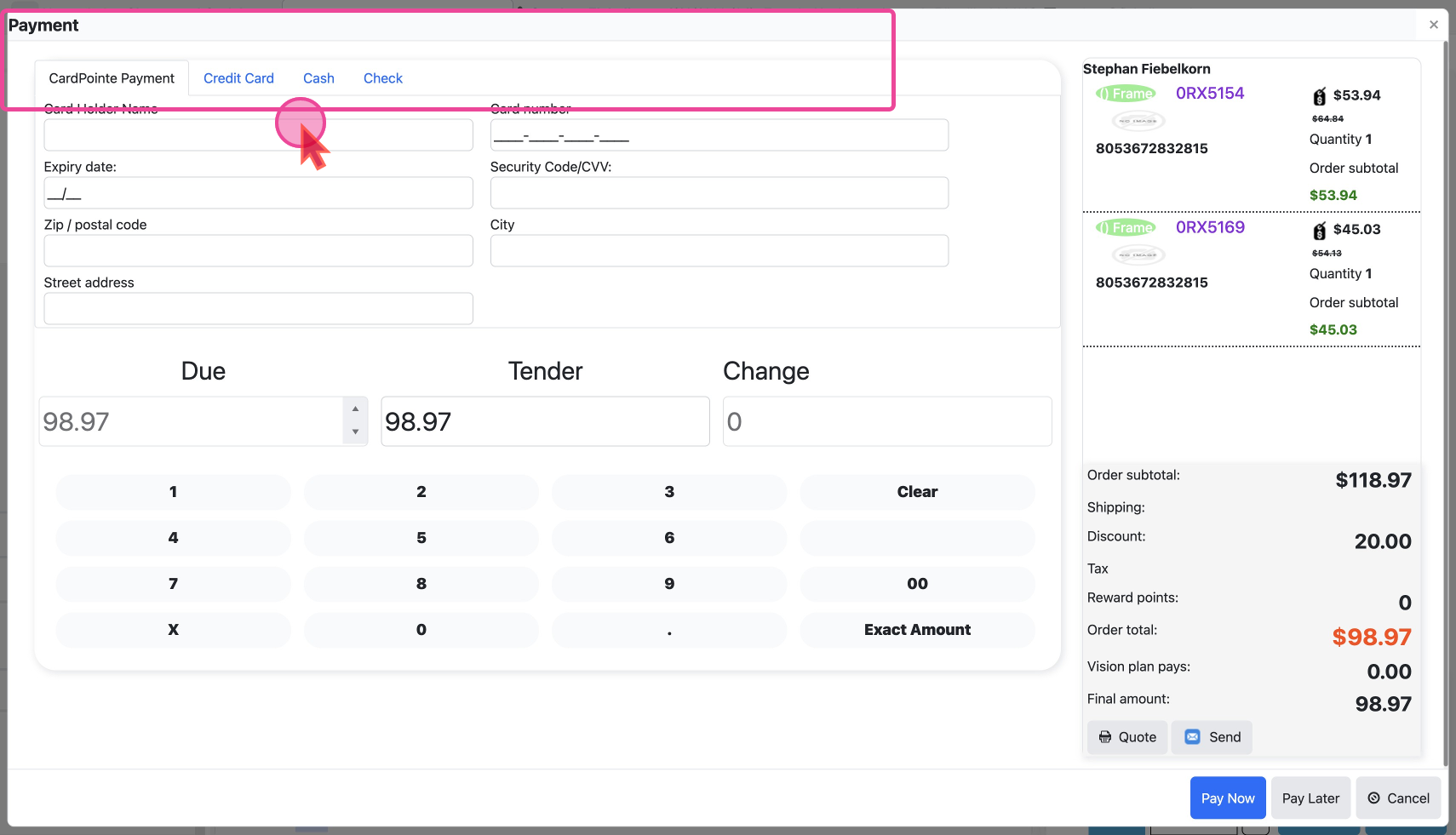
Note: Instead of taking the complete amount, you can also take a partial payment.
Register Payment
Once you have chosen a payment method and filled in any details, click on
Pay Now to proceed with the transaction and order creation.Give Invoice
After the Checkout process, you will be taken to the Order Detail Page, from where you can click the
Invoice button to create the invoice.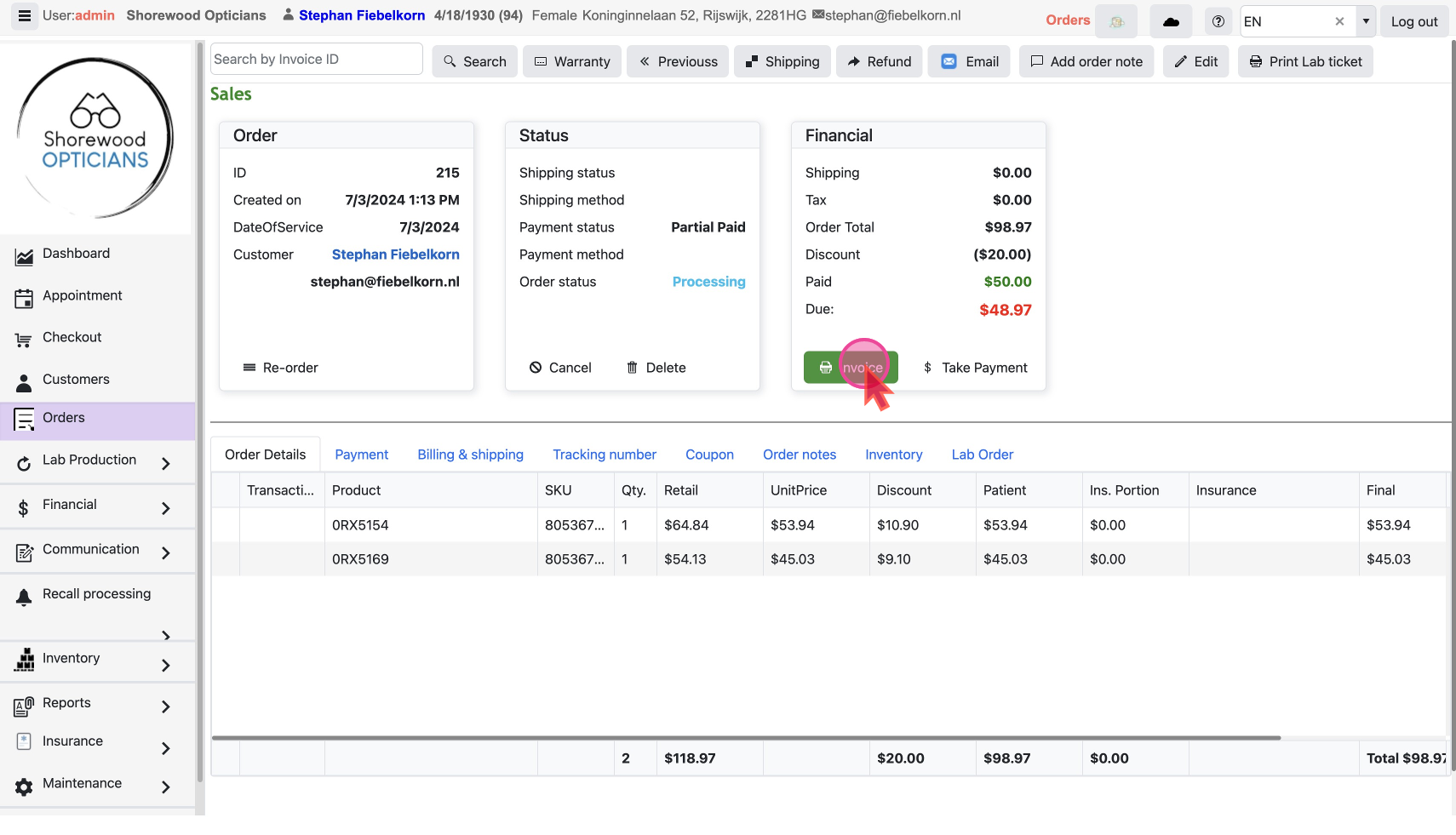
The invoice will be in a popup with a button to
Print or Email it. 