Introduction
When a customer walks in with a new prescription, this is how you can add that to the customer profile and use that for checkout.
You can save multiple prescriptions, and give them a name that the customer is likely to remember them by like “golfing glasses” or “computer glasses” etc.
A List of all the Prescriptions (Rx) is available in the checkout process to pick from.
Accessing Customers section
Begin by clicking on the
Customers tab in the left menu. Select the customer Record
If the customer’s profile already exists, you can simply search for the customer by name and select the record. This will take you to the customer’s profile.
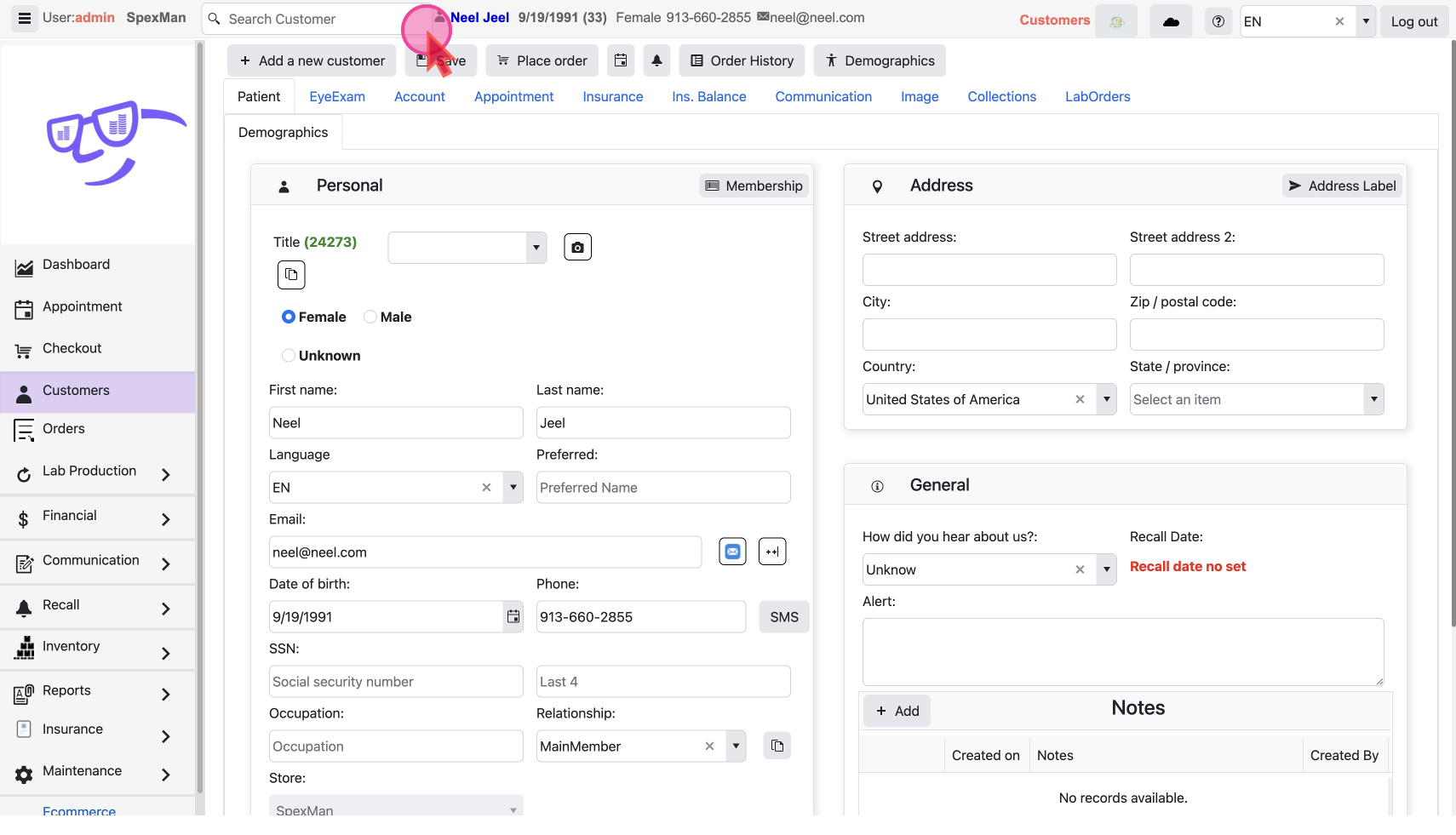
However, if they’re a first-time customer, then you need to create new a customer record.
Access Eye Exam Section
In the customer's profile, select the
EyeExam tab. Here, you can either edit an existing prescription or add a new one.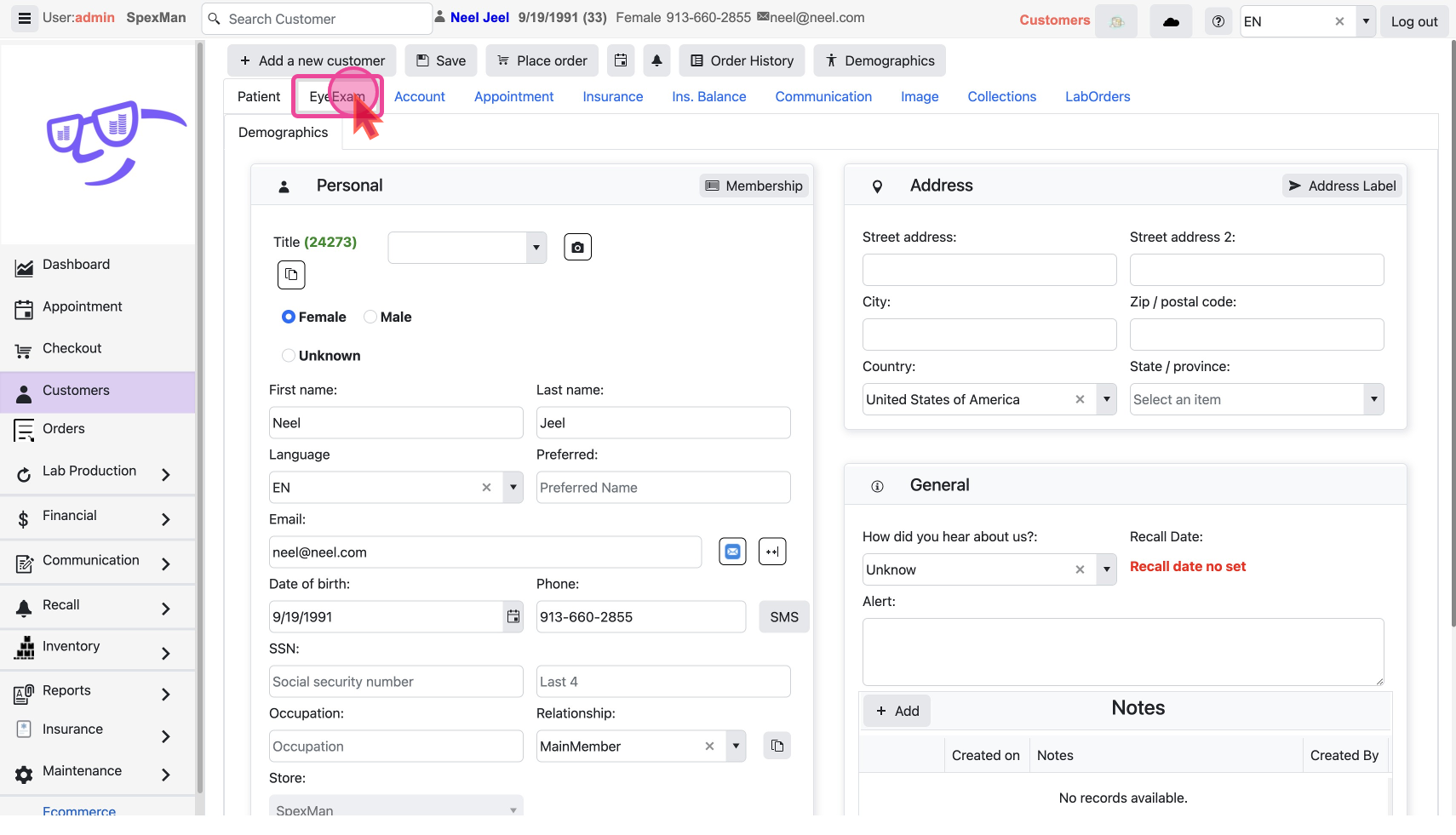
Add a Prescription (Rx)
Click on the
Add icon to create a new prescription entry, or select an existing entry to modify it.
Enter the relevant values into the provided fields like notes, prescription details and expiration date.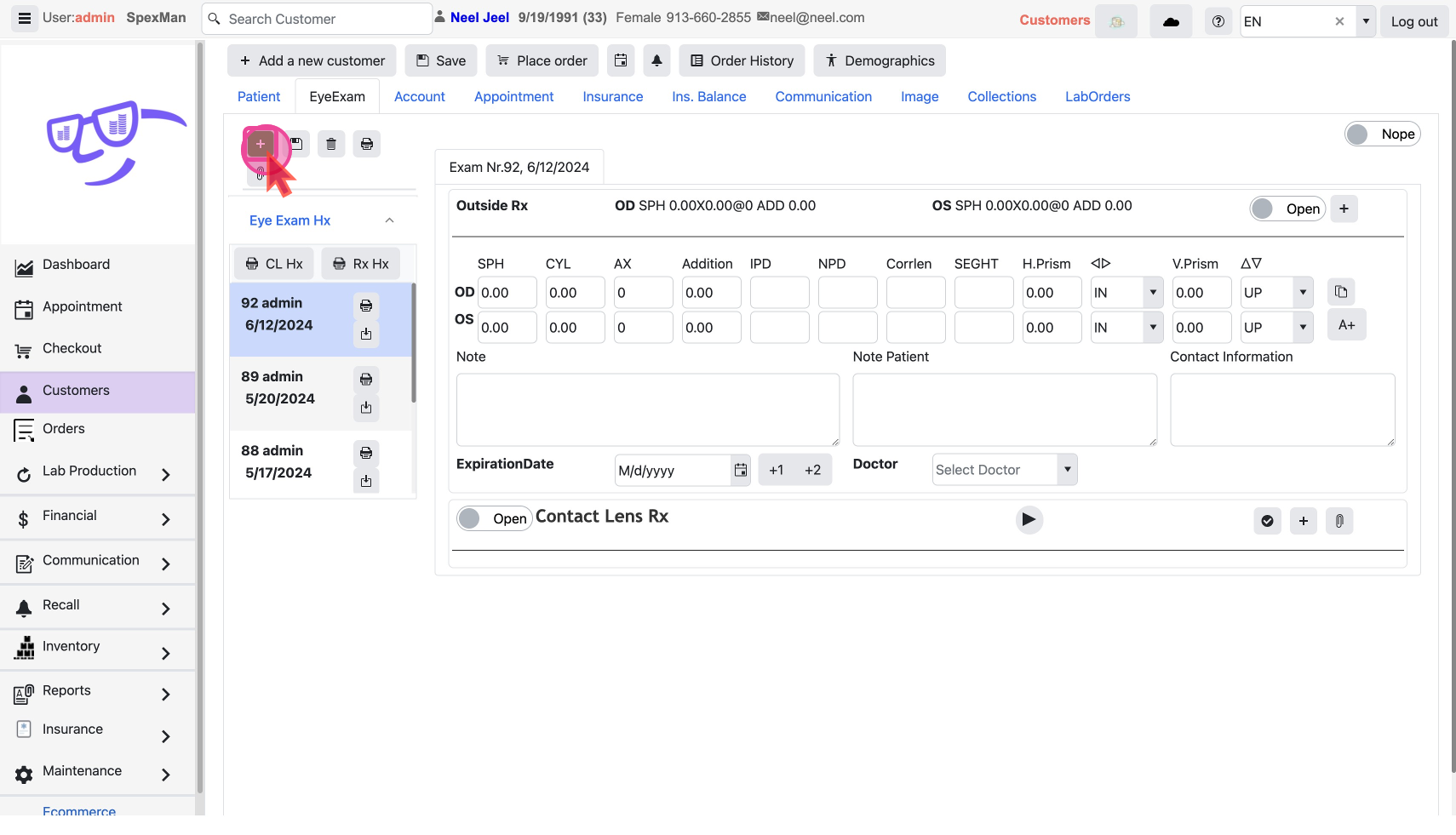
Add the Prescribing doctor
Select and add the doctor who wrote the prescription.
Print or Email Eye Test Report
- Take a Printout: You can take a printout of the prescription by clicking the
PrinterIcon.
- Download Report: You can download the report as PDF.
- Email it: You can directly email it to the customer.
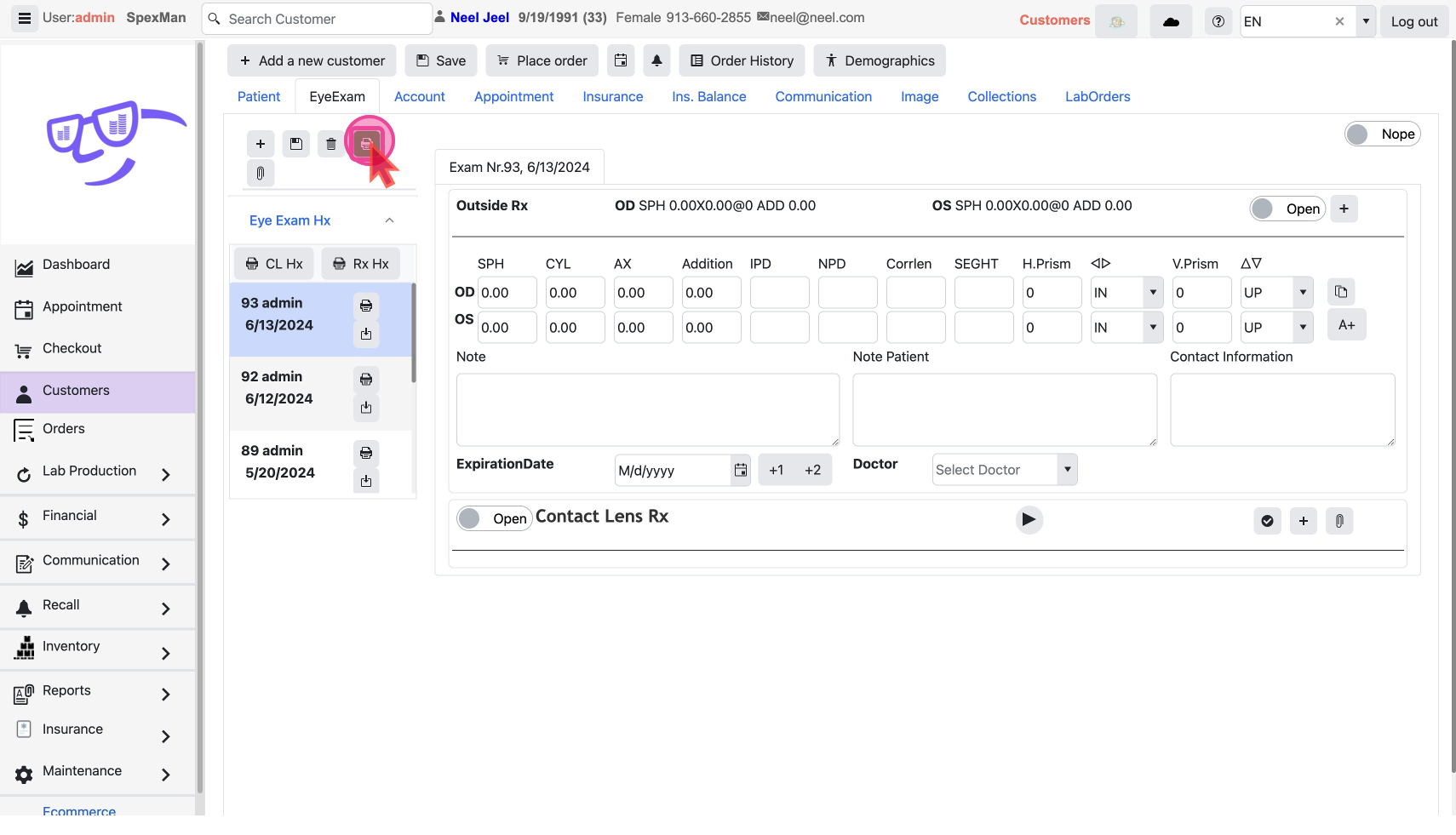
The current prescription will now be available in the checkout prescription wizard
