Introduction
Best way to add Tints to your inventory is with using our Tool to Create Tints Pricing for Lenses.
When you need to edit the tints created by the tool or want to add one off tint, this is how you would proceed.
Accessing Tints Section
Select the
Maintenance tab in the left Navigation Menu and then select the Tints tab. This will open a page that shows a list of all Tints. On the top, there is an action toolbar with the Buttons Add New, Export Import, etc. Learn about Action Toolbar Bar in General.Add a Tint
Click on the
+Add Action Button in the Action Bar.
This will show a pop-up with the form to fill up.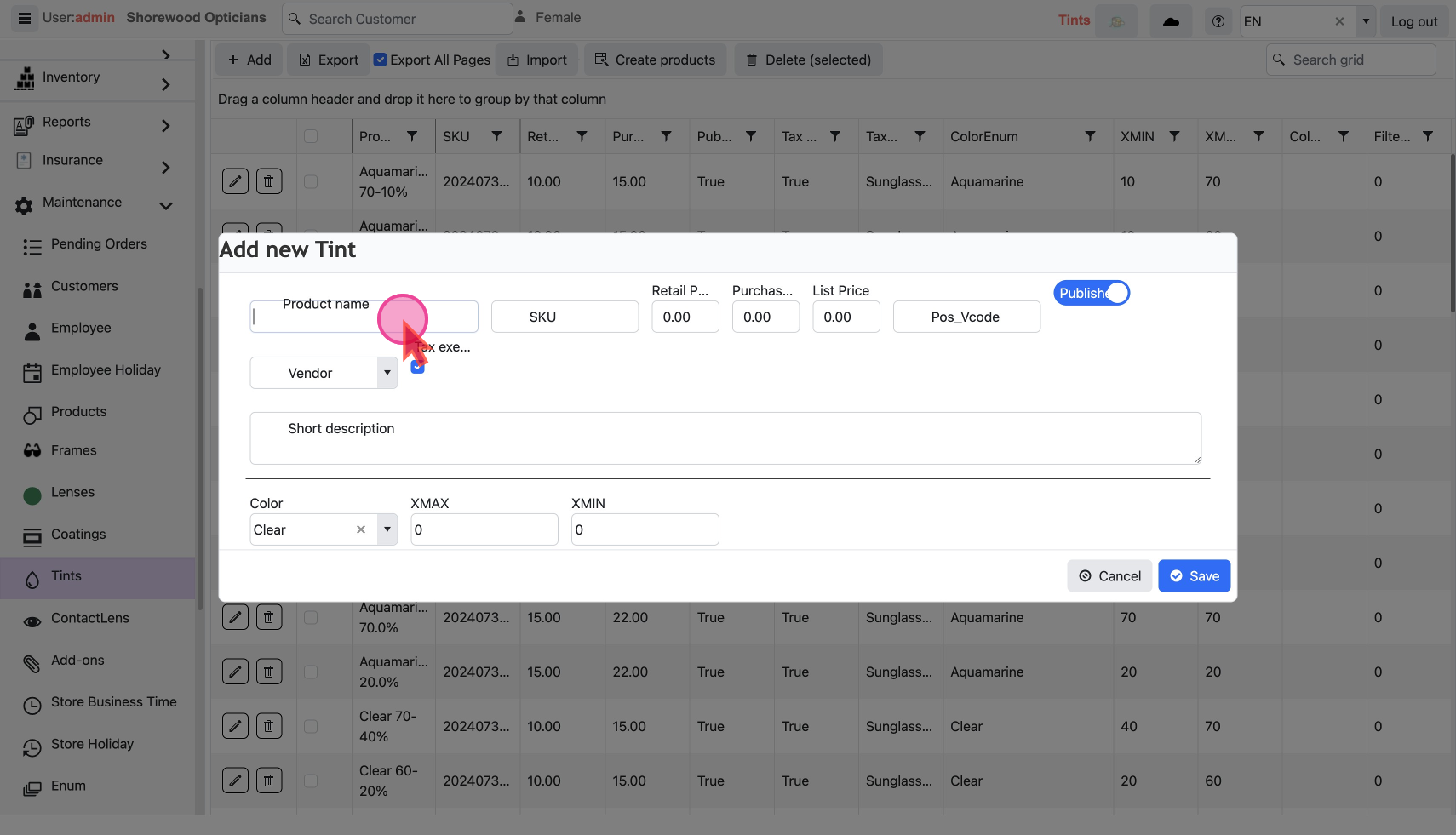
Basic
- Enter the
product name. This is the only Required Field
- Leave the
SKUfield blank and the system will auto-assign one.
Prices
- Set the retail price of the item in the
Retail Pricefield. This is the price you sell at and is available at the Checkout
- Enter the wholesale cost in
Purchase Pricefield, to track your profit margins.
- Select the Vendor who is supplying the Tint
Taxes
- Uncheck the
Tax exemptexemption checkbox if there are Taxes applicable
- Then select the appropriate
Tax category
Tint Details
- Tint Color: Select
colorof tint
- Tint Density :
XMAX&XMINvalues for the tint
Publish to Checkout Screen
Only published items are visible in Products at checkout. By default, an item is set as
Published to make it visible.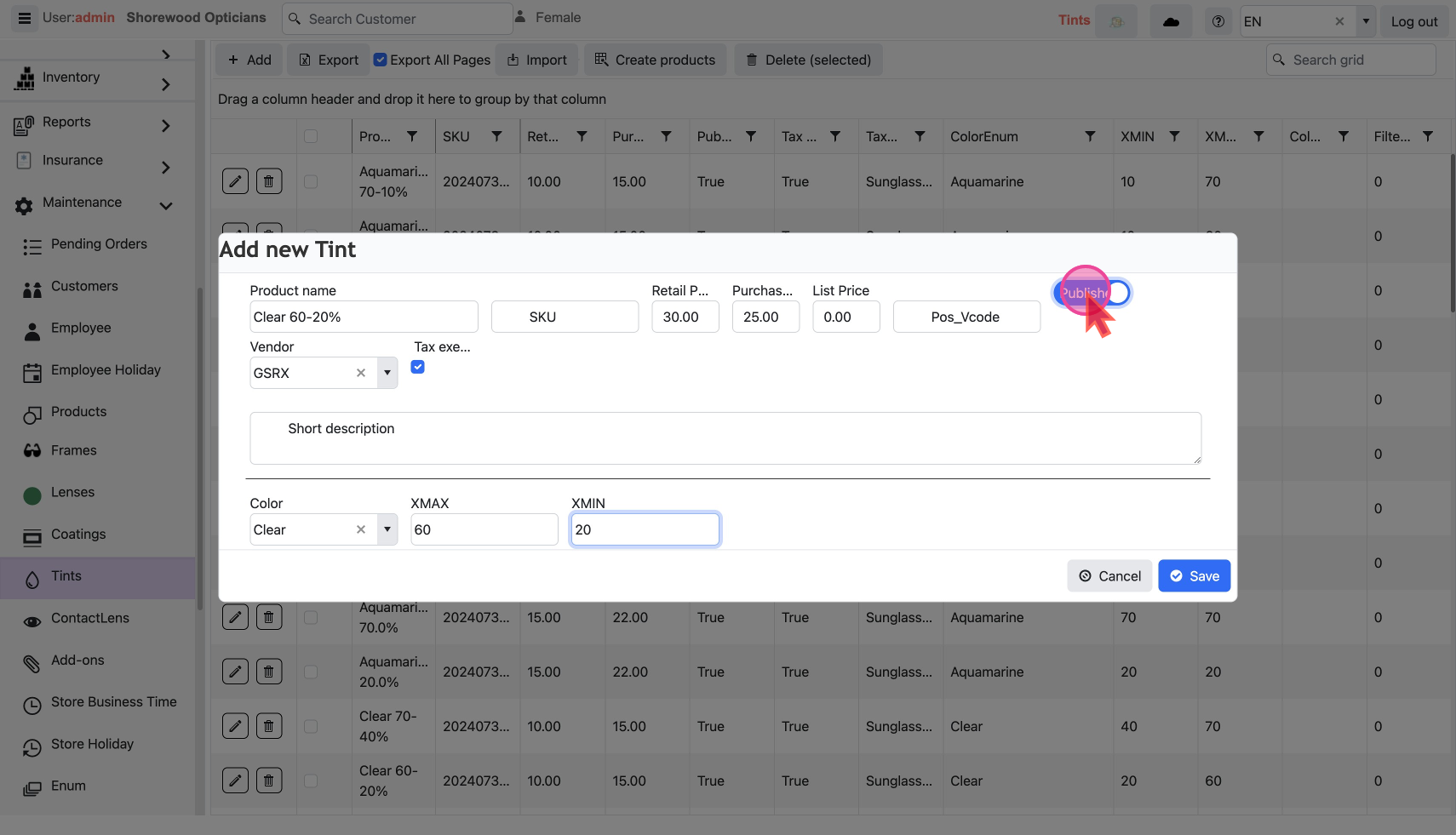
- To make an item visible at checkout, set the item as
Published
- Remove from checkout by un-publishing it.
Save it
Finally hit the
save button to add this to your inventory.- Refresh the page to see the changes in the Data Grid.
Modify a Tint
The
Pencil Icon and Trash Icon on each line are used to edit or delete that record.
Edit Tint Details
Click the
Pencil Icon to show a pop-up with a form filled with the existing details.
Change as desired and save. Delete a Tint
Click the
Trash Icon to show a confirmation pop-up.
Click ok to delete.You should use our Tool to Create Multiple Tints Pricing quickly
You can do mass changes by export/import
