Introduction
To be able to find information within the system efficiently, let us understand the basic & advanced functionality that is available in the Data Grid pages.
We will take the example of the Frames Data Grid page as that is the most relevant one.
Accessing Relevant Section
In this case, we are taking Frames as example so, Select the
Maintenance tab in the left Navigation Menu and then select the Frames tab.Action Toolbar
Each Button corresponds to an Action relevant to Frames.
Add New- to Add new Frames to Inventory
Add Bulk- to add Frames in Bulk
Export- to export all Frames Inventory data in Grid to an Excel file
Import- data into the system by SKU in the Excel Sheet
Print- Labels with Barcode to be attached to Frame
Search For- Search for Frames in the Master Catalogue for Quick entry
Delete- Remove Selected Frames from Inventory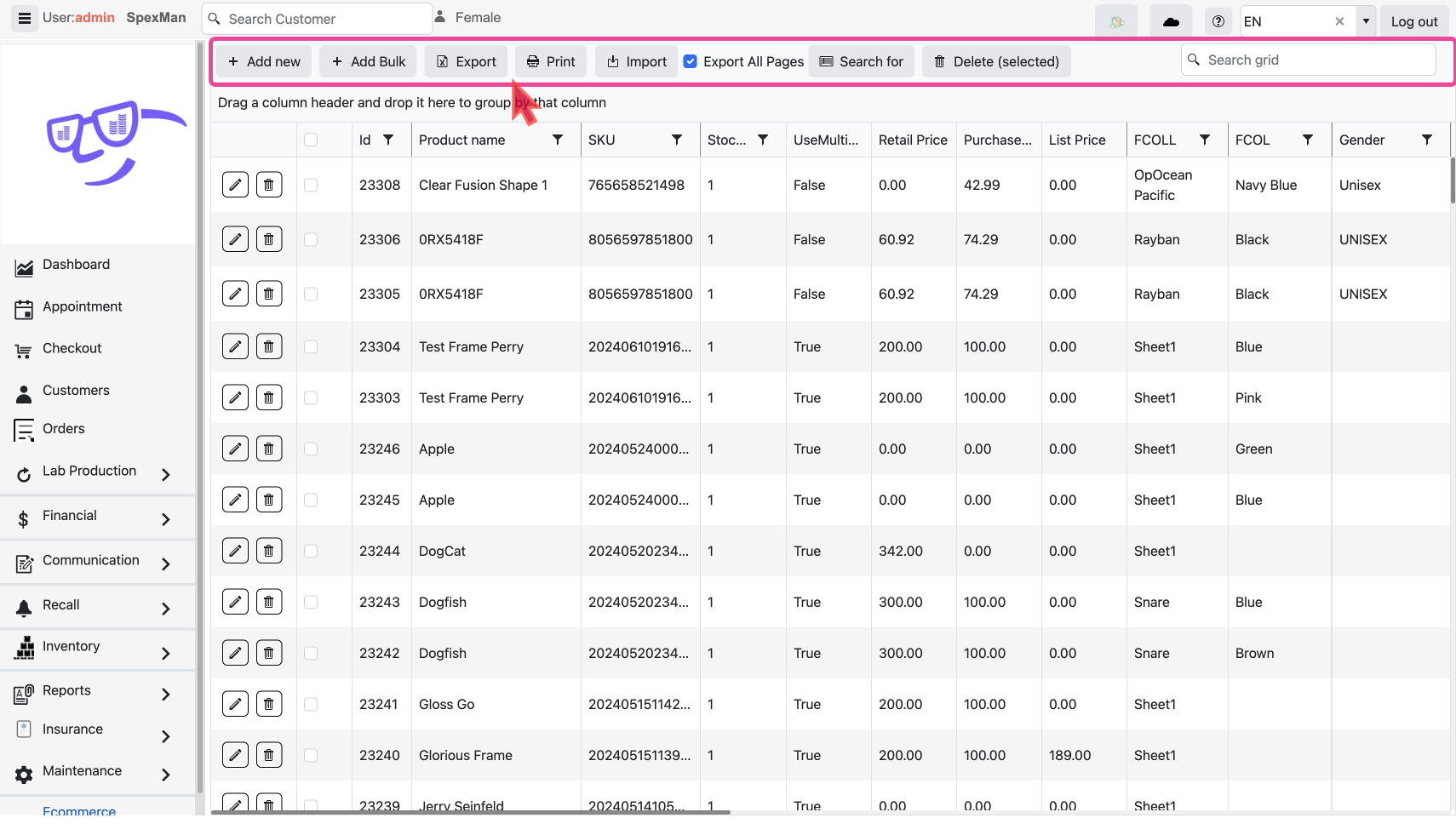
Search
A general-purpose search for all important columns of data. Type in the query and Hit
ENTER to search for related information.The Data Grid
Line Item Actions
Grid has the Following actions for each line Item -
Edit- Pencil Icon - click to edit that record
Delete- Trash Icon - click to delete that record
Multi Select- Checkbox to Select Multiple Items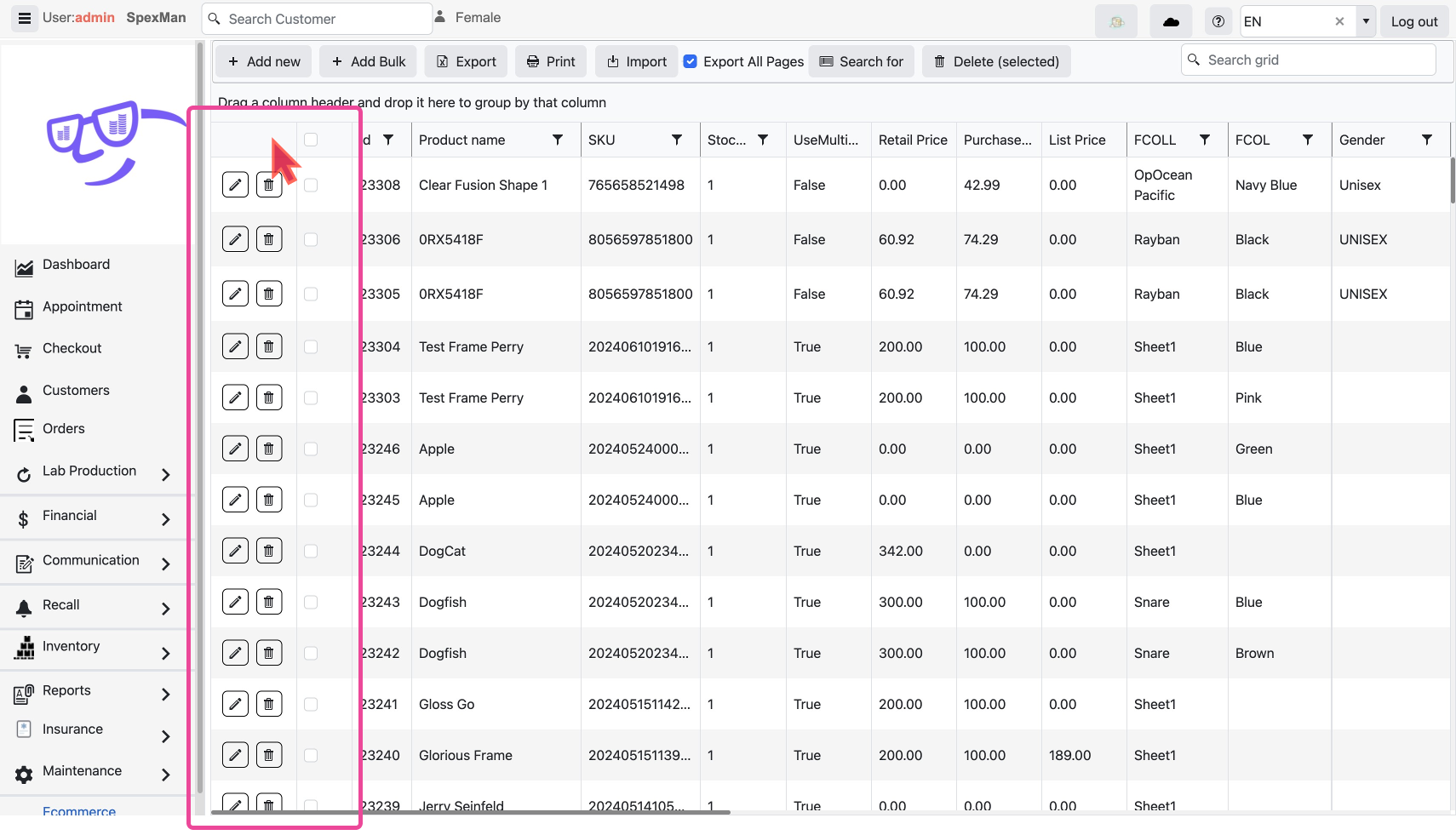
Advanced Data Handling Techniques
The grid has different columns for each data point for a Frame and following ways for you to slice and dice the data
Filtering- Easily filter data to display only the information you need.
Sorting- Sort data by a column to find what you're looking for faster.
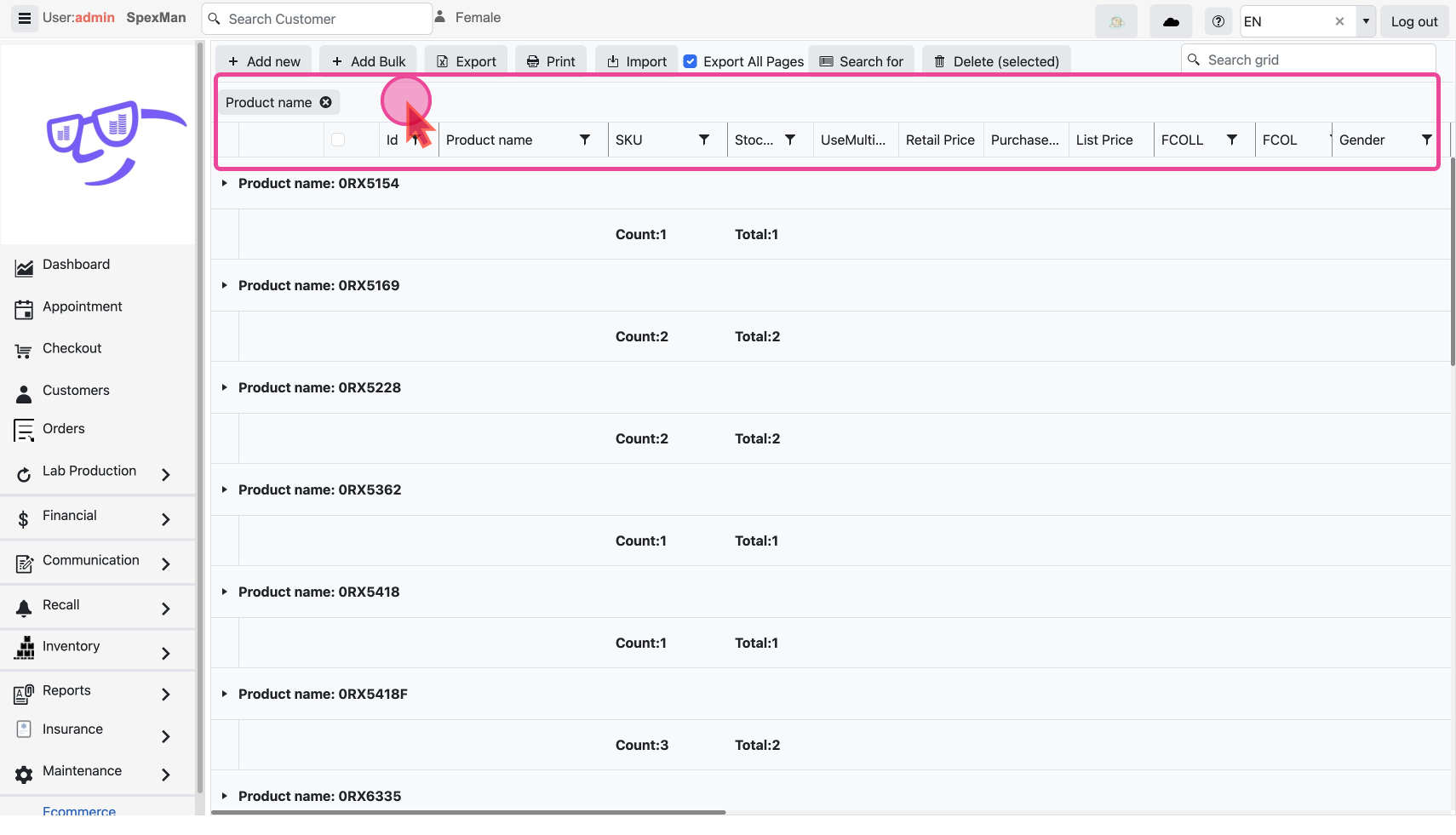
Grouping- Group data by one or multiple columns for better organization and insights.
Example Usage
Filter by Product Name
- If a Customer requests a specific frame by Name, then click the Filter Icon against the Product Name column.
- In the Form that comes, under the drop-down with the option “Contains” type for example “clear” and Click the button “Filter”
- This will show you all the Frames that have the word “clear” somewhere in the name.
Group by Frame Collection
- To see frames sorted by collection, drag and drop the 'Frame Collection' filter into the top toolbar.
- Select the desired collection from the list that appears to view all frames within that specific collection.
Sort by Product Name
- To see frames sorted by Name, Click the Product Name column once to Sort in
AscendingOrder and Click again to sort inDescendingorder.
Once you understand how easy it is to find any data using Data grids, you will be up and running using our system in no time.
