Introduction
After the orders received have been inspected for Quality & completeness, as per your process, you would set their status as
Ready for Pickup .
Which means that now the customer can be intimated for pickup.Accessing the Ready for Pickup section
Select the
Lab Production tab in the left Navigation Menu and then select the Ready for Pickup tab. This will open a page where you can set orders to be
ready for pickup.Find & Select Orders
Use the search bar to search for the Order you want to set as
Ready for Pickup and press ENTER
You can repeat the process of Finding the order and pressing ENTER 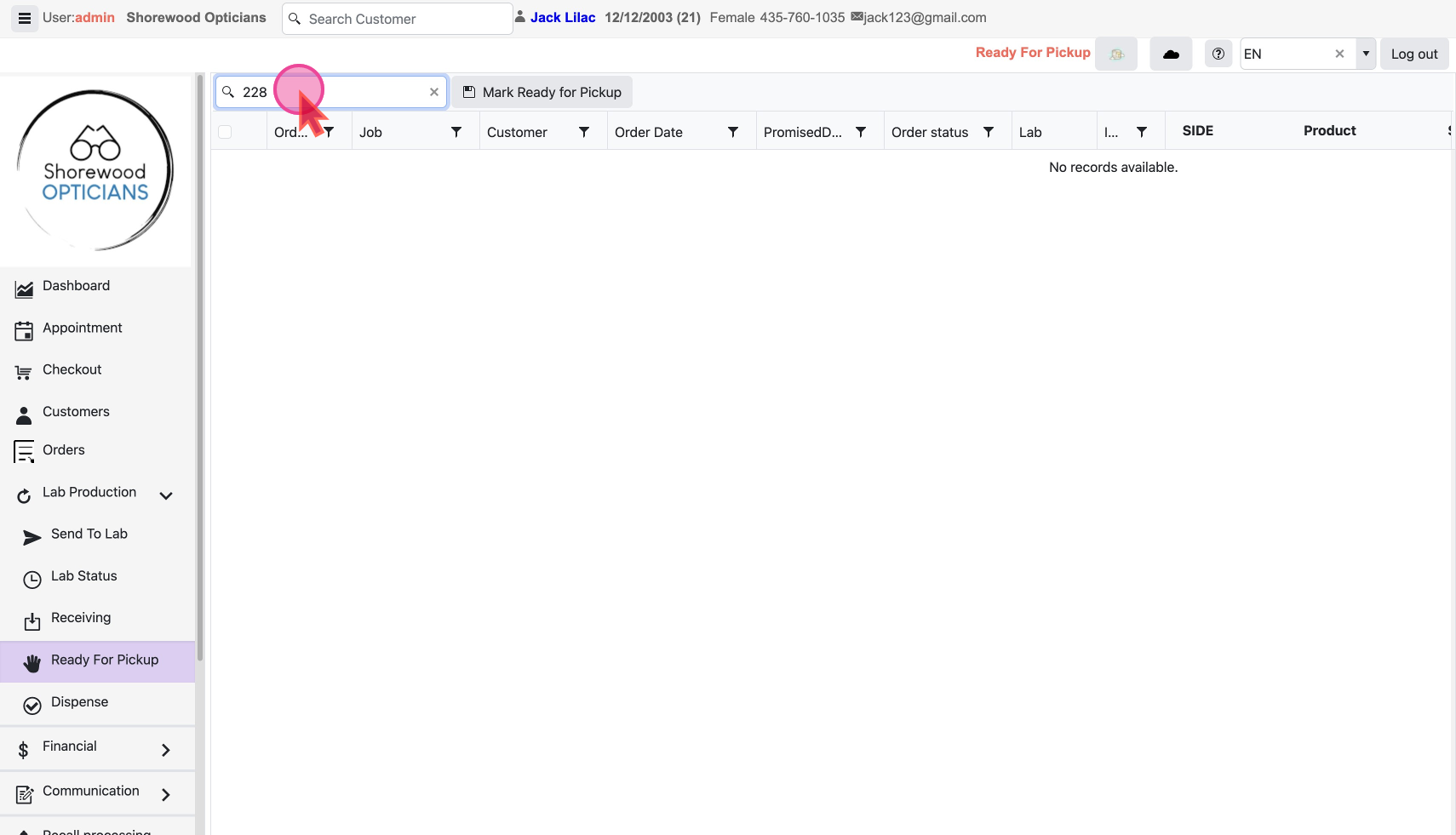
Set orders as Ready for Pickup
Full & Partial pickup Statuses
In the
Order Status column you will see Received or Received 1 of 2, 2 of 2 etc.
This shows how much of the order has been received and you can then select which Job Id’s to Mark as ready for pickup. You can un-check any order to remove it. 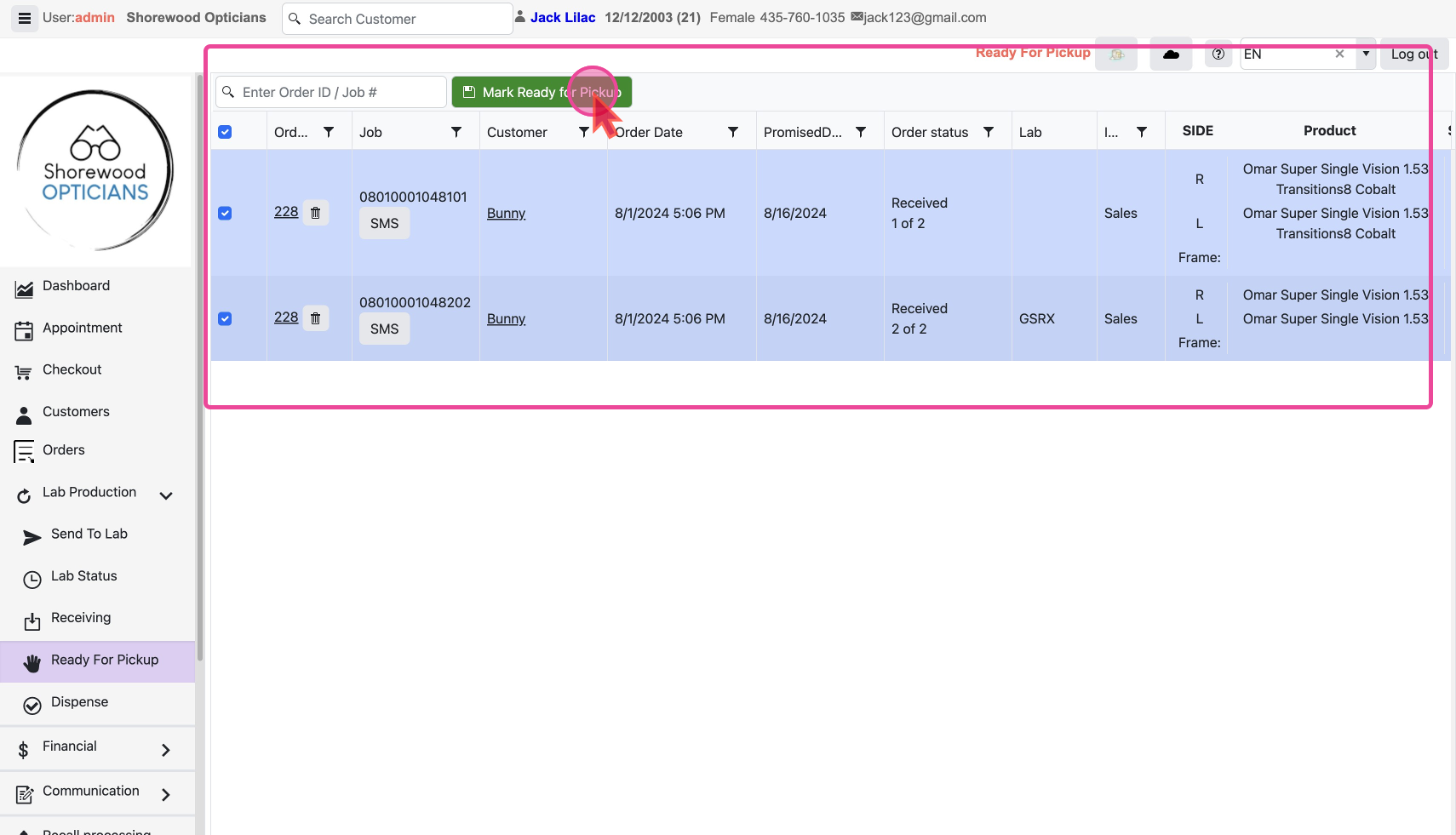
- ReadyToPickup: If you mark the whole order as
Ready for Pickup, provided all Jobs have been received the Order Status will be set to thisReadyToPickup
- PartialReadyForPickup : If you mark only some parts of order as
Ready for Pickup, the Order status will clearly indicating that it’s partial order delivery by being set toPartialReadyForPickup.
Next Inform Customer about Pickup by sending notifications via email and then dispense the order to customer
