Introduction
Once the entire order has been received (arrived in office from external or internal lab), you can now dispense it to the customer. This is the final step in an order’s process before it reaches the customer. You would also be taking any pending payments as required.
Accessing the Dispense section
Select the
Lab Production tab in the left Navigation Menu and then select the Dispense tab.
This will open a page where you can search for and set orders as Dispensed. Dispense Order to Customer
Use the search bar to search for the Order you want to set as
Dispensed and press ENTER. If a customer has more than 1 Rx eyeglasses, can can choose to dispense 1 job or the whole order.Take Payment if Pending
If the order’s payment status is
Pending you should take payment at this point. Click on the Order ID Link to open the order detail page. 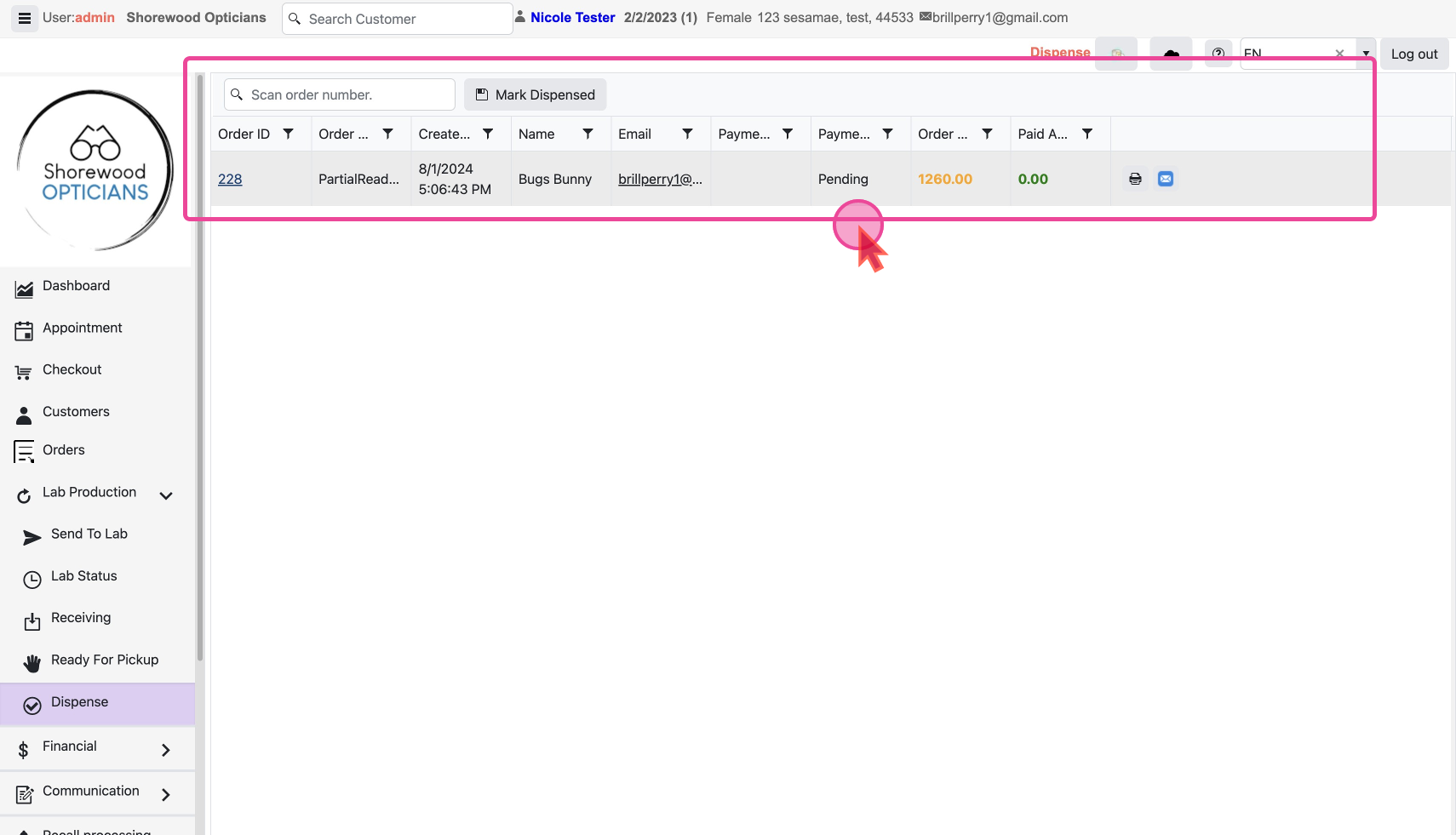
Learn how to handle pending payments in detail , but in summary on the Order Detail page. click on the
Take Payment button to start the payment process. A payment form showing you the order details and different payment options will open in a pop-up. Proceed with the payment using the customer’s preferred method.Mark the order as Dispensed
If the order’s payment status was already
Paid or you just took payment for a pending order(the status will reflect Paid in this case as well), you can go ahead and mark the order as Dispensed.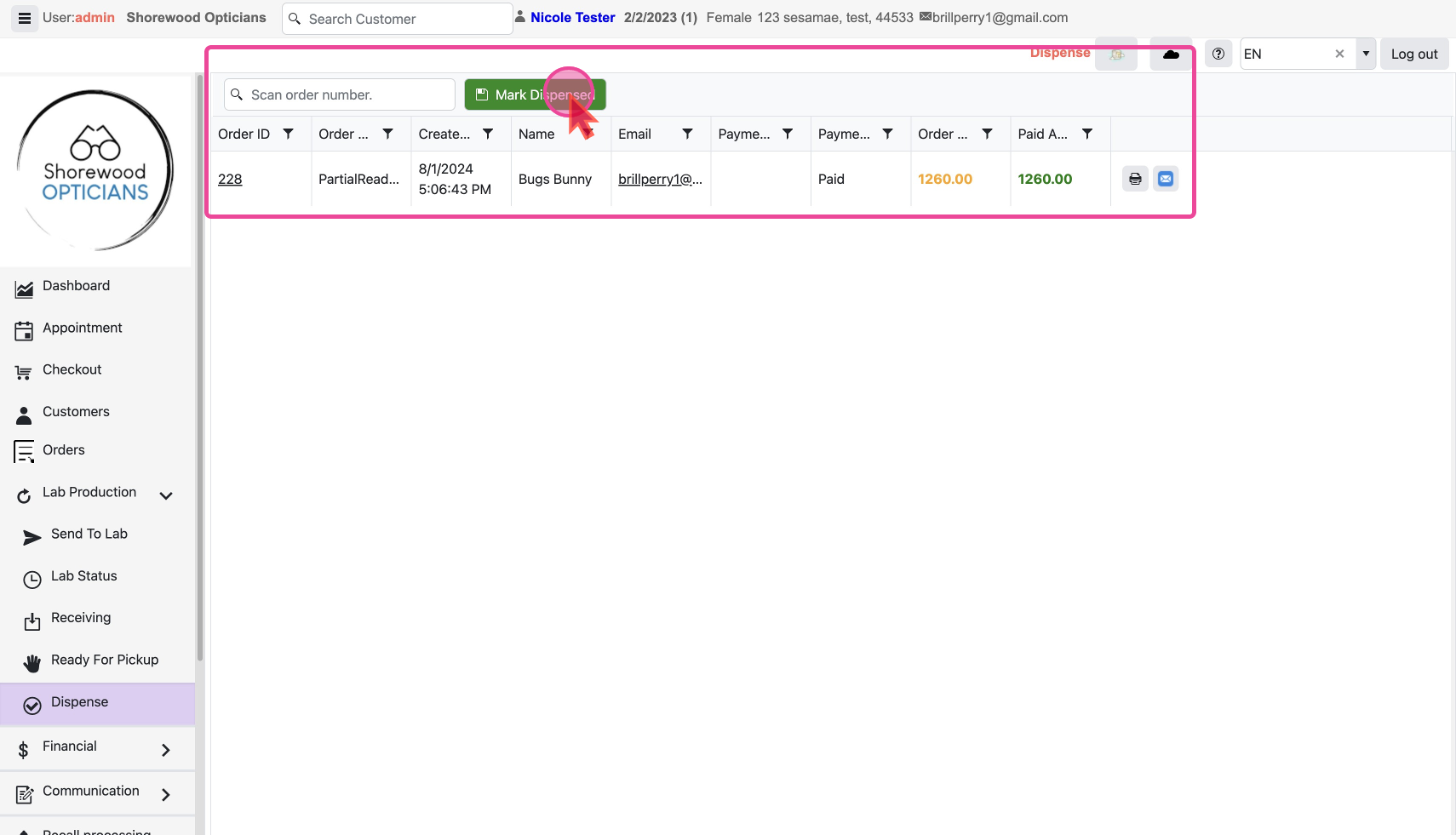
Click on the
Mark Dispensed button while the order is searched for and visible.
Now the order’s status is set as Dispensed.