Introduction
Once the order has marked
ready for pickup it’s time to intimate customer that their order is either fully or partially ready for pickup. You can call them up or as this article explains send them a pre made email from the system.Accessing the orders page
Select the
Orders tab in the left Navigation Menu to open the orders listing page.
You can see all of your orders and their details here.Search or Filter eligible orders
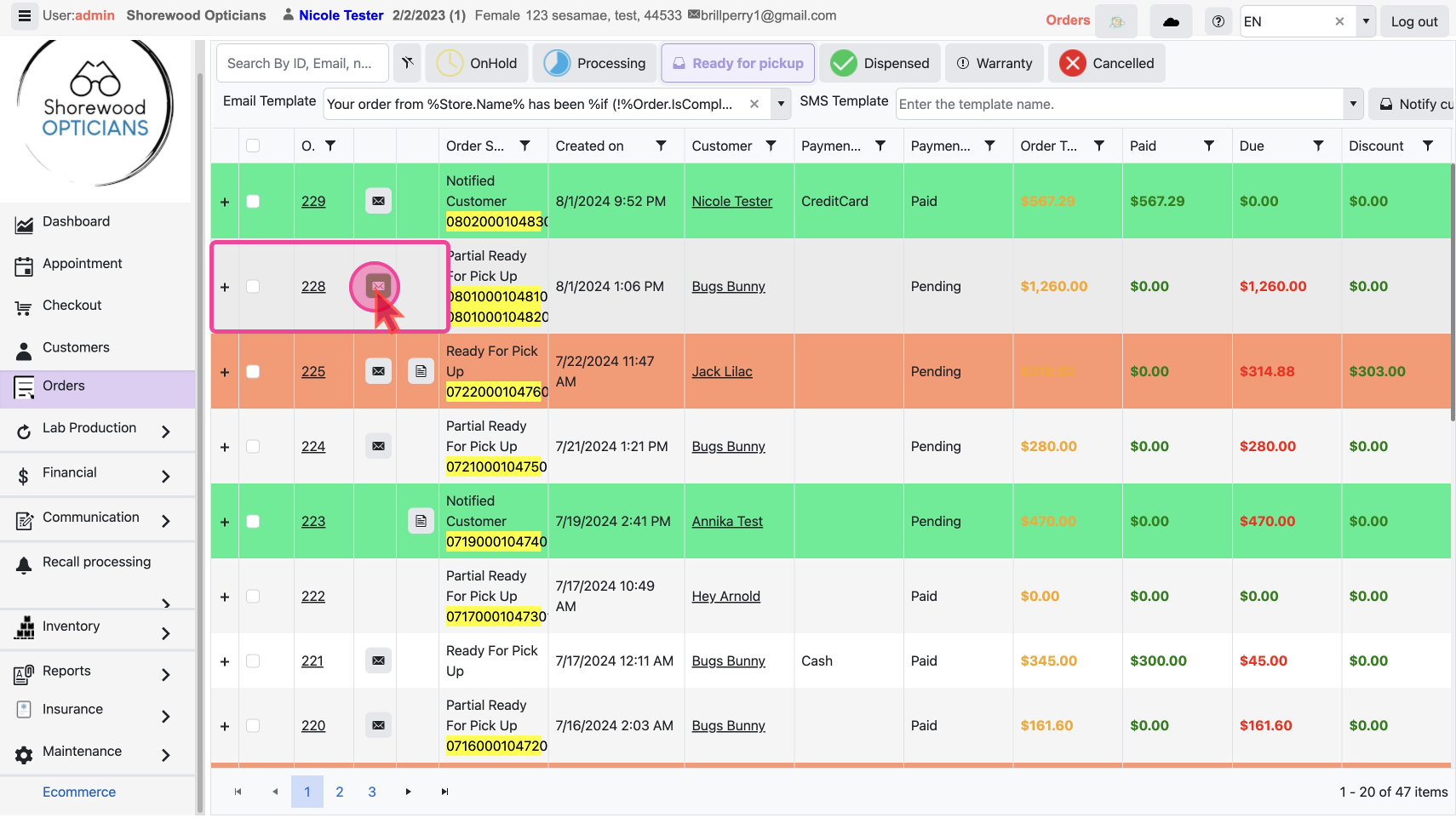
You can search for an exact order or quickly filter ready for pickup orders by clicking the status filter Button
Ready to Pickup Send email by selecting a template
Click on the mail icon on any order. This will open a pop-up where you can add email details.
Pick the pre made message template
OrderComplete.CustomerNotification. This will enter into a pre-made title and content. You can also choose other templates, or write the email yourself.
You can check the text and edit it if needed right here. Once everything looks good, click on the Send button to send the email.Send default email From Orders Detail Page
If you don't want to manually add a template or write an email, you can choose to send the default email by clicking on the
order ID of any order. This will take you to the order’s detail page.
Click on the Email button. This will send an email to the customer automatically.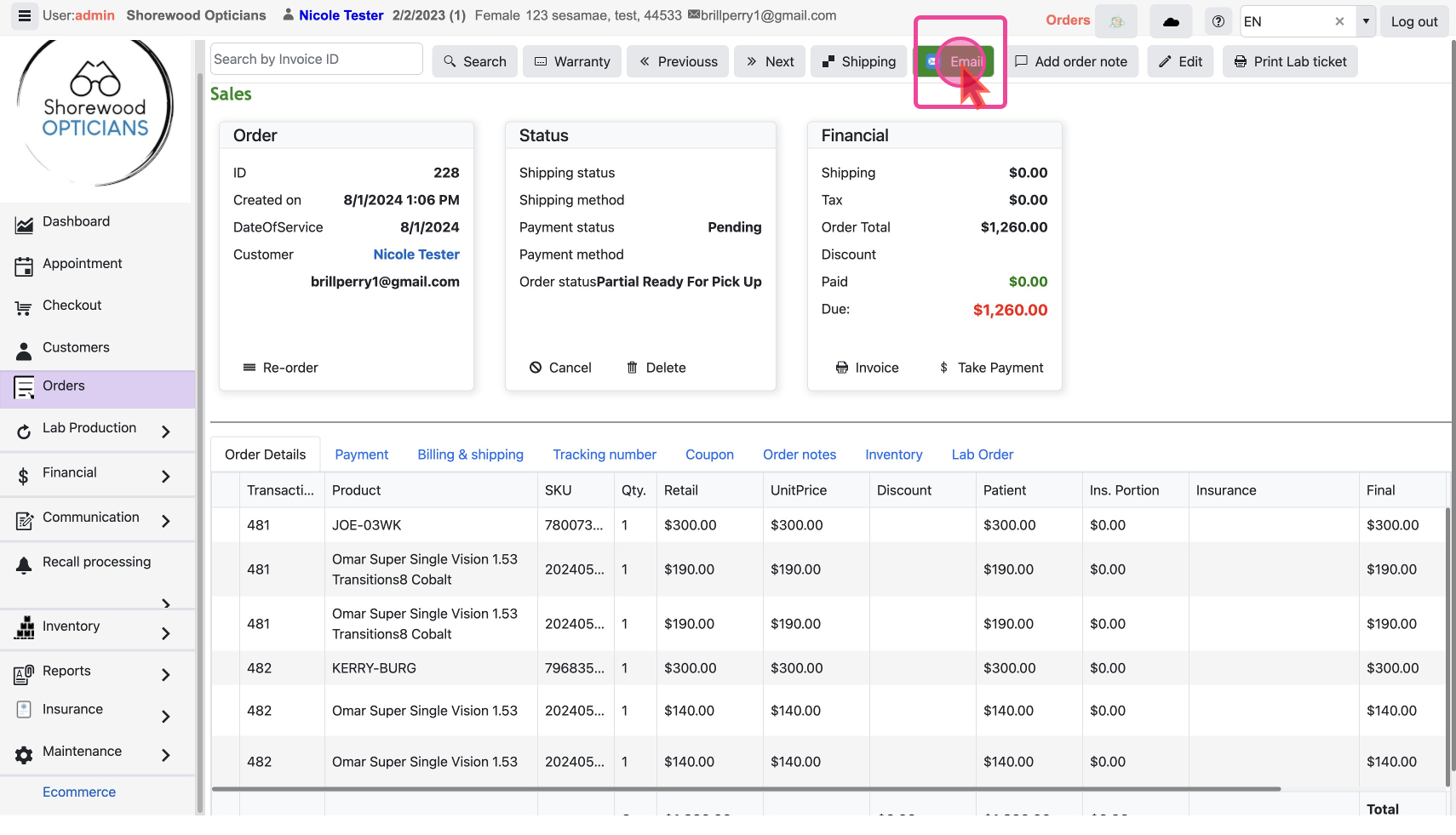
Once you send an email the status will show
Notified Customer Next, dispense the order to customer by hand or delivery services
Clarify -
how to send notifications by SMS?
