Introduction
When you checkout an order you are taken to the Order Page where all the details regarding an order are visible in a bird eyes view.
It serves as a central hub for managing all aspects of an order, allowing you to easily access and update data.
Accessing an Order Detail Page
Anywhere in the system where you see
Order Id it will be a link with a number like 323 . Click it to come to this page.
The page is divided into Action Bar on top, Summary Section in middle giving bird eye view and Tabs sections on bottom detailing all aspect of an OrderAfter checkout, the current Order detail page is shown by default.
Action Bar
Edit Order: Change any data related to the Order
Email: Send Email to customer
Print Lab Ticket: Print the lab ticket for this Order
Summary Section with Actions you do
Sales: Data regarding the when and who the order is for with
Re-order button.
Status: Data regarding Statuses of Payment, Order & Shipping with Cancel & Delete Buttons
Financial: Data regarding Invoice Total Amount, Paid Amount & Due Amount with Invoice & Take Payment Buttons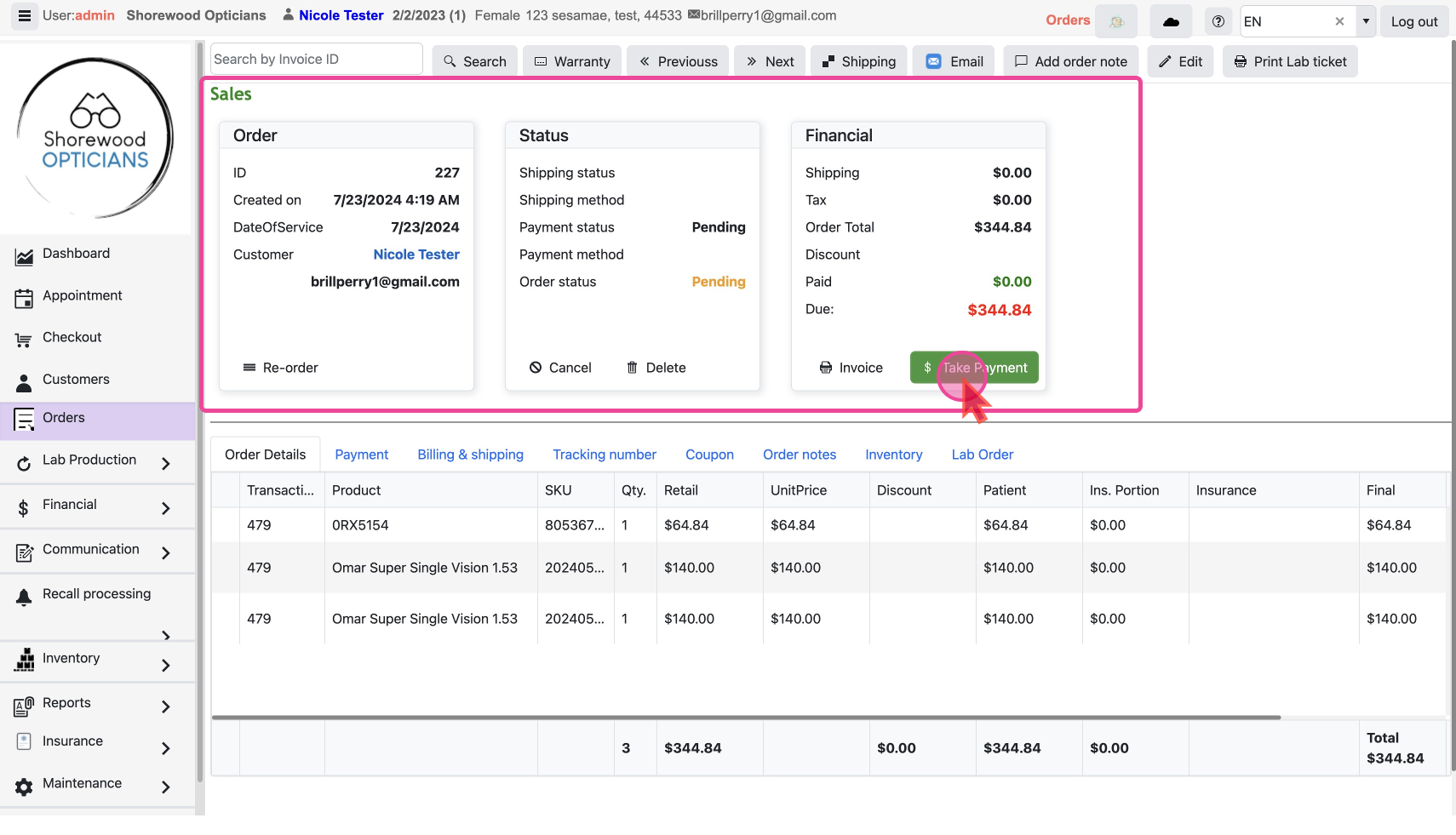
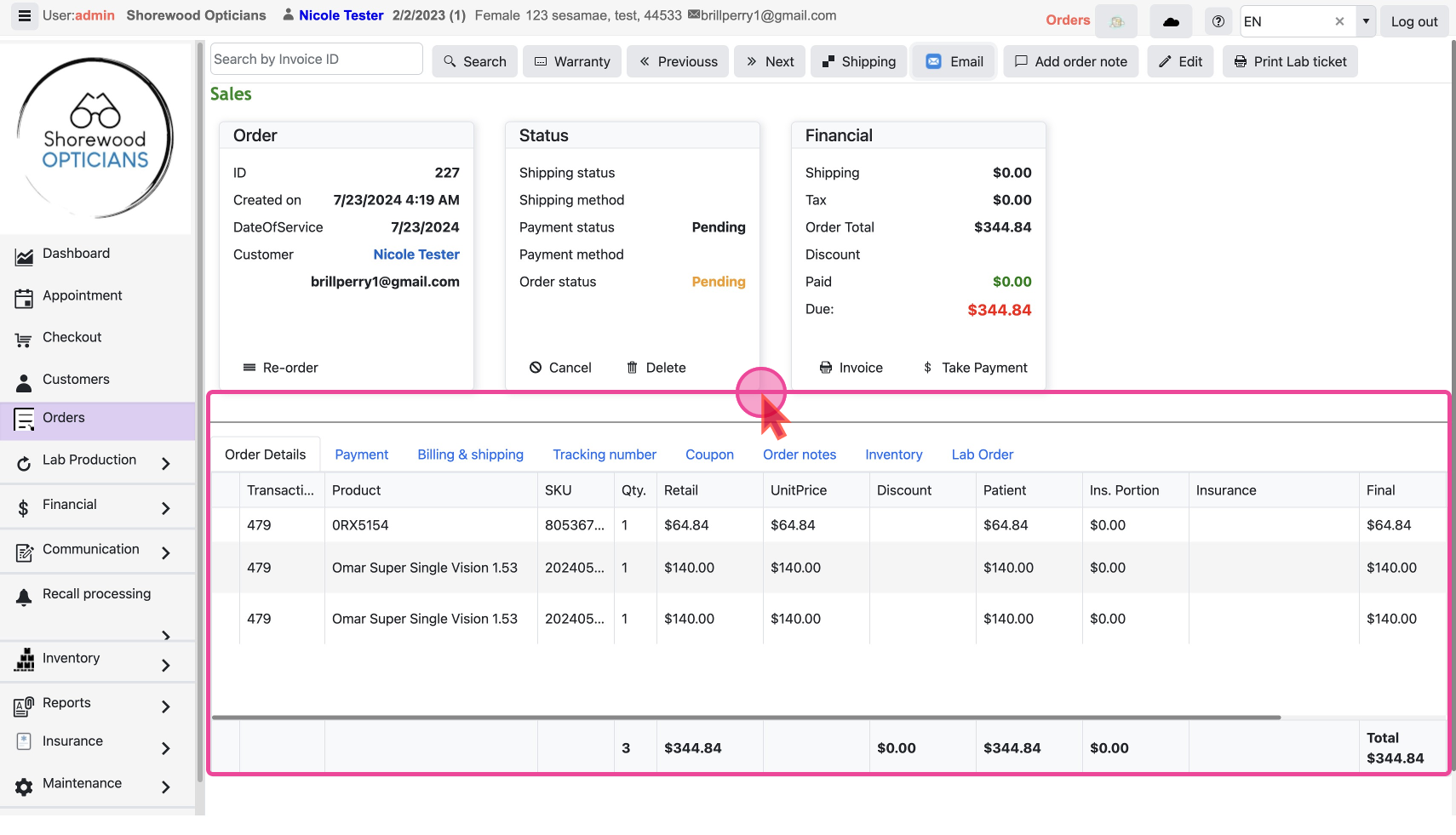
Detailed Data for the Order in Tabs with Actions you can do
The bottom of the page contains tabs with data showing details of-
Order Details: All the product Line Items in the Order in details
Payments: All Payment transactions history regarding this order
Billing & Shipping, Billing & Shipping data
Tracking Number: If being delivered online then the tracking number of delivery
Coupon: Details of coupons applied
Order Notes: Internal notes regarding the Order
Inventory: See the effect of the order on the Inventory levels
Lab Order: Details of Lab Order and ability to
Send Order To Lab & Print Lab Ticket