Introduction
For cases where the payment was not made at the time of checkout or only partial payment was made, you can use the order’s page to handle pending payments.
Accessing Order Detail Page
Select the
Orders tab in the left Navigation Menu to open the orders listing page. You can see all of your orders and their details here.
Find & Go to that Order’s Detail Page : Use the search bar to search for the Order you want to take payment for - by ID, customer Name, or email and Click on the Order Id Link. 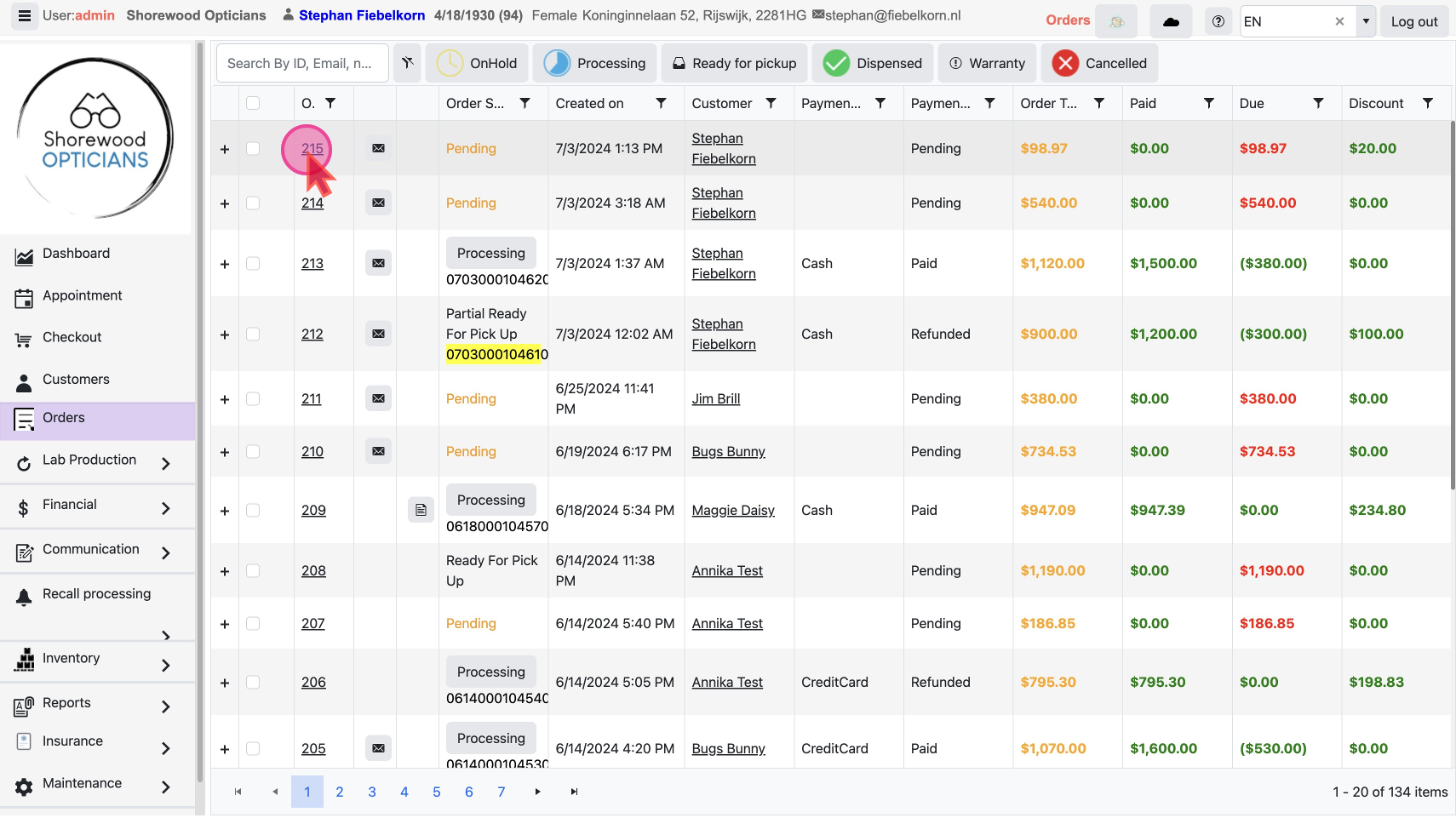
Pending Payment is shown in Financial Section
At the top, you'll find key order information such as the customer's name, contact details, and order date. The page is divided into sections including
Sales, Status, and Financial information.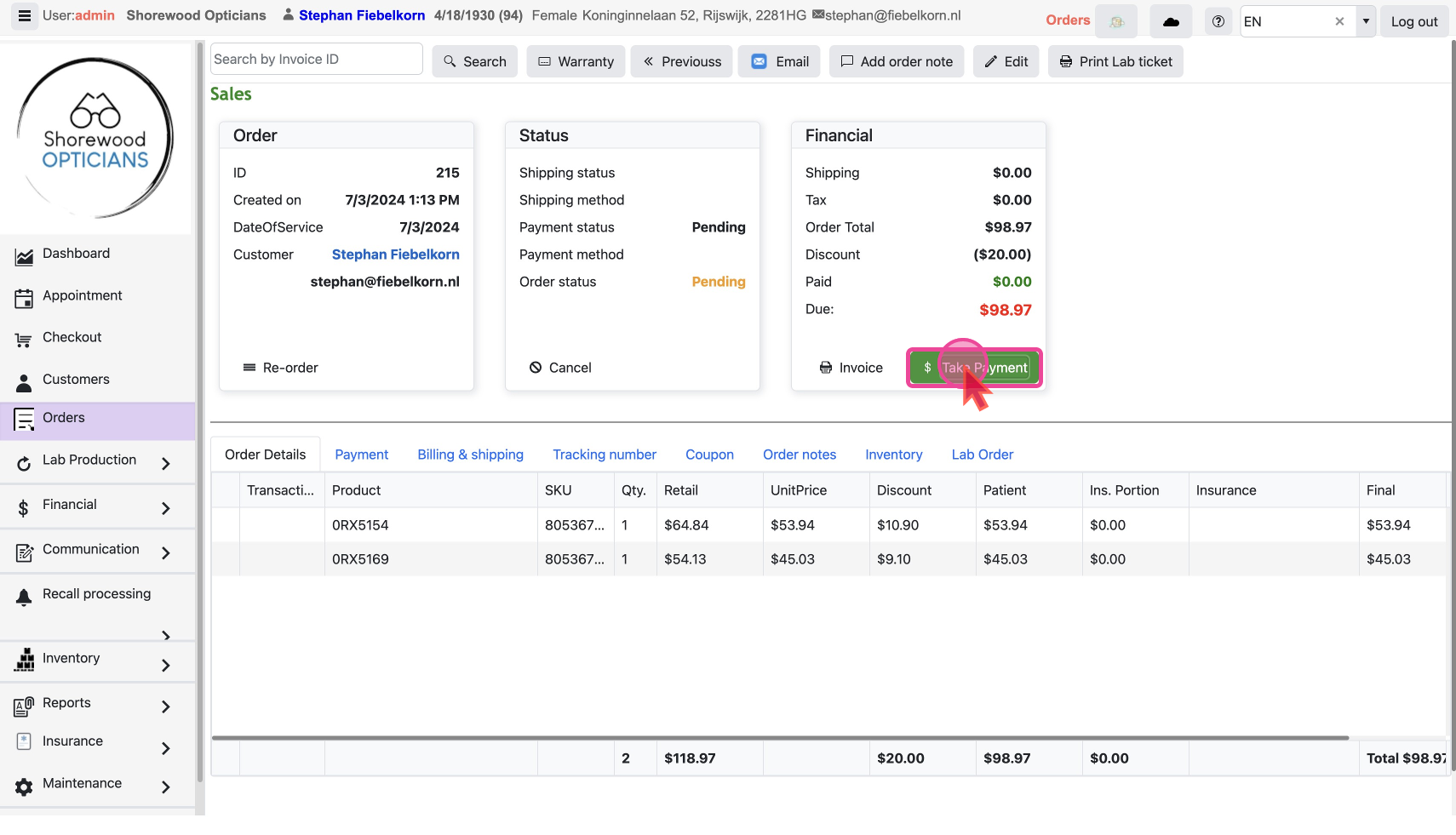
The
Financial box gives you an overview of the total order value and pending payment.
Click on the Take Payment button to start the payment process.Choose Payment Method
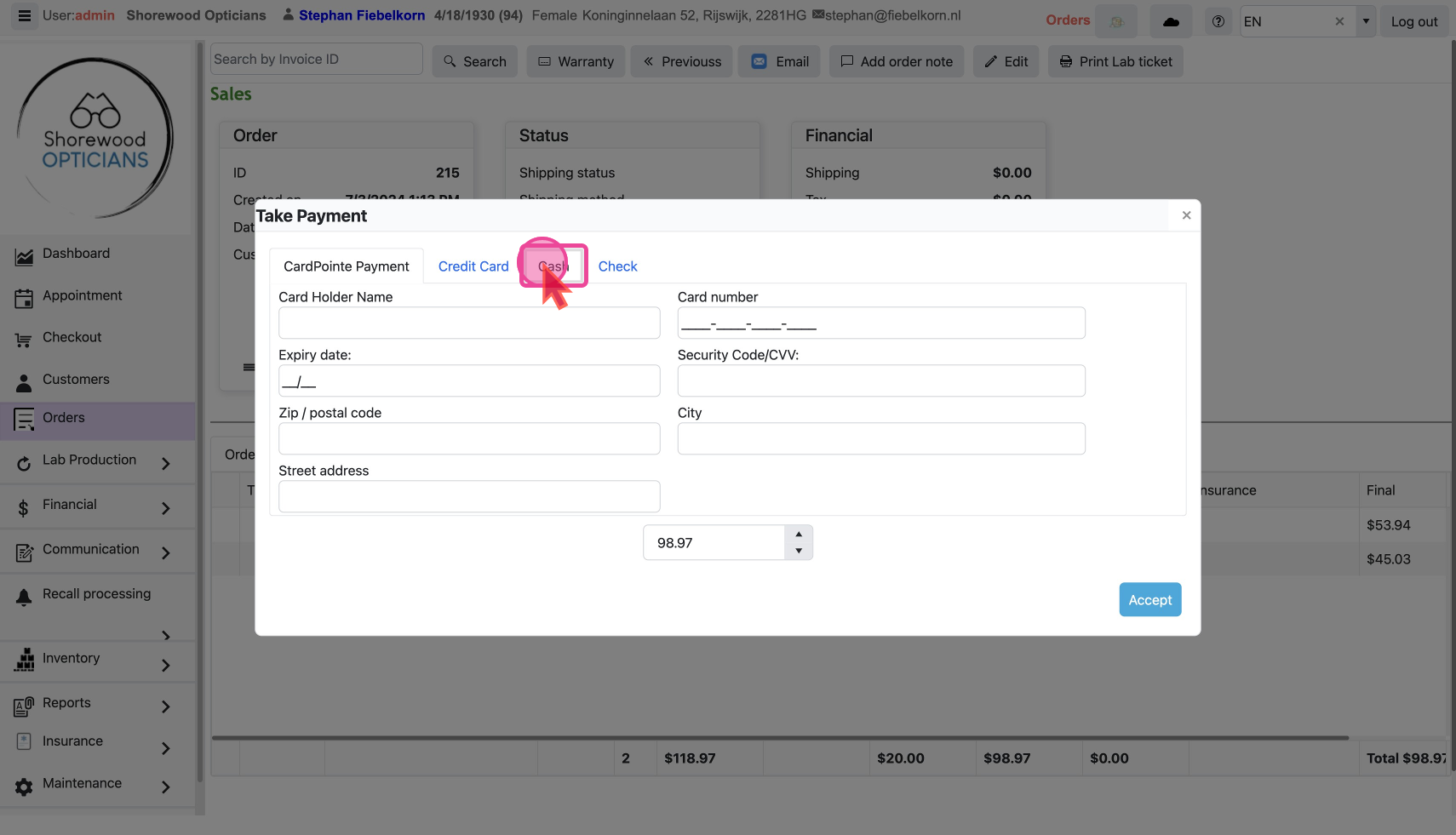
A payment form showing you the order details and different payment options will open in a pop-up.
The order details page offers several payment options to accommodate various customer preferences.
- CardPointe Payment: For processing credit card payments through the CardPointe system. Add required details like
Card Holder Name,Card Number,CVV, etc.
- Credit Card: To accept standard credit card payments. Add in credit card details to proceed.
- Cash: This is for customers who prefer to pay with physical currency.
- Check: To accept personal or business check payments. Record the
check numberif this mode of payment is selected.
Register Payment
Once you have chosen a payment method and filled in any details, click
Accept to proceed with the transaction and order creation.Print Invoice
After taking payment, you can click the
Invoice button to create the invoice.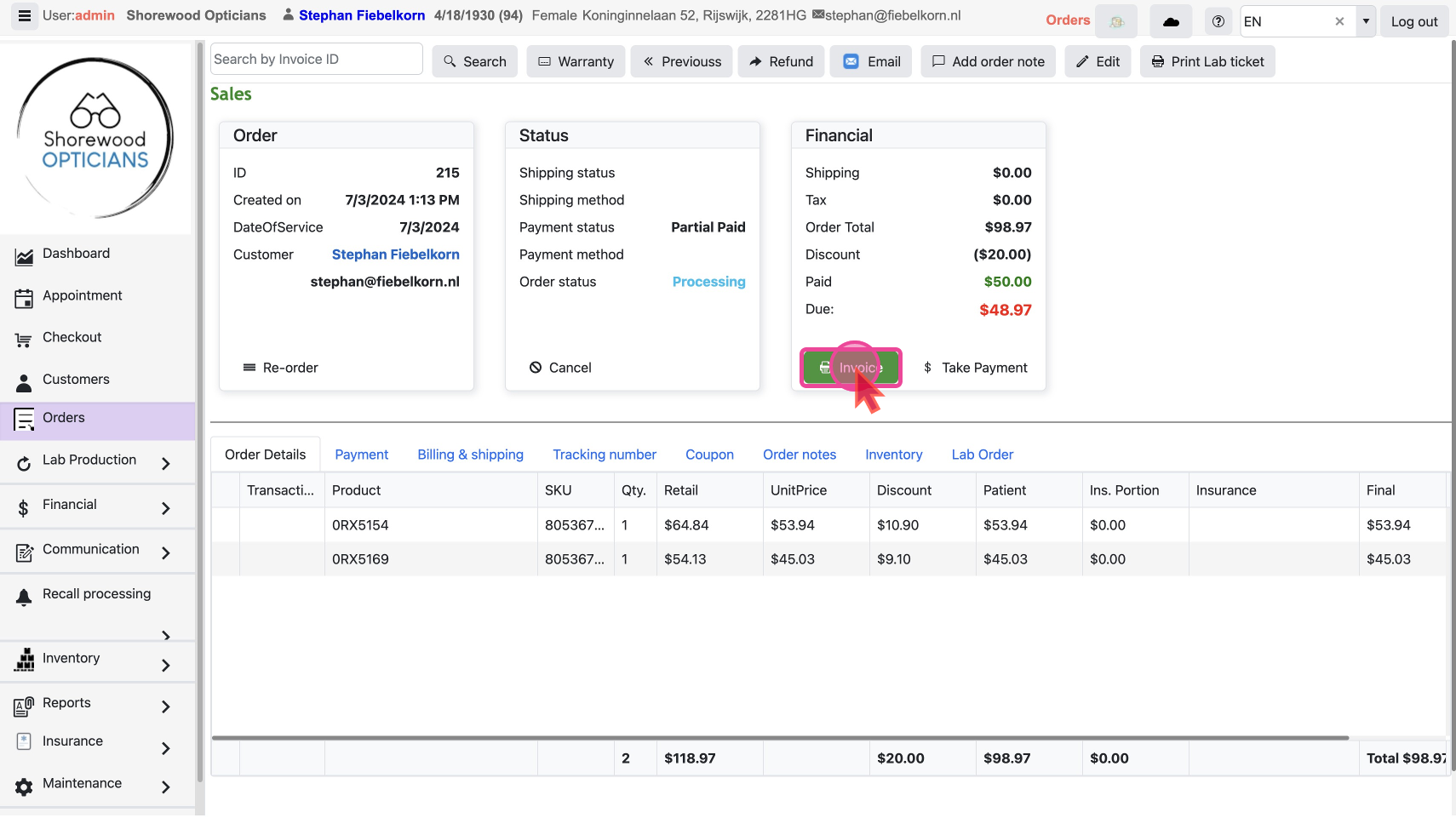
The invoice will be in a popup with a button to
Print or Email it. 