🏁 What the Received Status Means
The
Received status is used when an order or an individual job has arrived back from the lab and is physically in your optical.When your shipping carrier (such as UPS, FedEx, or USPS) delivers a box of completed jobs from the lab, marking them as
Received lets your team know that those orders are now in the building and ready for inspection.This step helps maintain clear communication across your team—especially in busy practices where jobs might sit for a day or two before being checked in.
By marking an order as
Received, you’re confirming:- ✅ The lab has returned the job.
- 📦 The package has been delivered to your optical.
- 👀 The job is now waiting for your check-in process, such as verifying lens accuracy, inspecting cosmetics, and preparing it for customer pickup.
Once you’ve completed your inspection, you can move the order to
Ready for Pickup.Accessing the Receiving Lab Orders section
Select the
Lab Production tab in the left Navigation Menu and then select the Receiving tab.
This will open a page where you can set orders as Received or view previously received items.Find & Select Orders
Use the search bar to search for the Order you want to set as
Received and press ENTER
You can repeat the process of Finding the order and pressing ENTER 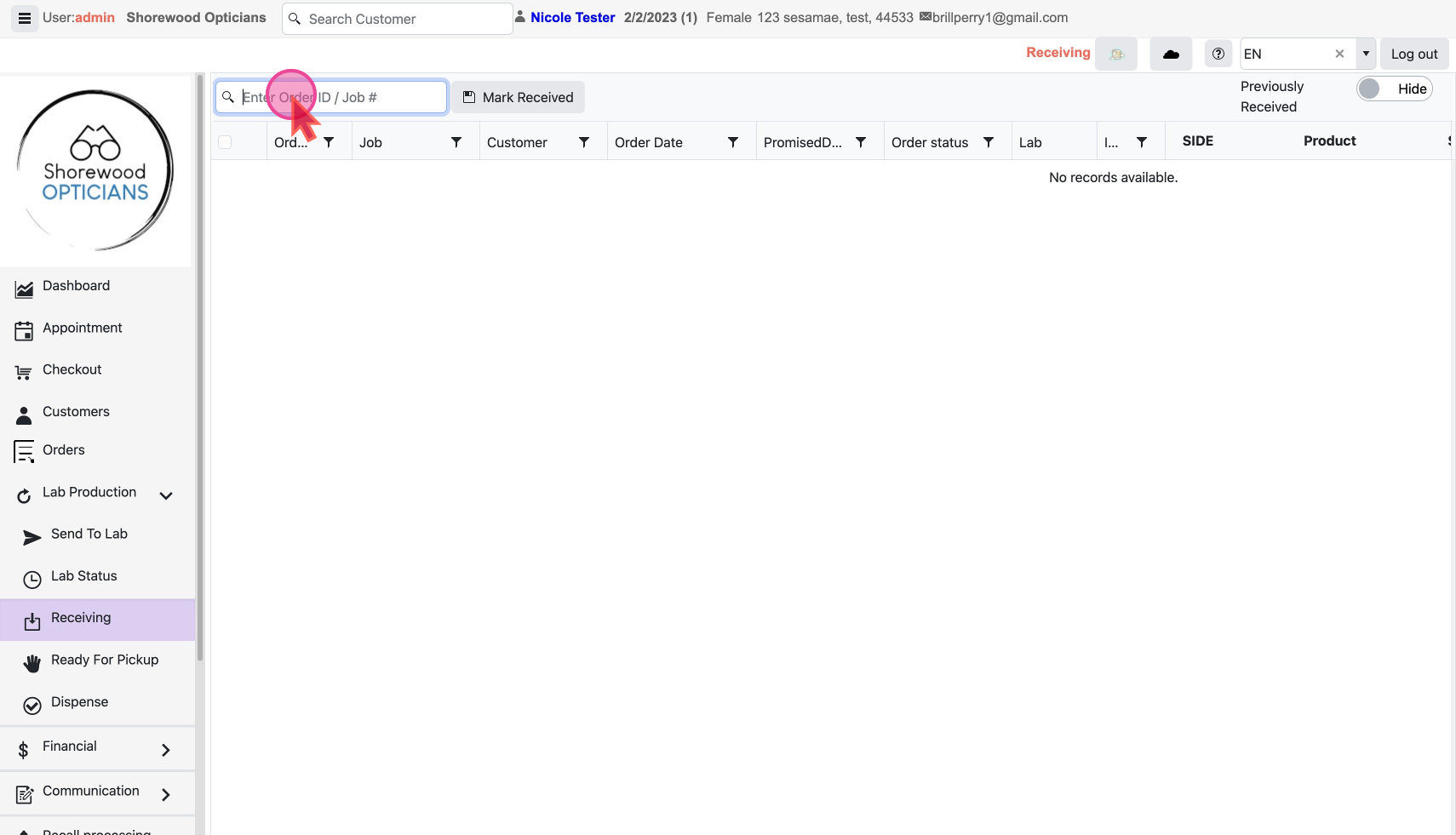
Confirm Orders Received
You can un-check any order to remove it. Once finalized click on button
Mark Received. and all the checked orders Status will be set as Received. 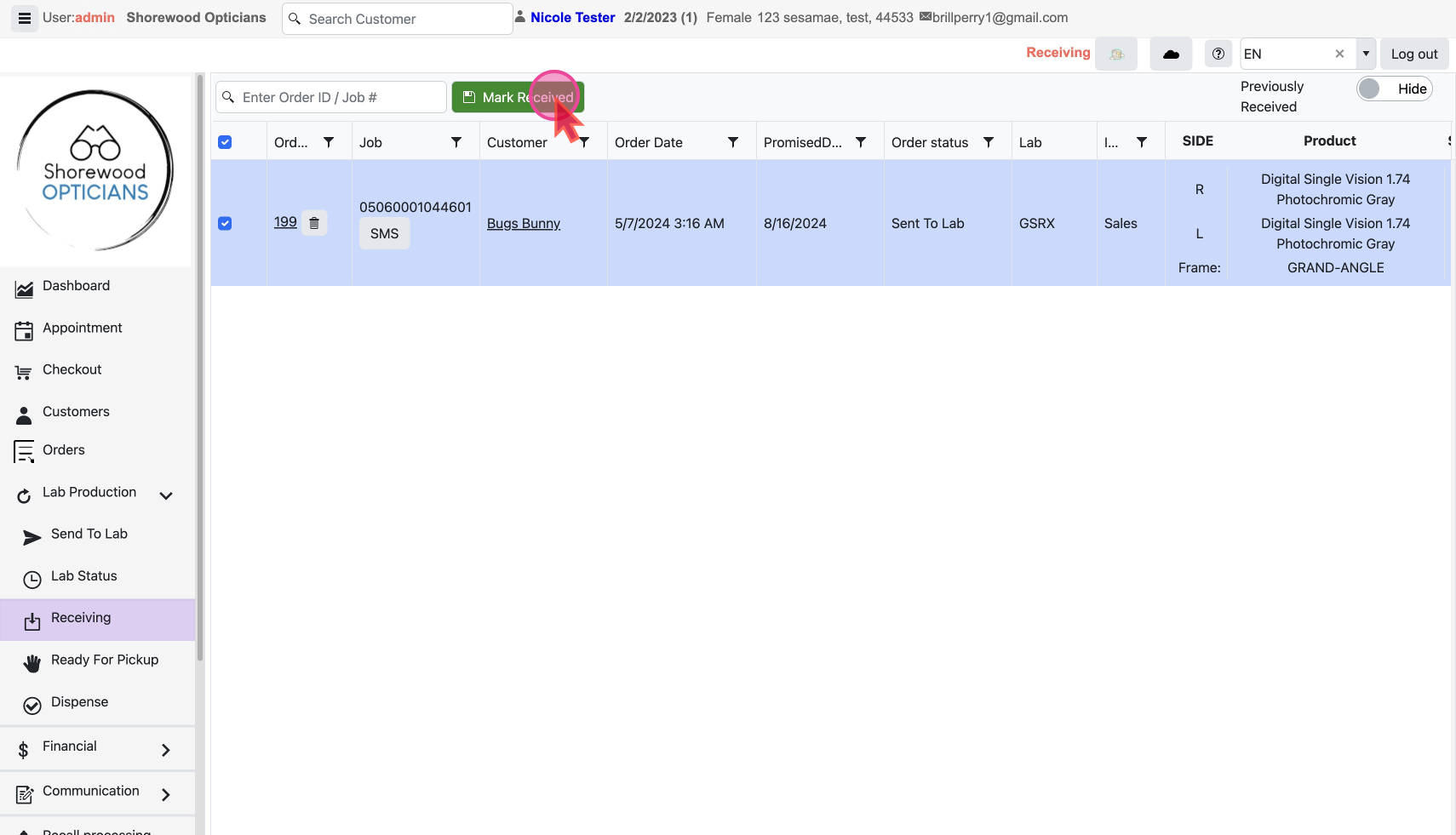
You would now go ahead and set them as ready for pickup to finally dispensing to the customer.
