Introduction
Creating a new customer profile is the core functionality. The customer record is the main Hub from where you can do actions related to a customer, as well as see and analyze all past activities related to the customer.
Follow these steps to add a new customer to your system.
Accessing Customers Page
Select the
Customers tab in the left Navigation Menu. 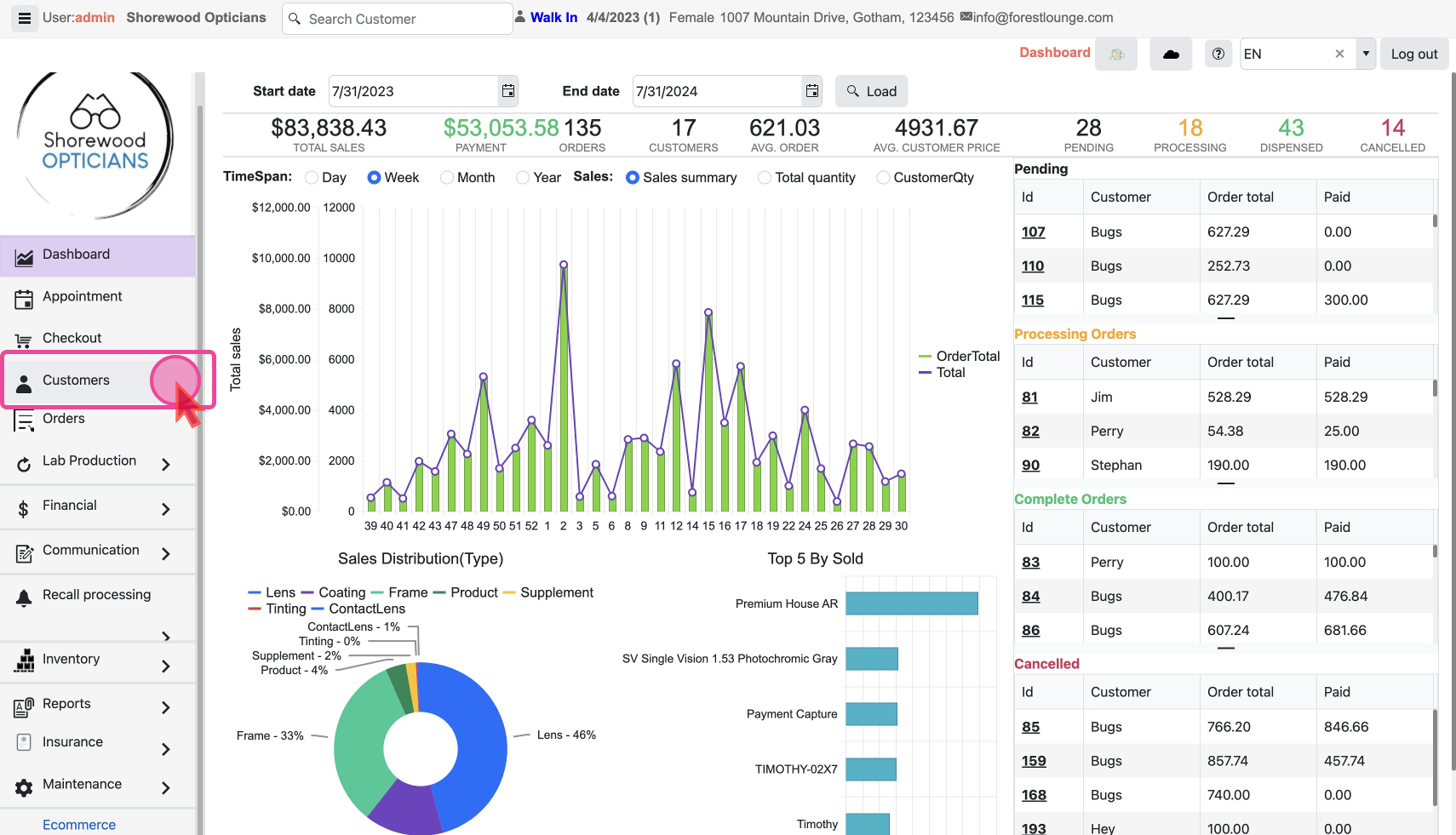
Add Customer Details
Click on
Add New Customer to begin creating a new profile. 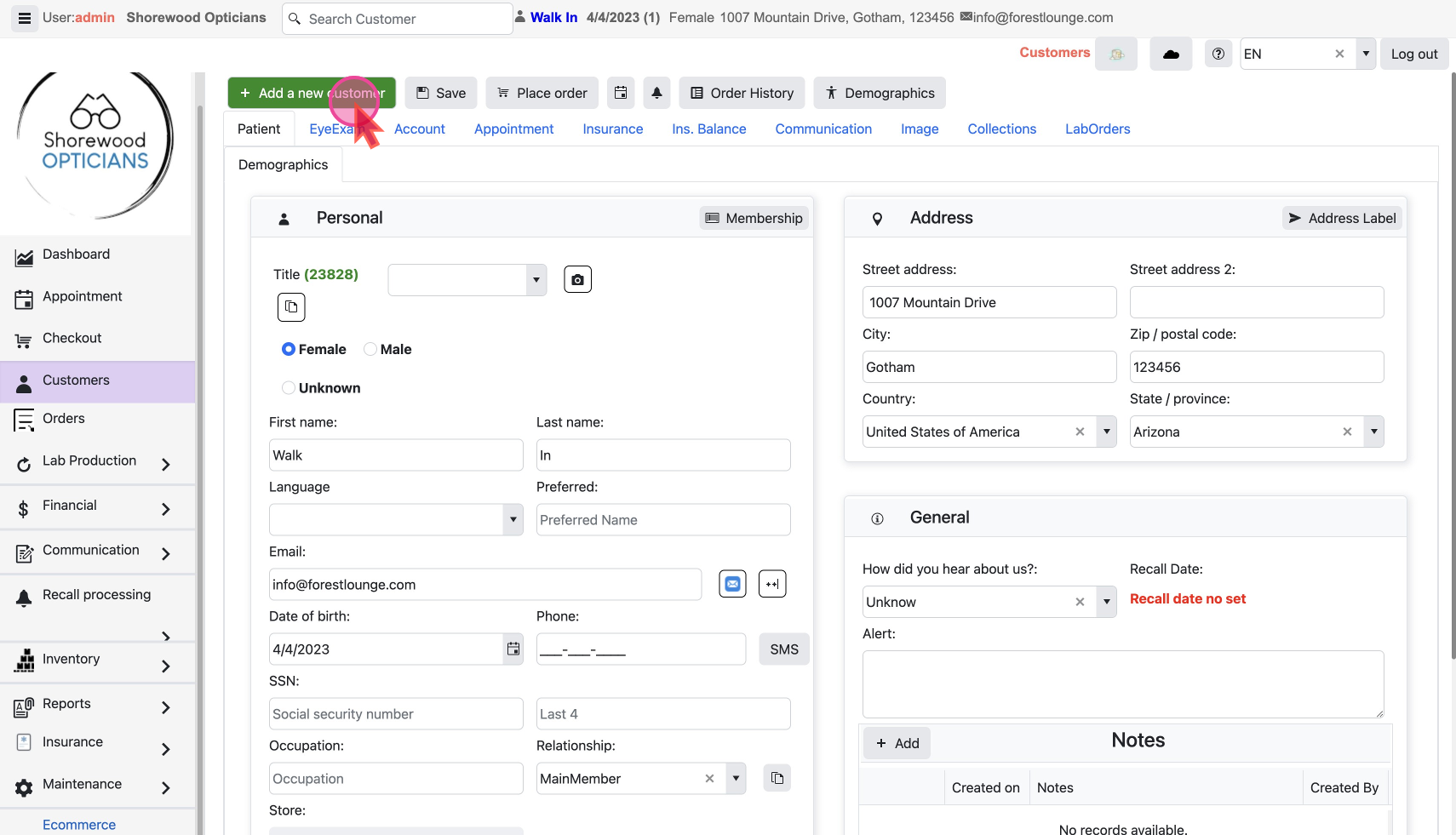
Add the Basic Details
Name and Identification:
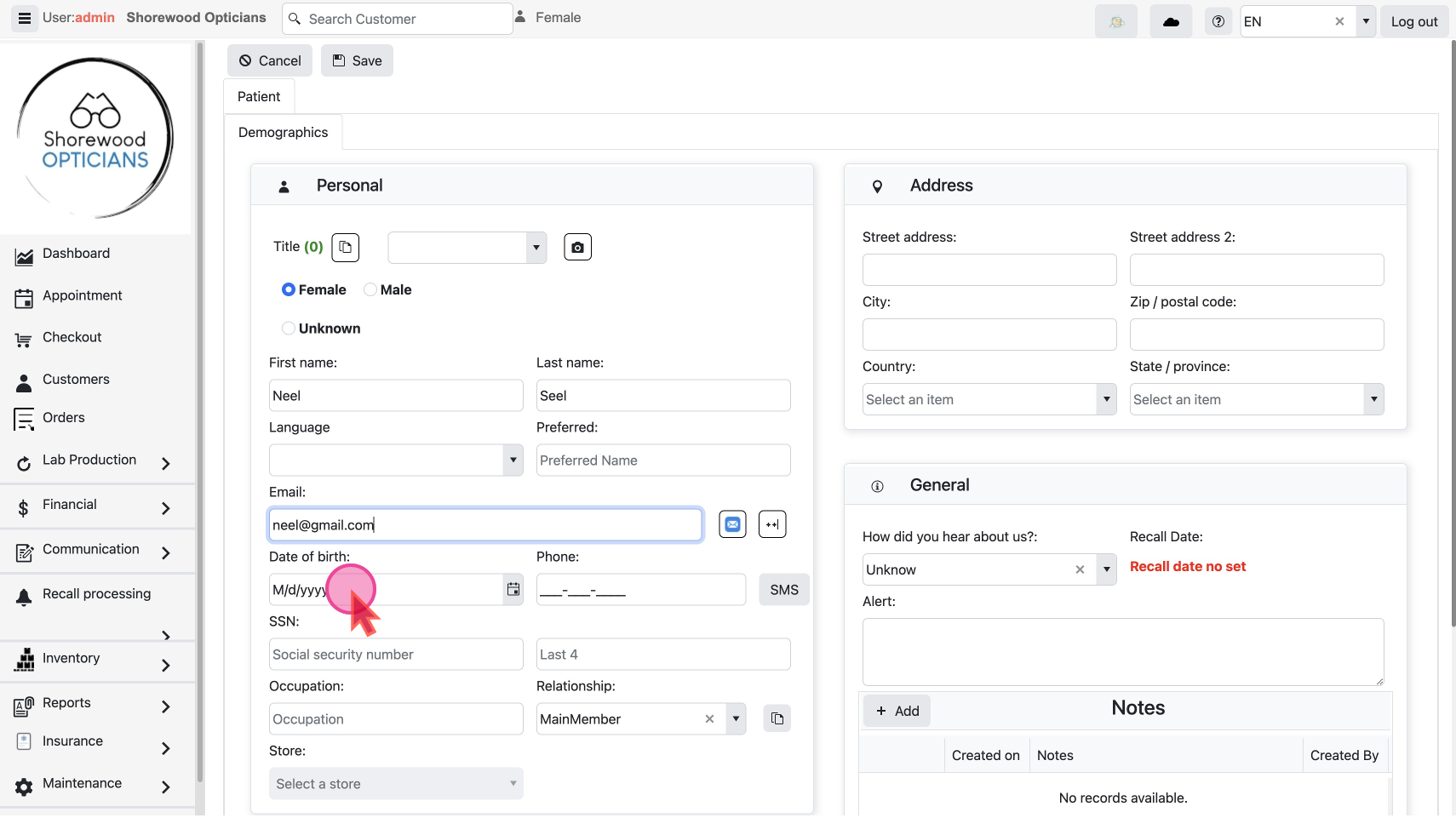
- Enter the customer’s
First name&Last namee..g you might use 'Tony Stark'. You can also add a nickname like 'Ironman'.
- A title is optional but can be added if applicable.
- Add a
Date of Birthto keep on record for any age-related services or promotions.
Take a photoof the customer if needed for identification purposes in your system.
Contact Information:
- It is recommended to add an
email addressto facilitate communication. For example, use 'tony@stark.com'.
- Enter the customer's
phone number. Ensure this information is correct for future communications.
Set Communication Preferences
- Adjust settings for receiving texts and emails: If a customer prefers not to receive text reminders or promotional messages, ensure these options are turned off.
- Privacy Settings: Manage how the customer would like to receive advertisements.
Disable sending promotional emails if the customer opts out but keep appointment reminders active if they are desired.
Misc Information
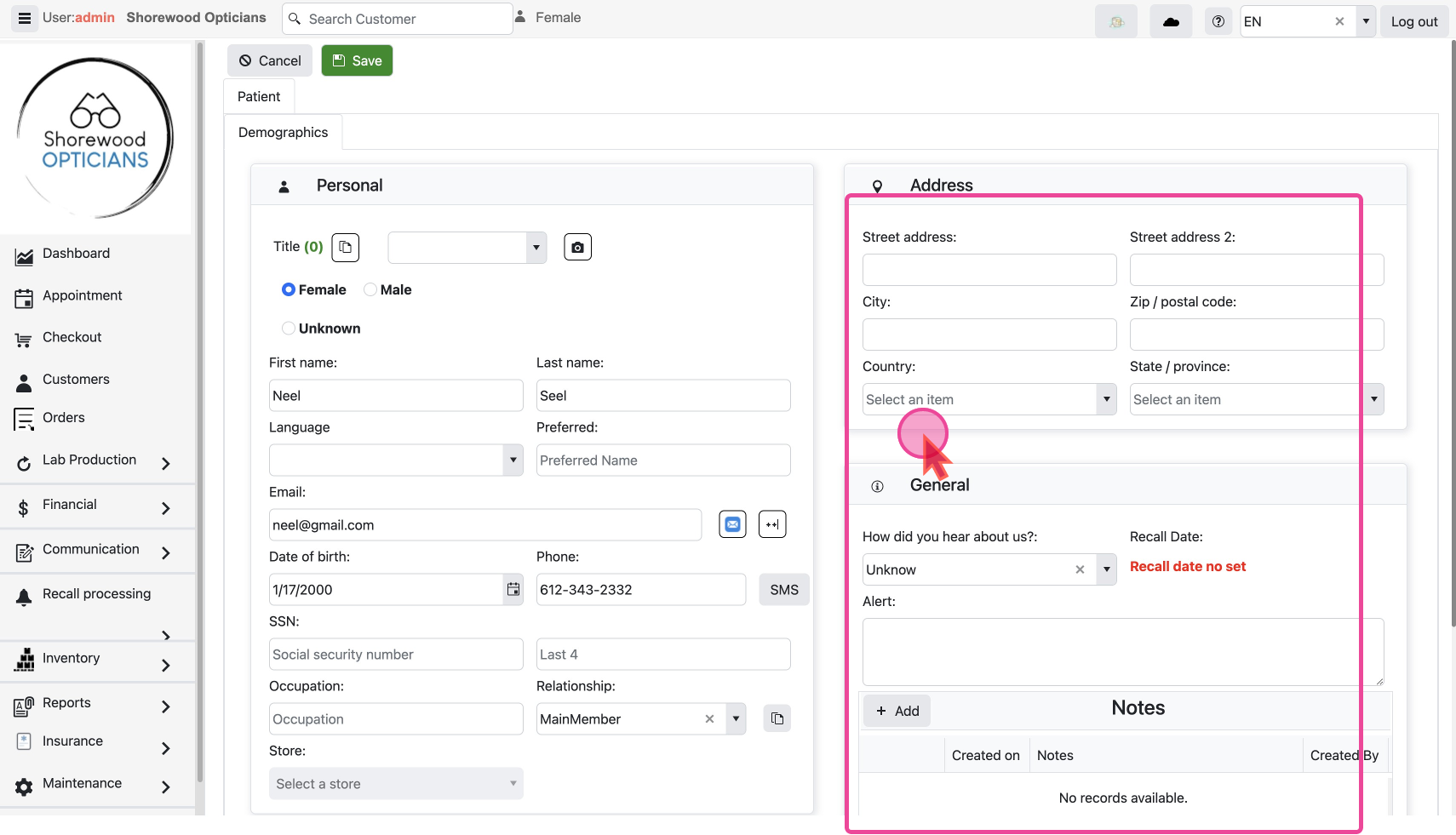
Referral Source: Include information on how the customer heard about your business to track marketing effectiveness and customer acquisition channels.
Special Needs: Add any notes relevant to the customer’s care, such as 'Patient needs a wheelchair,' to ensure their visits are accommodated properly.
Save customer profile
Save the record. The customer just entered would be selected by default.
Edit Customer Profile
You have to find the customer you want to edit.
Use Search
- Use the search bar on top, type in the customer's ID, name, email, or phone number and press
ENTER.
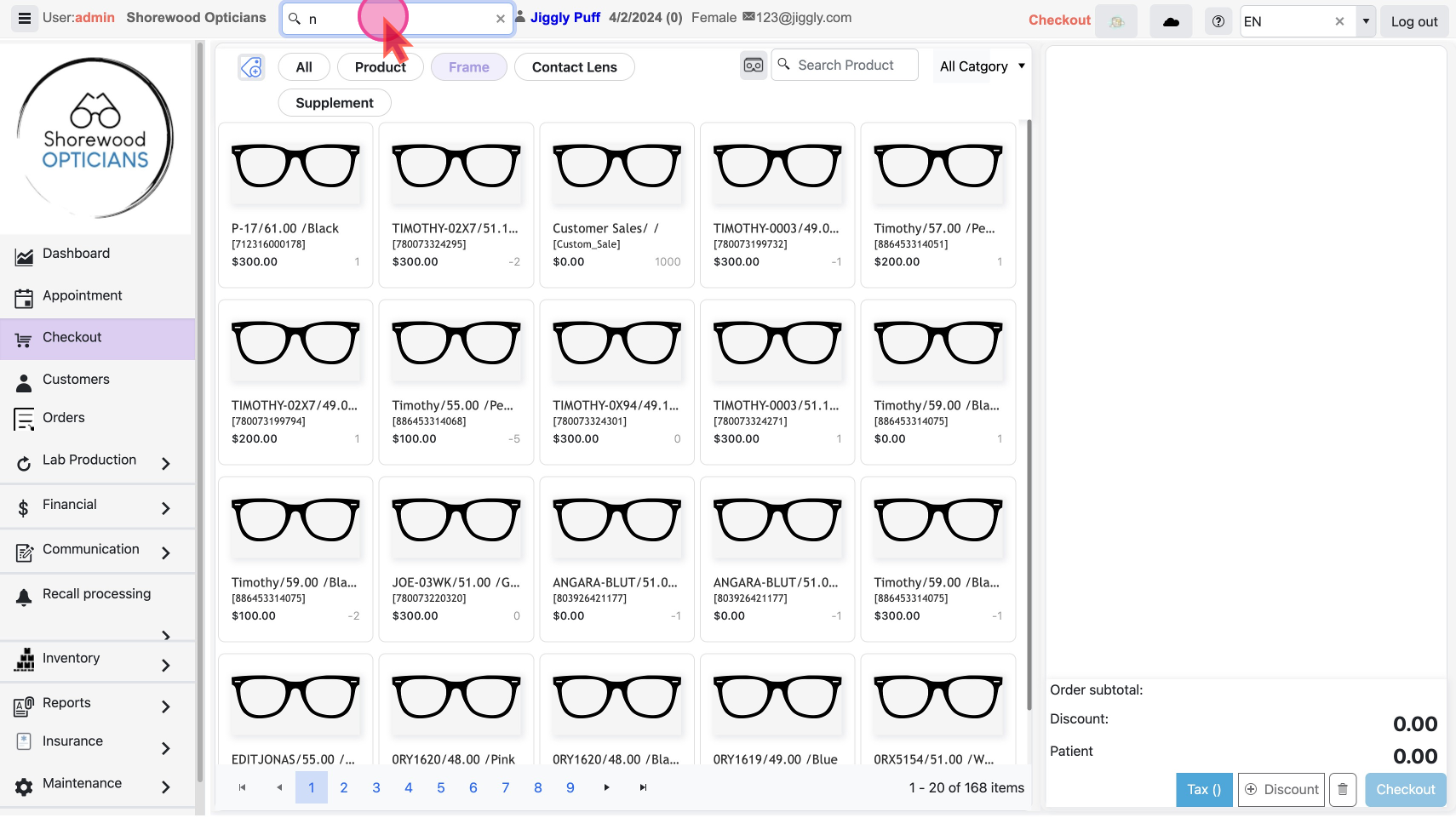
- If the name matches one customer it will be selected
- If there are multiple users with what you typed, then pop-up will show all matching customer profiles
- From the matched profile select the customer’s record.
Use Customers List
- Click
CustomersunderMaintenanceon the left menu
- Use Filter / Sort on any column or search to find the customer
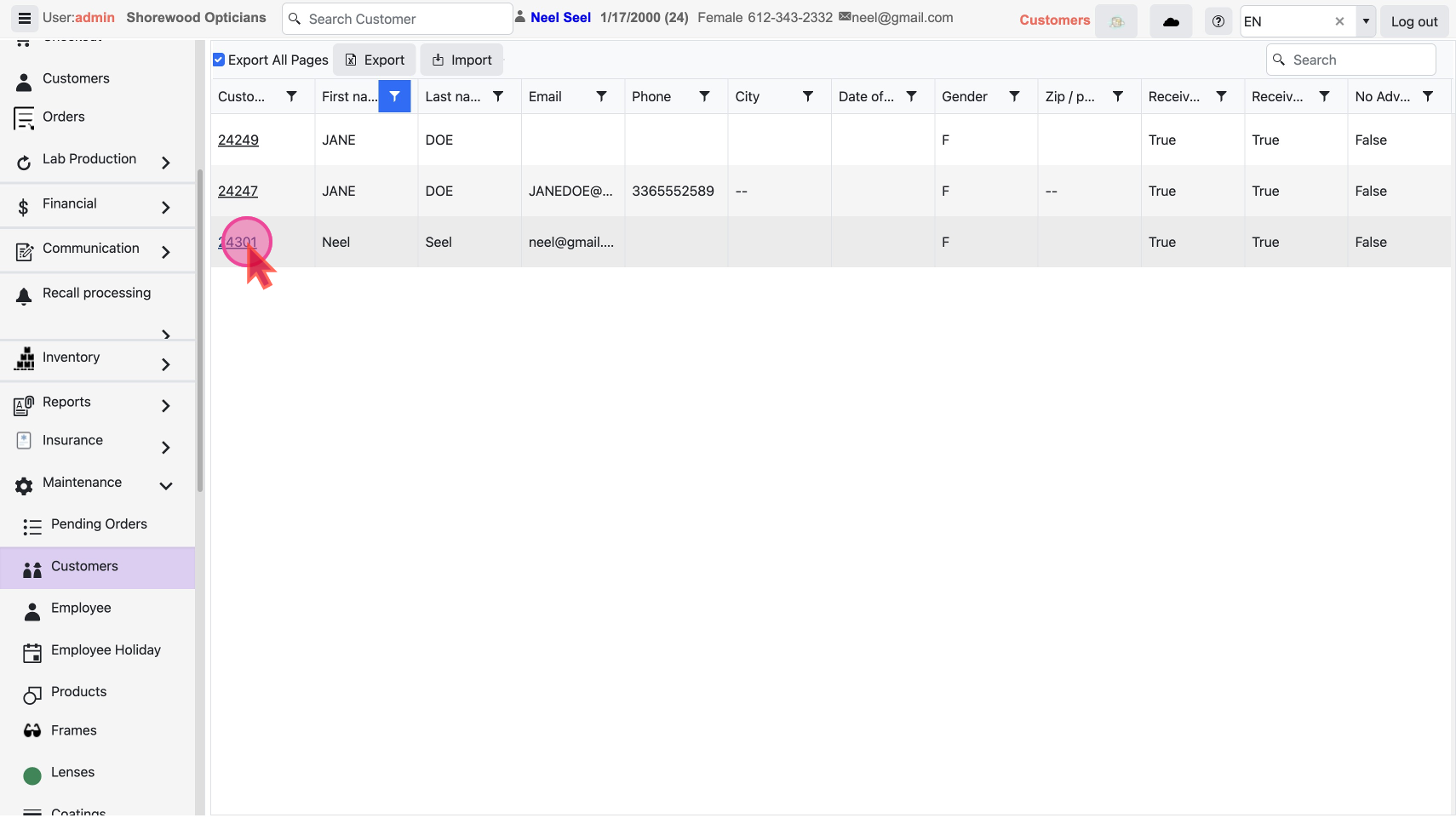
- Select the customer by clicking the customer Id Link
Change & Save
Make changes and click
save button to save the changes Related Articles
Learn how to Find and Select any customer
