Introduction
Other than
you - the owner and administrator of the system, you can add employees in different roles who will perform different actions like checkout, inventory management, payments, etc
Learn how to add, edit, and remove employees.Access Employee Section
Select the
Maintenance tab in the left Navigation Menu and then select the Employee tab. This will open a page that shows a list of all employees.On the top, there is an action toolbar with the Buttons Add New, Export Import, etc. Learn about Action Toolbar Bar in General.Add Employee Details
Click on the
+Add Action Button in the Action Bar.
This will show a pop-up with a form to fill up.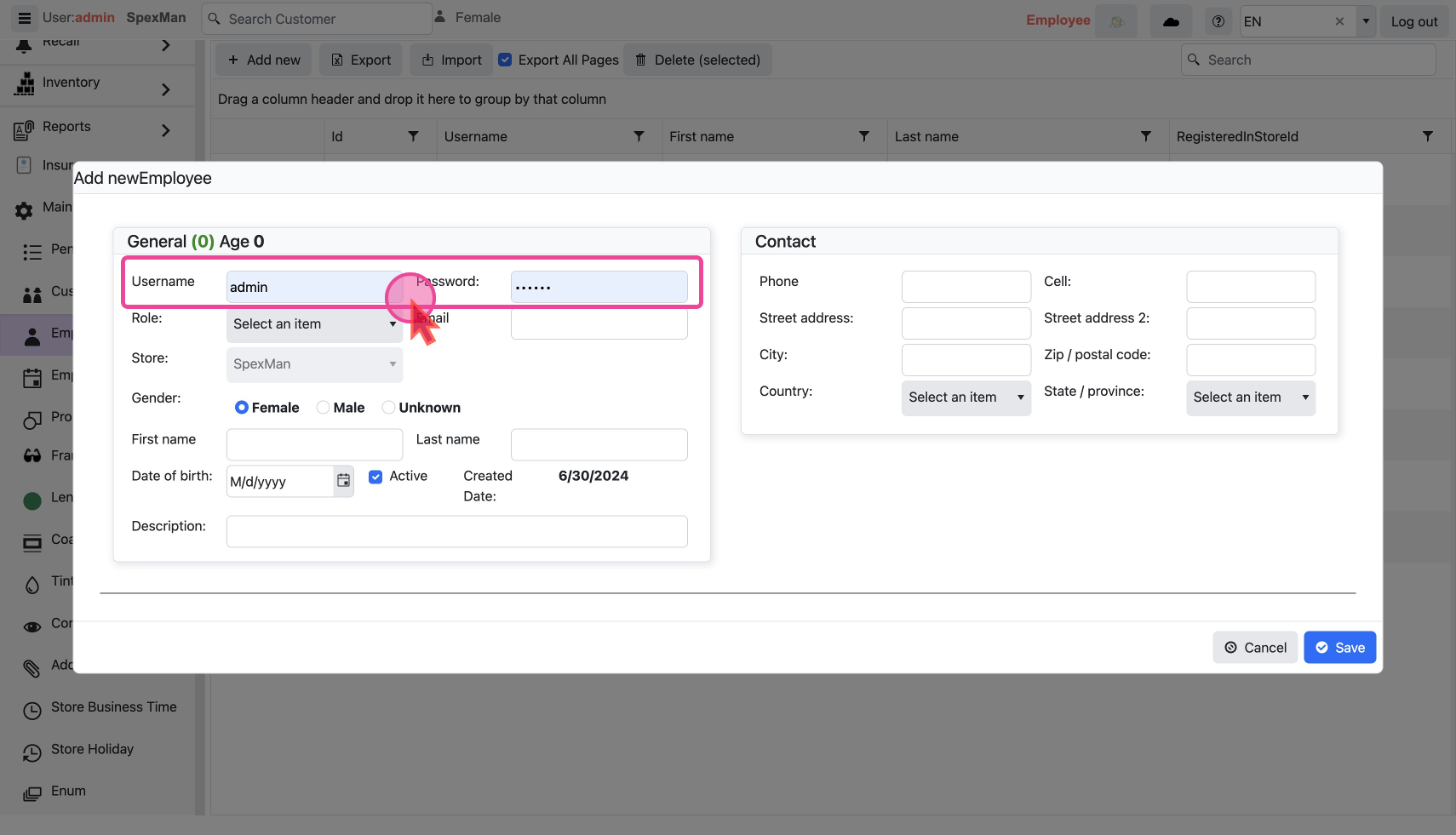
Username
Type in the
Username and assign a passwordThe Username has to be unique. Try to give a password that is difficult to guess!
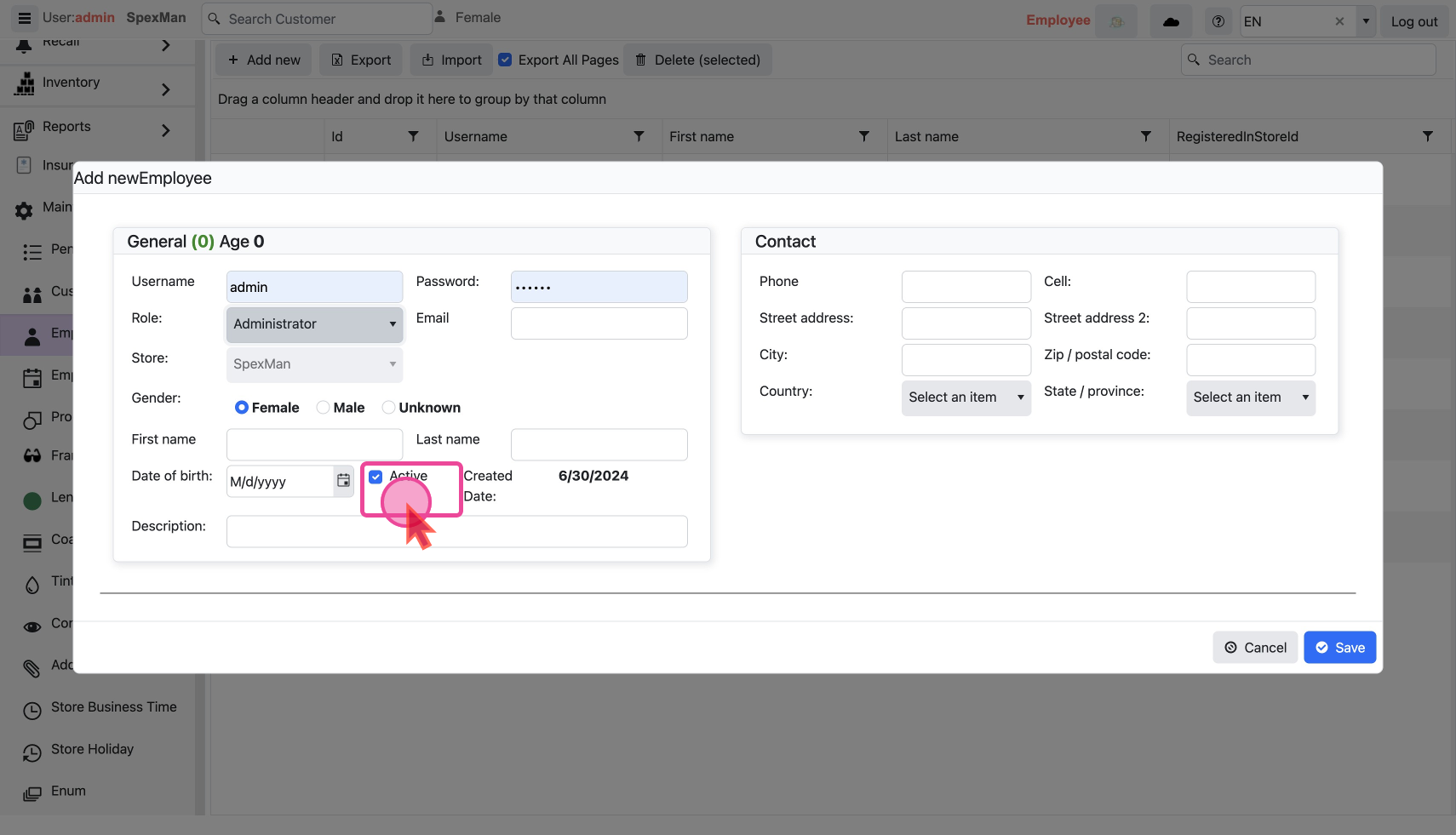
Role
Assign a
Role to the user, for example, let's select Administrator RoleMake Employee Active or Inactive
The
Active checkbox shows an employee's working status. - It should be checked If they are currently active or a new hire
- It should be unchecked when they are no longer working for you.
Click the
Save button to add the new Employee or save the changed DataModify a Employee
The
Pencil Icon and Trash Icon on each line are used to edit or delete that employee’s record.
Edit Employee Details
Click the
Pencil Icon to show a pop-up with a form filled with the existing details.
Change as desired and save. Delete a Employee
Click the
Trash Icon to show a confirmation pop-up.
Click ok to delete.