Introduction
After you create the order and check out the customer, you would now print a lab ticket and send the order to the lab for production both online and physically.
Accessing the Send to Lab section
Select the
Lab Production tab in the left Navigation Menu and then select the Send to Lab tab.
This will open a page that shows a list of all pending Orders.Select the Lab to send to
The first step is to select the Lab to which orders have to be sent.
Click on the
Vendor drop down on the action bar and select the Lab name to send to. 
Select one or Multiple Orders
Next Select the order that have to be sent to the selected Lab.
To do so Click on the
Checkbox against the each order line to select one or multiple orders.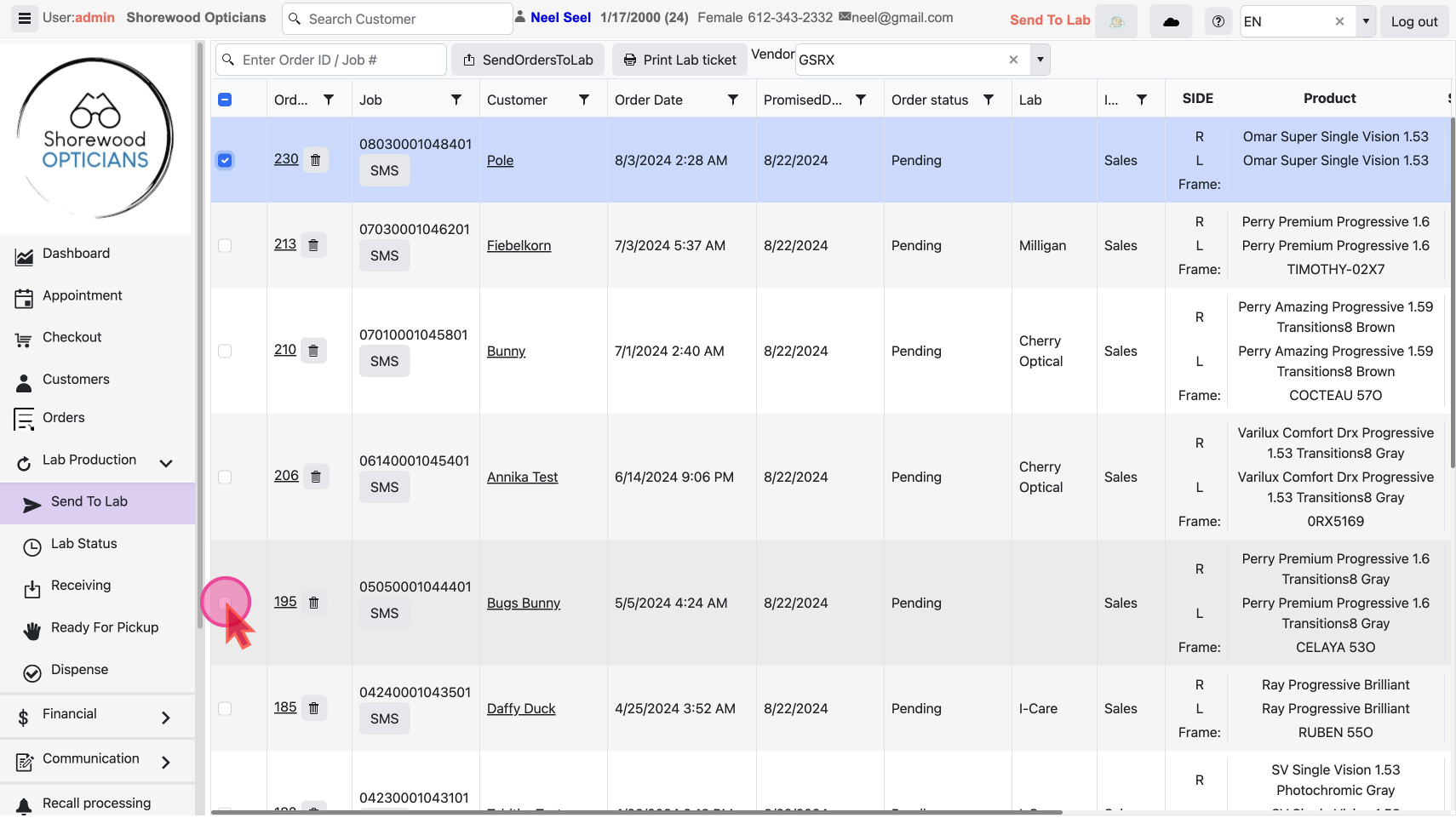
Print the Lab Tickets
For all the selected order you should print the lab tickets.
To do so click on the
Print Lab ticket button on action bar, which will show a pop-up with the number of pages equal to the number of orders selected. Click the Print Icon to take printout 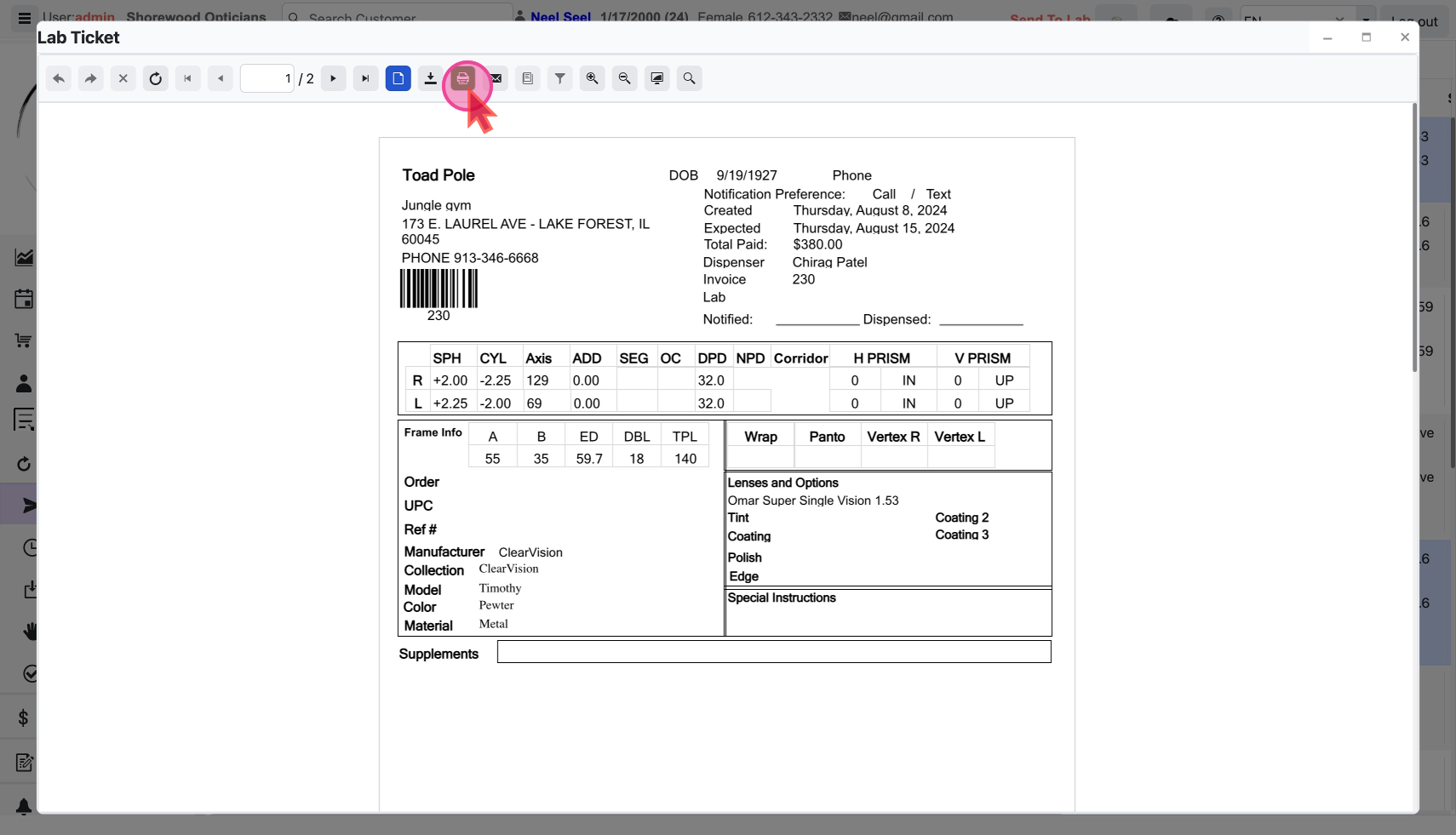
Send Job Order to Lab
Once you have the lab tickets, go ahead click on the
SendOrdersToLab button to send to the lab online.
Finally, This changes the status of the job order to Sent to lab and this order will now be visible in the Lab Status tab.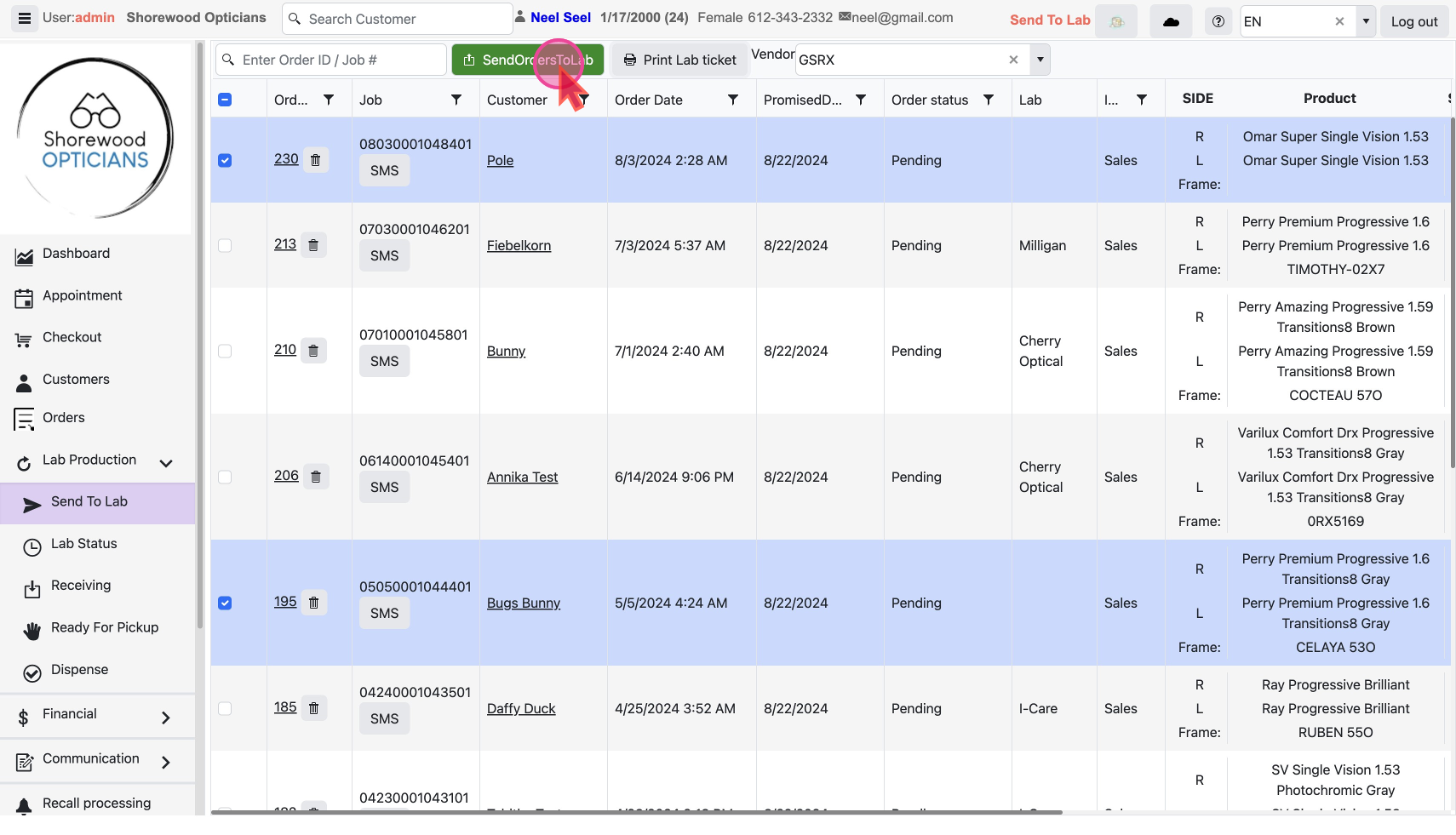
Prepare packages to be physically sent to lab
You would now prepare the packages with frames etc and put on the printed Lab tickets on correct package, before sending these over to lab
