Introduction
There are times when you need to adjust your retail prices in bulk, like when a vendor changes frame prices.
This guide will walk you through the steps to update the prices in your inventory using an Excel file.
Do this if you know how to use Excel.
Do not change SKU column as that is used to identify the Item
Accessing Frames section
Select the
Maintenance tab in the left Navigation Menu and then select the Frames tab.Export Your Frame Inventory
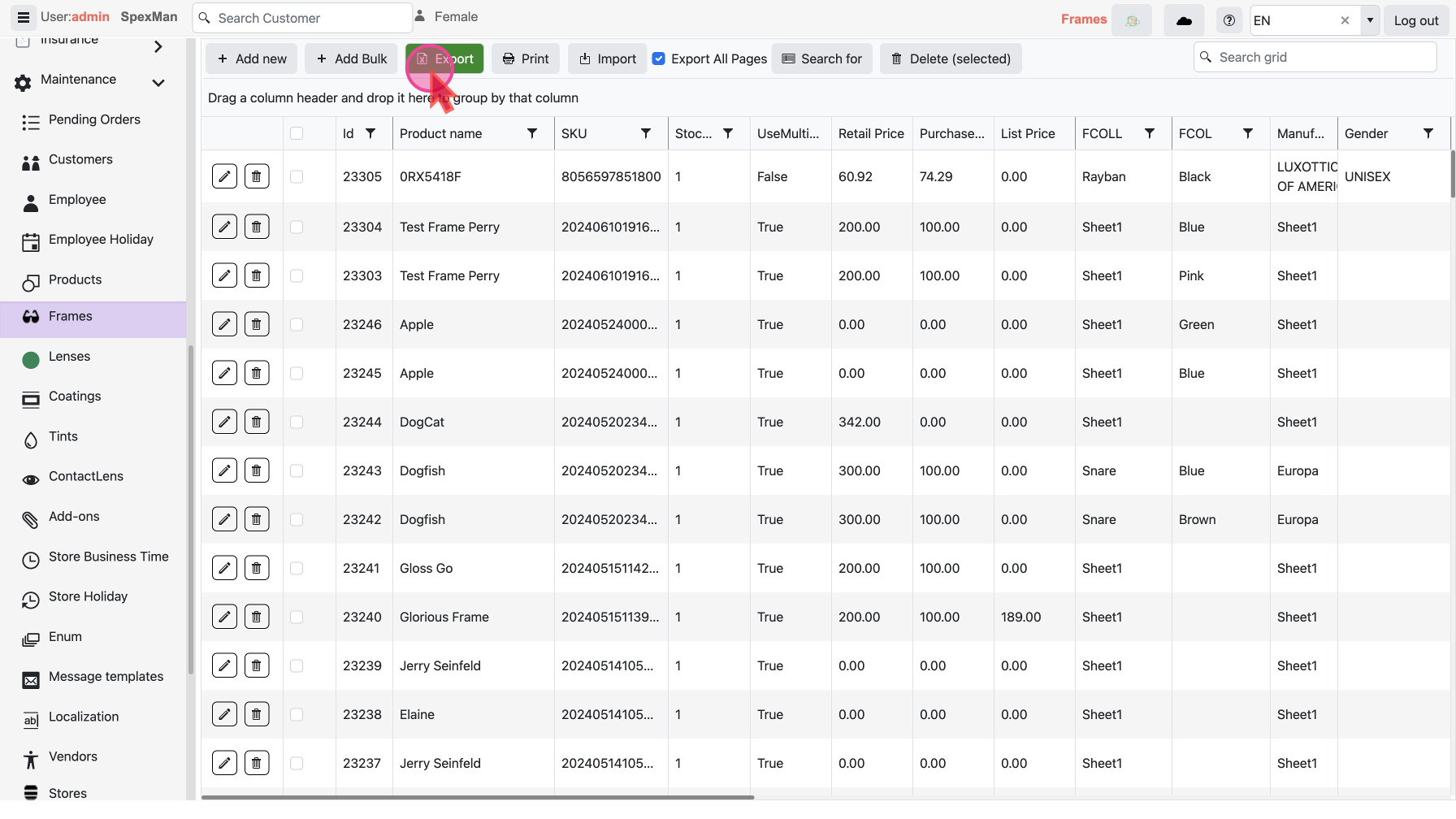
- Select the option
Exportfrom the top menu of the Frames page.
- This action will generate an Excel file containing your current frame inventory data.
Edit the Excel File
- Open the exported Excel file.
- Sort and filter as you need.
- Find the column named
Price. Change the prices for Frames as needed, up or down.
- Save your Excel file once all necessary changes have been made.
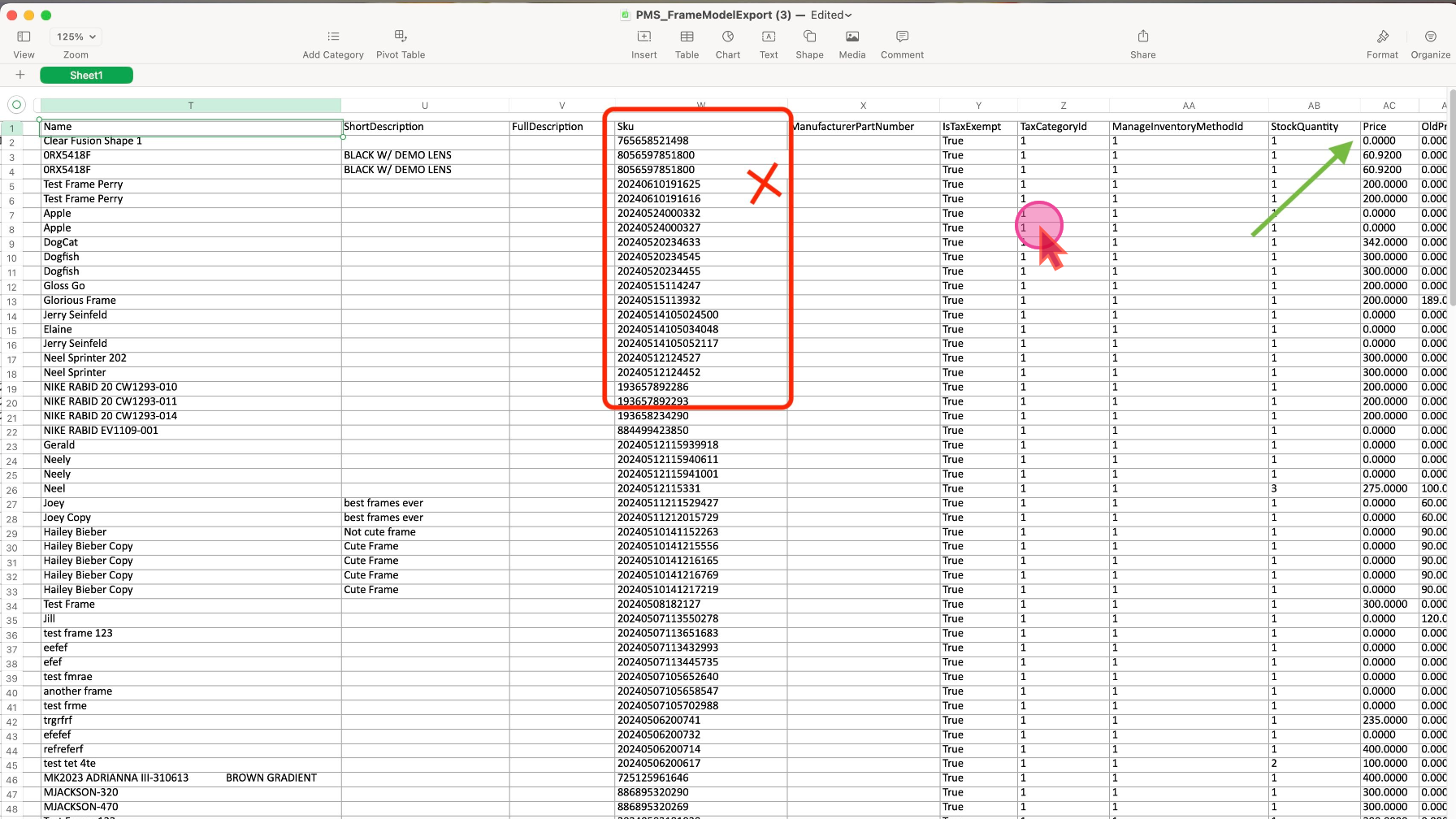
Do not alter SKU numbers under the SKU column as this will affect inventory data integrity.
Import the Updated File
- Return to the
Frames pageand select theImportoption from the top menu.
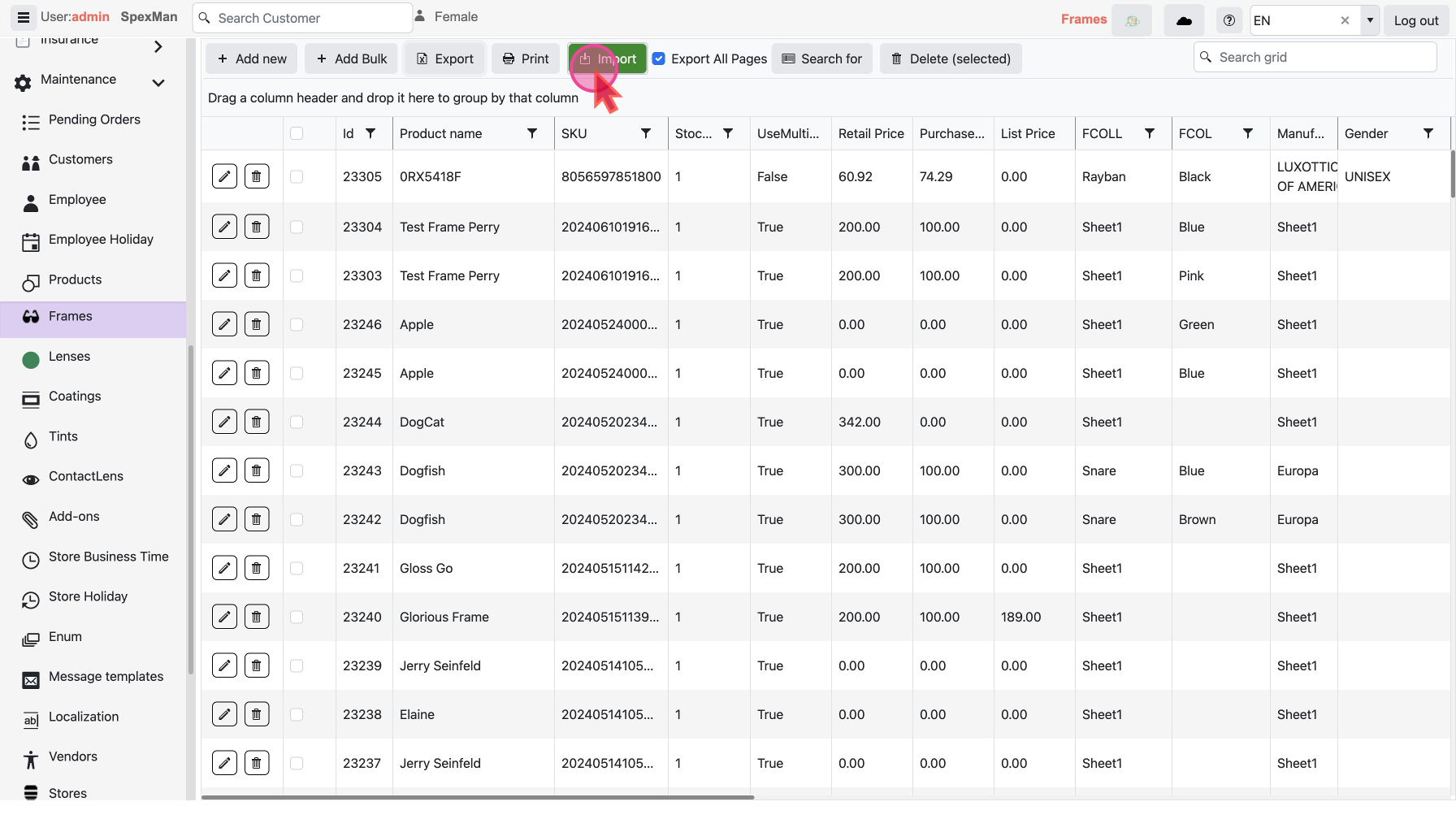
- Upload the updated Excel file and monitor the progress.
- You should see a notification or a progress indicator at the top of the page.
- Wait for a message confirming that the file has been successfully uploaded.
